What should you look for when choosing?
Start by checking that your catalogue software is compatible and supports the input languages you need. Then choose storage and connections to suit your photo archive and workspace.
| What to consider |
What to look for |
Who it matters most to |
| Input languages and software |
Test a sample record in the software you plan to use, including the required languages, accents and scientific names. |
If I enter descriptions in several languages, I want to be able to type the characters correctly and find records later. Around 33% of consumers prioritise multilingual input and software compatibility. |
| Storage for photos |
Estimate the size of your photo archive and check the SSD capacity and available expansion options or external connections. |
If you want to store object photos locally, make sure the storage suits the expected size of your archive. Around 25% of consumers give photo storage their highest priority. |
| Data retention and recovery |
Check how your catalogue software exports data and how you can back up and restore your catalogue and photos separately. |
If I’ve already entered data, I want to know how I can restore or transfer it. Around 25% of consumers put data retention and recovery at the top of their list. |
| Workspace and connections |
Compare the ports on the exact model with your monitor and other devices, and check what’s included. |
If you want to use a computer in a limited space or connect devices you already own, its size and ports matter. Around 17% of consumers prioritise workspace and connections. |
Desktop options at Joybuy
These desktop and mini PC options are intended for a dedicated cataloguing workspace. Compare the operating system, storage and connections with your catalogue software, photo archive and existing devices.
 Image unavailable
SOYO Y5Pro Mini PC, Intel Core i5 8250U/8350U, Windows 11, 8 GB DDR4, 256 GB SATA SSD
A Windows mini PC to consider for a compact, dedicated cataloguing workspace; check that your catalogue software works on this configuration.
The product information lists 8 GB DDR4, a 256 GB SSD, four USB ports, and HDMI and Type-C video outputs. The stated dimensions are 105 × 113 × 45 mm.
Microsoft Support explains how to add keyboard layouts in Windows; also test the characters you need in your own cataloguing software.
View at Joybuy
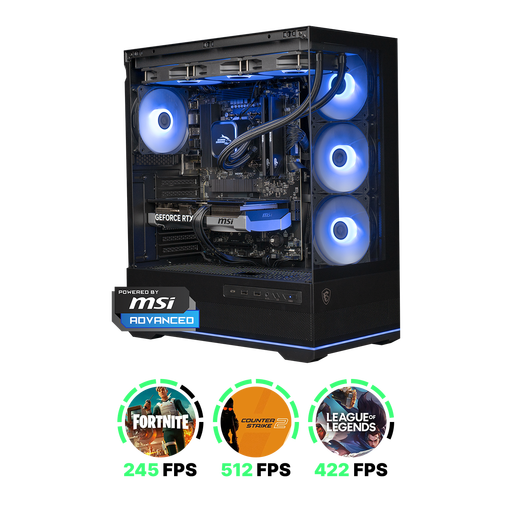 Image unavailable
Shark Ultimator R700 Gaming PC, RTX5070/R7, 16 GB DDR5, 1 TB NVMe
The listed 1 TB NVMe SSD may suit you if you want to store photos locally; whether that capacity is enough depends on the size of your own archive.
The product information lists 16 GB DDR5 and Windows 11 Home. The stated dimensions are 420 × 225 × 485 mm.
Check that the computer fits in your available workspace and that the catalogue software you plan to use supports Windows.
View at Joybuy
 Image unavailable
Apple Mac mini M6, 16 GB, 256 GB SSD
A compact macOS option if your cataloguing software runs on macOS; check compatibility before choosing a configuration.
The product title lists the Apple M6 chip, 16 GB memory and a 256 GB SSD. Apple describes input sources for typing in other languages.
Choose an SSD capacity to suit your photo archive, and check which connections or adapters your workspace needs.
View at Joybuy
Image unavailable
Apple Mac mini M6, 16 GB, 512 GB SSD
This Mac mini configuration is worth considering if your software supports macOS and you want more SSD storage than the 256 GB version offers.
The product title lists the Apple M6 chip, 16 GB memory and a 512 GB SSD. Apple describes input sources for typing in other languages.
Before buying, check that your catalogue software and any adapters you need suit your workspace.
View at Joybuy
Image unavailable
Apple Mac mini M6, 24 GB, 512 GB SSD
This configuration is an option if your catalogue software supports macOS and you’re looking for the listed memory and storage setup.
The product title lists the Apple M6 chip, 24 GB memory and a 512 GB SSD.
Check software compatibility and the connections you need for your own cataloguing workspace.
View at Joybuy
Frequently asked questions
Do I need a special desktop to write descriptions in multiple languages?
Not just because you’re working in multiple languages: Windows and macOS offer input methods for several languages. Test the characters, search function and export in your own cataloguing software. If you also want to change the Windows display language, check whether the edition you’ve installed supports multiple display languages.
How should you set up cataloguing and backups?
Give each object a unique number, and consistently link descriptions and photos to that record. Check whether your catalogue software can export data; also make a separate backup and test restoring it. Microsoft File History is an option described for personal files, but it won’t automatically cover every database setup.
What costs and rights should you consider when buying?
Check whether you’ll need to buy a monitor, keyboard, mouse, software or backup storage separately. According to the Government of the Netherlands, faulty products are covered by the legal guarantee and the seller is your point of contact; there is no fixed statutory guarantee period in the Netherlands. For online purchases from a business, you’ll often have a 14-day cooling-off period. Different terms may apply to business purchases.
Are there any specific cataloguing or privacy rules for your fossil collection?
The registration requirement described by the Cultural Heritage Agency of the Netherlands applies to managers of the national collection, not automatically to a private fossil collection. If you record information about identifiable living people, the GDPR may apply; fossil names alone are not personal data. Review your own collection and data fields before assuming that you have legal obligations.


