For PC, choose between a compact Full HD monitor and a QHD model based on the resolution and frame rate your system can deliver in your game. For PS5, check that your preferred resolution and 120 Hz output work with the game, console and HDMI connection. Also decide separately where to connect your headphones and, if needed, your microphone: a headphone output on a monitor doesn’t guarantee that voice chat will work through it.
Who is this choice relevant to?
Football gamer using headphones
You want to hear match audio through headphones and need to check whether audio and any voice chat are routed through the monitor, PC or console. A monitor output may only carry audio. PlayStation describes separate settings for audio output and microphone input.
PC gamer looking for smooth visuals
You want to match resolution and refresh rate to what the game and PC can actually deliver. For the PC version of FC 26, EA lists limits including 144, 165 and 240 FPS; these aren’t guaranteed performance levels for every computer.
PS5 gamer at a desk
You’re looking for a screen and HDMI connection that support your preferred resolution and, for games that offer it, 120 Hz output. PlayStation explains how to set this video mode and choose your audio output device.
What should you look for when choosing?
Decide which factor matters most in your setup: smooth match action, headphone audio, console compatibility, or sharpness and desk placement.
| What to consider |
What should you check? |
Who does this matter to? |
| Smooth match action |
Check the refresh rate supported by the input you’re using and the frame rate your game and device can deliver. |
If I want fast camera movements to look smooth, I need to know whether my game and connection can make use of a higher refresh rate. Around 29% of consumers put smooth visuals at the top of their list. |
| Headphone audio and voice chat |
Decide whether you only want to listen or also speak; check the audio and microphone connections on the exact model and your PC or console. |
If I also want to chat during a match, I need to know where to connect both my headphones and microphone. Around 29% of consumers give the headphone connection route top priority. |
| Console compatibility |
Check the HDMI specifications and, on PS5, test the available resolution and 120 Hz options for the screen and game. |
For a PS5 setup, I want the selected video mode to work with my screen, rather than relying solely on the maximum Hz figure. Around 21% of consumers prioritise console compatibility. |
| Sharpness and desk placement |
Compare screen size, native resolution and height adjustment on the exact model. |
If I want a sharper image or an adjustable screen position on my desk, I compare these features across models. Around 21% of consumers choose mainly based on sharpness and positioning. |
Common buying mistakes
-
The maximum Hz rating doesn’t automatically apply to every input
The ASUS VG27AQ3A and MSI MAG 27CQ6F list higher maximum refresh rates over DisplayPort than over HDMI. The refresh rate available to you therefore also depends on the connection and resolution you use.
Check the stated refresh rate for the input you’ll actually use to connect the monitor. ASUS lists a maximum of 180 Hz over DisplayPort and 144 Hz over HDMI for the VG27AQ3A; MSI also lists 180 Hz over DisplayPort and a maximum of 144 Hz over HDMI for the MAG 27CQ6F.
-
A headphone output isn’t automatically suitable for voice chat
A monitor may send audio to headphones without supporting a microphone through the same connection. LG specifies an audio-only output for the 27GS75Q-B, while PlayStation treats audio output and microphone input as separate settings.
Before buying, check how to connect and configure your headphones and microphone in your setup.
-
Response time isn’t a measure of input lag
Philips lists 0.5 ms for Smart MBR, while ASUS gives a GtG figure for the VG27AQ3A. These different figures aren’t directly comparable, and on their own they don’t prove lower input lag.
Compare the measurement methods and settings before weighing up response time figures.
-
Comparing extra cover without considering your statutory rights
An additional warranty product and your statutory rights aren’t the same thing. The Dutch government states that the Netherlands has no fixed statutory warranty period.
Read the cover and exclusions of any additional product and compare them with your statutory rights. If there’s a fault, contact the seller.
Brands as a guide
ASUS
The TUF Gaming VG27AQ3A is an example of a 27-inch QHD monitor with a headphone jack.
- ASUS lists a maximum of 180 Hz over DisplayPort and 144 Hz over HDMI for this model.
- The stand isn’t height-adjustable. These features apply to this model, not all ASUS monitors.
LG
The UltraGear 27GS75Q-B shows why you should check the function of the exact audio output when choosing headphones.
- LG lists QHD, 180 Hz and an audio-only output for this model.
- LG marks the 27GS75Q-B as discontinued on its Dutch product page; this doesn’t indicate whether other models are available.
AOC
The AGON by AOC Q27G4XF is a 27-inch QHD example where desk setup is also a consideration.
- AOC lists 180 Hz, Adaptive Sync and a height-adjustable stand for this model.
- The stated response times use different measurement methods, so don’t compare them without taking the measurement basis into account.
Philips
The Evnia 27M2N5500/00 is an example you can use to compare QHD resolution and refresh rate.
- Philips lists 2560 × 1440, 180 Hz and AMD FreeSync for this model.
- The advertised 0.5 ms refers to Smart MBR. It isn’t directly comparable to a GtG measurement or proof of lower input lag.
MSI
The MAG 27CQ6F is a curved QHD example with a headphone output.
- MSI specifies 180 Hz over DisplayPort, a maximum of 144 Hz over HDMI and one headphone output for this model.
- The stated refresh rate varies by input, so check which connection your setup uses.
Monitors at Joybuy
These product picks include QHD and compact Full HD gaming monitors for PC setups. Check which video and audio connections suit your football game and headphones for each model and device.
 No image available
Samsung ODYSSEY G5 G50F 32-inch IPS 180Hz LS32FG502EUXEN
A QHD option for anyone looking for a larger screen and a headphone output.
32 inches, IPS and 2560 × 1440; the product description lists 180 Hz, HDMI 2.0, DisplayPort 1.2 and a headphone output.
View at Joybuy
 No image available
AOC Gaming Q27G42XNE 27-inch Quad HD monitor
A 27-inch QHD option for PC gamers who want to match the resolution to the performance of their own game and computer.
The product information lists 2560 × 1440, 180 Hz, FreeSync Premium and HDR10. The title lists two HDMI 2.0 connections and one DisplayPort 1.4 connection.
View at Joybuy
 No image available
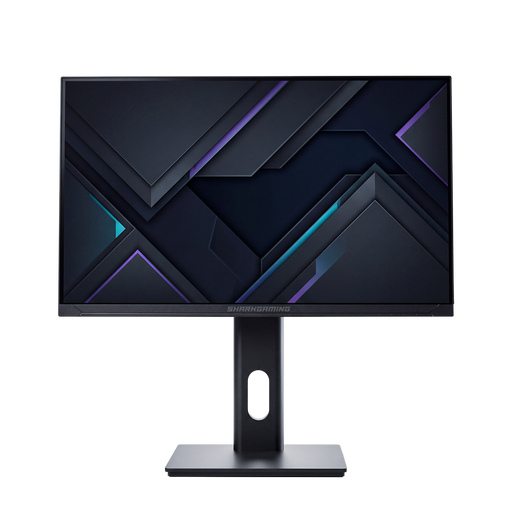
Shark Gaming Monitor 24-inch 1080P 200Hz 1ms IPS
A compact Full HD option for anyone who plays on a smaller screen and wants to match the frame rate to their own PC.
The title lists 24 inches, 1080p, IPS and 1 ms; the product description mentions 200 Hz and HDMI and DisplayPort connections.
View at Joybuy
 No image available
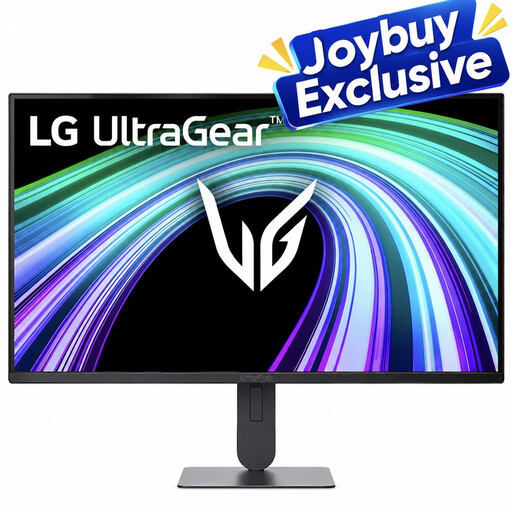
LG UltraGear 24G414B-B 24-inch Full HD gaming monitor
A 24-inch Full HD option for anyone looking for a smaller screen and a headphone output.
The product description lists IPS, 144 Hz, HDMI, DisplayPort and a height-adjustable stand. Check separately whether the audio and microphone connections work with your headphones.
View at Joybuy
 No image available
AOC G4 Q27G4ZR 27-inch Quad HD monitor
A QHD option for anyone looking for a 27-inch screen and a headphone output on the monitor.
The product description lists 2560 × 1440, 240 Hz, Adaptive-Sync, a height-adjustable stand and a 3.5 mm headphone output.
View at Joybuy
Frequently asked questions
Does 180 Hz mean FC runs at 180 frames per second on my PS5?
No. A monitor’s 180 Hz rating doesn’t prove that a PS5 game displays 180 frames per second. PlayStation describes 120 Hz output for games that support 120 Hz; check the mode supported by your game and the video output available with the connected screen. The FPS limits EA lists for FC 26 apply to the PC version.
Where do I set up headphone audio on a PS5?
Select the output device under Settings, Sound and Audio Output. You can also choose what you hear through your headphones there. For voice chat, check separately which device is selected as the microphone input.
Which energy label should I check on a monitor?
The European Commission says computer monitors are classed as electronic displays and carry an energy label on a scale from A to G. Check the label and energy consumption information for the exact model you’re considering.
What are my rights if a monitor I bought online isn’t right for me or is faulty?
For an online consumer purchase, you generally have a 14-day cooling-off period from delivery; according to Your Europe, you may have to pay the return postage under the applicable conditions. Faulty products are covered by statutory rights. The Dutch government states that there’s no fixed statutory warranty period in the Netherlands and that you should contact the seller if there’s a problem.


