For writing food memoirs, a comfortable keyboard and an easy-to-read screen are important. You’ll also want a laptop that makes it straightforward to set up and test backups to external storage. Windows offers File History, macOS has Time Machine, and ChromeOS lets you copy files to compatible external storage. If you choose a Chromebook, check in advance that your documents are available offline. Extra local storage is especially useful if you keep lots of recipe photos.
Who is this laptop guide for?
Writer with a precious manuscript
If you want to be able to recover your manuscript after a mistake or hardware failure, look beyond the laptop’s storage alone. Microsoft Support and Apple Support explain how to back up to external storage. The National Cyber Security Centre also recommends checking that you can restore your files.
Regular long-session typist
If you write at length and refer back to recipes, the keyboard layout and screen comfort matter. The Consumers’ Association recommends trying the keyboard where possible.
Writer with recipe photos
If you keep lots of photos as well as text, make sure the laptop’s storage and your external backup drive have enough capacity for your files. The Consumers’ Association recommends 512 GB or more for large files such as photos and videos.
What should you look for when buying?
Windows laptop
Choose this if: you want to keep documents locally and set up File History on an external drive.
Bear in mind: switch on the backup and connect the external drive to save new copies. A cloud copy is not the same as the requested offline copy.
MacBook
Choose this if: your writing software works well with macOS and you want to use Time Machine with an external drive.
Bear in mind: check that you can connect your existing drive to the laptop. The stated battery life is based on specific usage tests, not on how long you’ll be able to write for.
Chromebook
Choose this if: your writing workflow works on ChromeOS and you can test offline access and copying to external storage in advance.
Bear in mind: some apps don’t work offline. Make Drive files available offline in advance and check that your external drive is compatible.
| What to consider |
What should you check? |
Who is this important for? |
| Restorable offline backup |
Check your operating system’s backup feature, the connection and compatibility of the external drive, and whether you can restore a file. Microsoft Support, Apple Support and the National Cyber Security Centre describe these steps in their respective backup guidance. |
If I want to be able to recover my manuscript after a mistake or hardware failure, I prioritise a separate copy on external storage. Around 29% of consumers prioritise being able to restore their files. |
| Comfort when typing and proofreading |
Check the keyboard layout and try the keyboard if possible. Compare the screen size with your writing space. |
For long writing sessions, I want to type comfortably and refer to recipes alongside my text. Around 29% of consumers prioritise the keyboard and screen. |
| Room for photos |
Estimate the size of your photo archive and future files. The Consumers’ Association recommends 512 GB or more for lots of large files such as photos and videos. Also work out how much space you’ll need on your backup drive. |
If I keep lots of recipe photos with my manuscript, I want enough room for both the working file and a separate backup. Around 24% of consumers prioritise storage for visual content. |
| Writing in different places |
Compare the size and portability with the screen space you need. Treat battery life as an estimate based on usage, not a guarantee of how long you can write for. |
If I often take my laptop to a different place to write, a compact size matters more to me than extra screen space. Around 18% of consumers prioritise portability. |
Avoid common buying mistakes
-
Confusing offline access with an external backup
Being able to open files offline doesn’t automatically mean there’s also a separate copy on your external drive.
Make a separate copy on compatible external storage, then try opening a file from it.
-
Choosing an SSD capacity and forgetting about backups
More storage on your laptop gives you room for photos, but it doesn’t create a second copy. Also check that you can connect your external drive to the laptop.
Assess local storage and your external backup drive separately, and check which connection you’ll need in advance.
-
Assuming every version has the same keyboard layout
The Lenovo ThinkPad E14 Gen 7 version reviewed has an English (EU) keyboard. Other versions may have a different layout.
Check the full model specification and try the keyboard if possible.
Brands to compare
Dell
The Dell 14 DC14250 is a specific Windows configuration to compare for local writing.
- The configuration reviewed lists Windows 11 Home and 16 GB of memory.
- Specifications can vary by configuration, so check the version you’re considering.
Apple
The 13-inch MacBook Air M5 is a compact macOS option to compare if you want to use Time Machine with an external drive.
- The version reviewed lists 16 GB of memory, a 512 GB SSD and two Thunderbolt 4 ports with USB-C.
- Check that your existing drive works with the USB-C ports. The stated battery life is based on specific usage tests.
Lenovo
The ThinkPad E14 Gen 7, version 21T9001TMH, is a 14-inch Windows alternative.
- For this version, Lenovo lists 16 GB of memory, a 512 GB SSD and an English (EU) keyboard.
- Check that the keyboard layout feels comfortable for writing in Dutch.
Acer
The Chromebook Plus 514 CB514-4HT-36BJ is a ChromeOS option to compare if you want to test your offline workflow in advance.
- Acer confirms the model and ChromeOS.
- Google Chromebook Help’s guidance on offline Drive files and compatible external storage describes the platform, not an automatic backup feature on this model.
HP
The OmniBook 5 range includes 14-inch and 16-inch Windows versions, so you can weigh up screen space and portability.
- HP lists connections including HDMI and USB-C.
- Screen and keyboard options vary by version, so check the specific configuration.
Joybuy products
These Joybuy products are Windows laptops and MacBook Air versions to compare for local writing and backups to external storage.
 No image available
MSI Modern 14 F1MG-867NL
A Windows laptop to compare if you write locally and want to use an external backup drive.
14-inch Full HD anti-glare screen, Intel Core 7 150U, 16 GB DDR4, 512 GB SSD, backlit keyboard and Windows 11 Home.
Joybuy
 No image available
MSI Venture 16 AI A2HMG-068NL
A Windows option to compare if you want extra screen space while writing and back up your documents to an external drive.
16-inch 16:10 screen with a resolution of 1920 × 1200 and a 144 Hz refresh rate, Intel Core Ultra 7 255H, 32 GB DDR5, 512 GB PCIe 4.0 SSD and Windows 11 Pro. The product description states that no power adapter is included.
Joybuy
 No image available
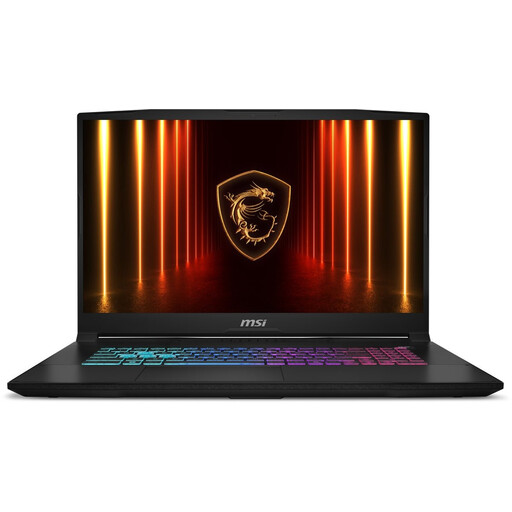
MSI17 HX B14WFK-021NL
A Windows version to compare if a Dutch QWERTY keyboard and space for recipe photos are important to you.
The product description lists a Dutch QWERTY keyboard, a 17.3-inch QHD screen, 16 GB of memory, a 1,000 GB SSD and Windows 11 Home.
Joybuy
 No image available
Apple MacBook Air 13-inch M5, 16GB, 512GB, Midnight
A macOS option to compare if you want to use Time Machine with an external drive.
The product title lists 16 GB, 512 GB of storage, Midnight and a QWERTY keyboard. The product description states that no power adapter is included.
Joybuy
 No image available
Apple MacBook Air 15-inch M5, 16GB, 512GB, Starlight
A macOS version to compare if you want more screen space and plan to back up to an external drive using Time Machine.
The product title lists 16 GB, 512 GB of storage, Starlight and a QWERTY keyboard. The product description states that no USB-C power adapter is included.
Joybuy
Frequently asked questions
Do I need cloud storage to back up my manuscript?
No. Windows File History can save copies to an external drive, and macOS Time Machine can use an external drive. Test that you can restore a file. Keeping a separate copy in another location can also give you another way to recover your work.
Can I work on Google Drive documents on a Chromebook without an internet connection?
Yes, with certain files, provided you make them available offline in advance and they’ve synced. Google Chromebook Help warns that some apps don’t work offline and that offline access may stop if there isn’t enough local storage. A file being available offline doesn’t, on its own, mean there’s a backup on an external drive.
How can I check that my backup works?
Restore a file and open it to check that the backup works. The National Cyber Security Centre recommends carrying out a restore test. For example, you could restore and open a chapter and a recipe photo.


