If you want to draw in software on your computer and use your existing screen for reference, a pen display connected to your computer is a good fit. For sketching without a computer, an iPad with a compatible Apple Pencil or a Galaxy Tab may be a better choice, but the second-screen function you want depends on the combination of devices. Also check that your floor-planning software supports pen input, the measurements you need and the right export options: a sketch does not automatically provide verified measurements.
Who are these options suitable for?
Computer user who needs a reference screen
You want to draw a floor plan with a pen on a connected display and view measurements, photos or an example on your existing computer screen. Wacom, Huion and XPPen describe pen displays that connect to a computer.
Mac user who also sketches on the go
You want to sketch directly on an iPad and perhaps use it at home as a second screen with a compatible Mac. Apple describes Sidecar as a way to extend or mirror your Mac desktop.
Galaxy user with a flexible workspace
You want to work on a Galaxy Tab with an S Pen and check whether the screen function on your specific model works with your laptop or external monitor. Samsung describes various set-ups, including an external monitor function for the Galaxy Tab S11 Ultra.
What should you consider when choosing?
Pen display connected to a computer
A good fit if: you want to draw in computer software and keep your existing computer screen for reference.
Bear in mind: your computer, display and any power supply or cables must support the connection you need.
iPad with Apple Pencil and Mac
A good fit if: you want to sketch directly on an iPad and also use it with a compatible Mac via Sidecar.
Bear in mind: Sidecar requires a compatible Mac and iPad; check Pencil and drawing app compatibility separately too.
Galaxy Tab with S Pen
A good fit if: you want to draw directly on a Galaxy Tab and use a supported second-screen function.
Bear in mind: the functions described vary by model and set-up; the external monitor function is specifically described for the Galaxy Tab S11 Ultra.
| What to consider |
What should you check? |
Who is this important for? |
| Connecting two screens |
Decide which device runs your floor-planning software, which screen accepts pen input and whether the exact models support the connection. |
If I want to keep my references on one screen and draw on the other, I need to know whether my devices support that set-up. Around 36% of consumers prioritise connecting two screens. |
| Using the pen on the right screen |
Check that the pen is compatible with the exact device and the features used by your drawing app. |
If you want to draw walls, doors and notes directly on your chosen work surface, pen and screen compatibility are especially important. Around 29% of consumers prioritise this input method. |
| Measurements and files |
Check how to enter and verify measurements, and which export file you need for the next step. |
If I need to hand over a floor plan with usable measurements, I want to be able to check the dimensions and export the right file. Around 21% of consumers prioritise measurements and files. |
| Standalone use and essentials |
Check whether the device works on its own and which pen, cables or power supply come with the version you’ve chosen. |
If I want to sketch away from my computer set-up, I need to know whether I can work independently and have all the necessary parts. Around 14% of consumers prioritise portability and a complete set. |
Common pitfalls
-
Confusing a graphics tablet without a screen with a pen display
With a screenless tablet, you don’t draw directly on its own display. The term ‘drawing tablet’ doesn’t always make the difference clear.
Check the exact model to see whether it has a built-in screen if you want to draw on the second display.
-
Assuming every USB-C port can power a pen display
The USB-C connection described for the Wacom One 12 requires video output. Huion also lists specific connection requirements for the Kamvas 13 (Gen 3).
Check your computer’s port specifications and the connection instructions for the exact display. Depending on your set-up, you may need a suitable cable, adapter or power supply.
-
Assuming a function available on one tablet model works across an entire brand
Using an iPad as a Mac screen, using a Galaxy Tab as a Windows laptop screen and connecting a Galaxy Tab S11 Ultra to an external monitor are different set-ups.
Identify which device provides the display and check that the function works with your exact models.
-
Treating a room scan as a verified building measurement
According to magicplan, the accuracy of a room scan depends partly on lighting and the conditions in which it is used.
Check important measurements separately and confirm which export file you need before handing over the floor plan. Taking additional manual measurements can take extra time.
Brands to consider
Wacom
Wacom offers pen displays for sketching alongside a computer, including the One 12 and Movink 13.
- Wacom describes the One 12 as a display you can draw on directly when it’s connected to a computer.
- The connection requires compatible USB-C video output or a combination of HDMI and USB. According to Wacom, the Movink 13 is not a standalone tablet.
Huion
The Kamvas range includes pen displays you can use as an additional drawing surface with a computer.
- For the Kamvas 13 (Gen 3), Huion describes connection via the included 3-in-1 cable or a compatible USB-C connection.
- Huion says the full USB-C cable and power adapter are not included with this model; check video output and power requirements too.
XPPen
The Artist range includes pen displays for use with a connected computer.
- XPPen lists a 13.3-inch display and programmable shortcut keys for the Artist 13 (2nd Gen).
- Check that your set-up’s connections and software are compatible; the brand’s claims about pen feel are not proven benefits for drawing floor plans.
Apple
An iPad with a compatible Apple Pencil can be used on its own; Sidecar is a specific second-screen option for use with a compatible Mac.
- Apple describes Sidecar as a way to extend or mirror your Mac desktop on an iPad.
- Check the system requirements, Apple Pencil compatibility with your exact iPad model and support from your drawing app.
Samsung
Galaxy Tabs with S Pen are an option for standalone sketching, with second-screen features that vary by model.
- Samsung describes using a Galaxy Tab as a second screen for a Windows laptop.
- The external monitor set-up with DeX Extended Mode described by Samsung applies to the Galaxy Tab S11 Ultra. Don’t assume it works with other Galaxy Tabs without checking.
Joybuy products
These products include pen displays and tablets for drawing with a pen. Check that each model is compatible with your computer, preferred screen set-up and floor-planning software.
 No image available
Wacom One Pen Display 14.0"
This pen display is designed for drawing on the screen with a pen while connected to a computer.
Display: 14 inches. Active area: 309 × 174 mm. Pen input: 4096 pressure levels. The product description lists an included pen and USB-C connection.
View at Joybuy
 No image available
Wacom Intuos Pro Large Pen Tablet – Pro Pen 3
This pen tablet is designed for drawing with a computer; check that its drawing method suits the screen you want to use.
Active drawing area: 349 × 195 mm. The description lists 8192 pressure levels, tilt recognition and USB-C or Bluetooth connectivity.
View at Joybuy
 No image available
TECLAST ArtPad Pro 12.7-inch, compatible with T-pen
This tablet is an option for sketching with a compatible T-pen; check that the pen works with the tablet and your drawing app.
Display: 12.7 inches. Storage: 256 GB. The product name also mentions Helio G99 and 4G LTE.
View at Joybuy
 No image available
TECLAST ArtPad Pro 12.7-inch 2K with stylus
The product name lists a stylus for sketching on this tablet.
Display: 12.7 inches, 2K. Storage: 256 GB.
View at Joybuy
 No image available
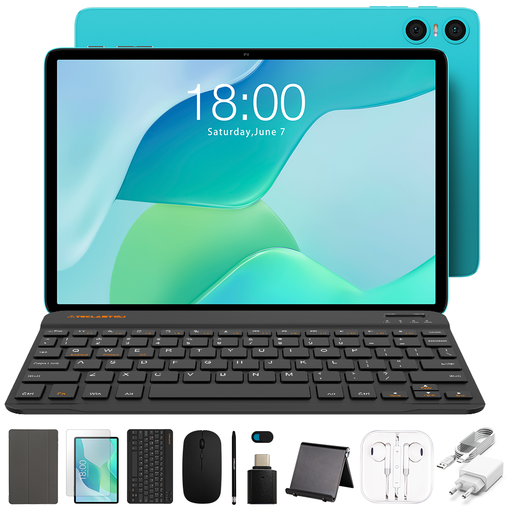
TECLAST P33 10.1-inch with stylus and bundle accessories
This tablet bundle includes a stylus; check that the tablet and pen work with the app and sketching method you use.
Display: 10.1 inches. The product name also lists a case, Bluetooth keyboard, mouse, tablet stand, charger, data cable, earphones and OTG adapter cable.
View at Joybuy
Frequently asked questions
Can I use a connected pen display without a computer?
Don’t assume so: the Wacom One 12, Wacom Movink 13 and Huion Kamvas 13 (Gen 3) described here are designed to connect to a computer. If you want to sketch without a computer, consider a standalone tablet and check that it’s compatible with the app you want to use.
How can I use my iPad as a second screen when sketching?
Sidecar lets a compatible iPad extend or mirror the desktop of a compatible Mac. Check Apple’s system requirements and use the same Apple Account on both devices; also check that your Pencil and drawing app are compatible.
Are measurements from a camera scan ready to use as final dimensions?
Not without checking: according to magicplan, the accuracy of a room scan depends partly on lighting and the conditions in which it’s used. Verify important measurements before using the floor plan for an application where precise dimensions matter.
What else might I need to connect a pen display?
This varies by model and connection. Huion says the full USB-C cable and power adapter are not included with the Kamvas 13 (Gen 3); check the connections and any power requirements for your chosen model too.
What UK consumer rules apply to online purchases and faulty products?
For online consumer purchases, the usual cooling-off period is up to 14 days after delivery, subject to exceptions. There is no fixed statutory guarantee period in the Netherlands; if a product is faulty, the seller is your point of contact. These rules do not necessarily apply to business purchases.


