
Learning to use the autopilot on one screen
You want to access autopilot settings while keeping the cockpit in view. Compare buttons assigned to your stick with the physical controls on a panel.


Choose a flightstick if you also want to learn to fly manually and keep a few simulator commands within easy reach. You’ll need to assign the buttons in your simulator before they’ll work. If your main aim is to set autopilot modes using physical controls, compare a dedicated autopilot panel with a throttle quadrant that has integrated controls. Neither replaces a flightstick for manual control inputs, and support varies by simulator, aircraft and platform.
You want to access autopilot settings while keeping the cockpit in view. Compare buttons assigned to your stick with the physical controls on a panel.
You want to combine manual control inputs with a few assigned functions, without assuming that a flightstick comes with an autopilot panel built in.
You already have flight controls and are considering physical autopilot buttons or a combined throttle quadrant. Check what your simulator and aircraft support.
Choose this if: you want to fly manually and assign a few autopilot commands to buttons on the stick.
Bear in mind: a programmable button isn’t a built-in autopilot panel. Check that each command works with your aircraft and simulator.
Choose this if: you want separate engine power controls alongside your flight controls.
Bear in mind: a separate throttle takes up extra desk space and doesn’t automatically give you physical controls for autopilot modes.
Choose this if: you already have suitable flight controls and want to adjust autopilot settings using physical controls.
Bear in mind: the panel doesn’t control the flight axes. Also check whether your simulator setup requires additional software.
Choose this if: you want to combine separate throttle levers with physical controls for autopilot functions.
Bear in mind: a throttle quadrant isn’t a flightstick. Check what additional equipment you need for your platform.
| What to consider | What to look for | Who is it important for? |
|---|---|---|
| Controlling autopilot functions | Make a note of the commands you want to practise and check whether you can assign them in your simulator and aircraft. | I want to access settings quickly while practising; around 36% of consumers prioritise physical or assigned autopilot controls. |
| Keeping the cockpit in view | Check which view and cockpit functions you use, and whether you can assign controls to them. | I want to keep the cockpit visible on my single screen while navigating; around 29% of consumers say this is their main requirement. |
| Flying manually | Check that the device offers the control inputs you need for your practice and works with your platform. | I want to keep flying manually as well as practising with the autopilot; around 21% of consumers prioritise manual control inputs. |
| Desk space and devices | Measure the space available and decide whether you want controls on the stick or on a separate device. | I want to keep my setup compact; around 14% of consumers make minimising space and separate devices their top priority. |
Buttons you can assign on a stick and physical autopilot buttons on a separate panel are different types of control.
First, make a note of the settings you want to change while practising, then decide whether assigning buttons will be enough.
If you later need physical panel controls, you may still need to buy a separate device.
The Honeycomb Bravo Throttle Quadrant is a throttle quadrant with autopilot controls, not a flightstick for manual control inputs.
Check what flight controls you already have before choosing this setup.
Microsoft Flight Simulator Support explains that some assignments apply to a specific aircraft model. Duplicate assignments can also cause conflicts.
Test the commands you want to use in the aircraft you’re learning to fly, and check the assignments for each device.
The TCA Sidestick Airbus Edition combines a stick with a built-in throttle, while the T.Flight Hotas One has a separate throttle.
The VelocityOne Flightstick combines a stick with levers on the base, programmable buttons and a display for device settings.
The Flight Multi Panel is a separate autopilot panel for those who already have suitable flight controls.
The Bravo Throttle Quadrant combines a configurable throttle quadrant with an autopilot panel.
These products are aimed at those looking for flightsticks and additional flight simulation controls, whether you want to fly manually or assign simulator commands to buttons.
 No image available
A good fit if you want to fly manually and keep programmable buttons within easy reach; check the assignments you need for each aircraft.
27 programmable buttons, 8 axes and OLED display. Listed for Xbox Series X|S, Xbox One and PCs running Windows 10/11.
 No image available
Worth comparing if you’re looking for a flight control system for PC; check that the controls and assignments suit your simulator and aircraft.
The product name lists PC compatibility.
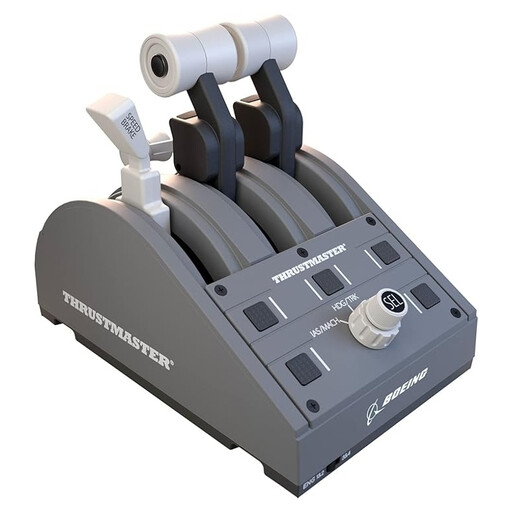 No image available
A good fit if you’re looking for a separate throttle quadrant to use alongside your existing flight controls; it doesn’t replace a flightstick.
The product name lists PC and Xbox compatibility. Check the assignments for your aircraft and simulator.
No, don’t assume you can: you’ll need to assign the functions you want in the simulator. Microsoft Flight Simulator Support describes general, aircraft-category and aircraft-specific profiles. Also check for duplicate assignments for the aircraft you’re practising with.
Check the input assignments for every connected device. Microsoft Flight Simulator Support lists duplicate assignments as a possible cause and recommends checking the default assignments and sensitivity, among other things, if the controls behave unexpectedly.
The features described for the display on the Turtle Beach VelocityOne Flightstick don’t suggest that it does. Turtle Beach describes it as being for controller profiles, trim settings and device performance, among other things. Check separately whether your simulator supports other display functions.
For many distance purchases from a business, consumers have 14 days to change their mind; check whether this applies to your purchase. If the product is faulty, you can ask the seller to meet their obligation to provide goods that are of satisfactory quality. The Dutch government states that the Netherlands has no fixed statutory warranty period that applies to all products.