
Pilot with an existing joystick
You want to keep steering with your current stick and control thrust with your other hand. Compare standalone throttles and check which controls you can assign in your simulator.


If you already have a suitable joystick, a separate throttle is the obvious choice. If you don’t, consider a complete HOTAS set or a stick with throttle levers on the base. Choose based on the controls you need, the space available and the functions your simulator can actually assign to axes and buttons. A product description alone doesn’t confirm that it will work with your lunar simulator.
You want to keep steering with your current stick and control thrust with your other hand. Compare standalone throttles and check which controls you can assign in your simulator.
You need both steering and throttle controls. A complete HOTAS set and a stick with levers on the base offer different layouts. Also check that they’re compatible with your computer or console and simulator.
You want to keep flight information on screen while carrying out frequently used actions with physical controls. In Kerbal Space Program, the navball is an example of flight information; controls and available information vary between simulators.
Choose this when: your joystick already meets your needs and you want to control thrust separately.
Trade-off: you’ll still need a separate joystick and space for both devices.
Choose this when: you need both a stick and a throttle and want to use them as a set.
Trade-off: the two units take up space; extra axes are only useful if your simulator supports them and you configure them.
Choose this when: you want to combine steering and throttle controls in one device.
Trade-off: the hand position differs from that of a standalone throttle; consider whether this layout feels comfortable for how you’ll use it.
Choose this when: you use it for more involved flight simulations as well as lunar landings.
Trade-off: aircraft-focused controls don’t automatically offer extra benefits for a lunar landing.
The Kerbal Space Program Wiki explains how the throttle affects thrust in liquid-fuel engines. If you use another simulator, check which axis and button assignments are available in it. The considerations below are for consumers choosing controls for this lunar landing setup.
| What to consider | What should you check? | Who is this important for? |
|---|---|---|
| Adjusting thrust | Check how the lever moves and whether your simulator recognises the full axis and the direction you want. | During descent, I want to control thrust with a movement that feels clear to me. Around 36% of consumers with this setup give precise control the highest priority. |
| Extra controls within reach | Decide which extra functions you use and whether your simulator can assign them to available axes or buttons. | I want to carry out important actions without constantly taking my attention away from the flight information. Around 29% of consumers give extra, accessible controls the highest priority. |
| A complete first set | Check whether the box includes both the stick and the throttle, and whether the supported platform suits your setup. | I don’t have a joystick yet and don’t want to end up with just a throttle. Around 21% of consumers give a complete first set the highest priority. |
| Desk space and purchase | Measure the space available and compare the devices with the controls you already own. | I want the controls to fit on my desk and work alongside what I already have. Around 14% of consumers give space and the size of the purchase the highest priority. |
A standalone throttle doesn’t replace a joystick. The Thrustmaster TWCS and Sol-R 6 are standalone throttles; the Logitech G X56 combines a stick and a throttle.
Before buying, check which devices you already own and what’s included with the product.
If you also need a joystick, you’ll have to make an additional purchase.
A manufacturer may describe axes and buttons, but that doesn’t confirm that your simulator supports them or that they’re already configured.
Check the input settings in your specific simulator and, after connecting the device, test the axis direction and full range of movement.
Configuring axes and buttons may take extra time.
A throttle quadrant for flight simulation may include functions you won’t use during a lunar landing. More controls aren’t automatically more useful in this scenario.
Choose this type mainly if you also want to use the extra aircraft controls in other simulations. For lunar landings, first check the throttle axis and game bindings you need.
Offers standalone throttles for people who already have a joystick.
An option if you’re looking for a stick and separate throttle as a HOTAS set.
The VelocityOne Flightstick combines a joystick with two multifunction levers on the base.
The Bravo Throttle Quadrant is designed for a more extensive flight sim setup.
These Joybuy product options range from a stick with levers on the base to a HOTAS set and a throttle quadrant.
 No image available
Suits anyone who wants stick and throttle controls in one device; the two levers are described for engine power and additional controls.
The product name lists USB-C, 8 axes, 27 programmable buttons and an OLED screen.
Listed compatibility: Xbox Series X|S, Xbox One and PC with Windows 10/11.
 No image available
Suits anyone who wants to combine a joystick and throttle as a complete flight control setup.
The product description lists two 8-way hat switches, a 3D rudder and programmable controls.
The product description lists Windows compatibility; also check support in your simulator.
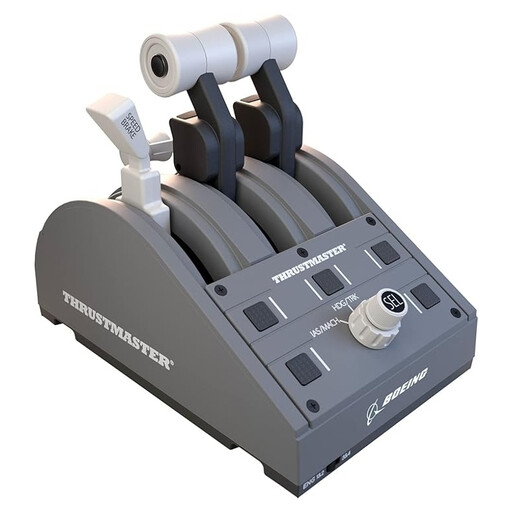 No image available
Suits anyone looking for separate throttle controls who also wants to use the additional controls in a broader flight sim setup.
The product description lists three axes, four interchangeable levers and 17 action buttons.
Listed platforms are PC and Xbox. According to the product description, the TCA Yoke Boeing Edition must be connected for use with Xbox.
No, a fixed detent hasn’t been shown to be a requirement for a lunar landing. Thrustmaster describes configurable detents on the Sol-R 6; check that any setting you choose suits your simulator’s throttle controls.
Assign the throttle axis in the input settings in Kerbal Space Program 1, then check its direction. A user guide posted on the Kerbal Space Program forum in 2014 also mentions reversing an axis and adjusting sensitivity or the dead zone. Settings may vary by device and won’t necessarily apply to other games or KSP 2.
If you’re using Kerbal Space Program, the navball shows orientation, speed and throttle, among other things. According to the Kerbal Space Program Wiki, the ‘Surface’ speed reference is important for landing. If you’re using another simulator, check what flight information is available during descent.
According to ACM ConsuWijzer, standard online consumer purchases generally come with a statutory 14-day cooling-off period from delivery; check the applicable exceptions and returns policy. You’re also covered by the legal guarantee if a product, under normal use, doesn’t do what you could reasonably expect it to. This is different from a fixed guarantee period for every throttle.
According to the European Commission, CE marking is only required for product categories covered by applicable harmonised EU rules. The rules that apply to a specific device must be assessed product by product; CE marking on its own doesn’t confirm that the device is suitable for your simulator.