
Practising with the autopilot
You want to set your heading, altitude or speed using physical controls, so you need more than just a throttle. Honeycomb Aeronautical and Thrustmaster both describe models with autopilot controls.


If you want to practise using the autopilot with physical controls, look for a quadrant with integrated autopilot buttons, such as the Honeycomb Bravo or Thrustmaster TCA Quadrant Boeing Edition. An Airbus quadrant may suit you if you prefer Airbus-style thrust controls. If you already have a throttle, you could consider a separate autopilot panel. Before you buy, check that your platform, simulator and chosen aircraft support the controls you want to use.
You want to set your heading, altitude or speed using physical controls, so you need more than just a throttle. Honeycomb Aeronautical and Thrustmaster both describe models with autopilot controls.
You switch between light aircraft and airliners and want to adjust the lever layout in your permanent setup. Honeycomb Aeronautical and Logitech G describe quadrants with multiple levers.
You mainly practise with an Airbus- or Boeing-style layout and value familiar aircraft controls over broad compatibility. Thrustmaster describes separate Airbus and Boeing quadrants.
A good fit if: you want to practise using both throttle levers and physical autopilot controls in one fixed cockpit setup. Honeycomb Aeronautical describes an integrated panel on the Bravo; Thrustmaster lists altitude, speed and heading controls on the Boeing quadrant.
Bear in mind: the Bravo needs desk space, while the Boeing layout is designed for a specific aircraft type. Also check the button assignments for each aircraft.
A good fit if: you mainly want to practise Airbus thrust settings. Thrustmaster describes two thrust levers and mechanical detents that can be disabled.
Bear in mind: check separately how you’ll operate your chosen autopilot functions physically. The Airbus quadrant mentioned does not have the same integrated autopilot controls as the Bravo or Boeing quadrant.
A good fit if: you already have a suitable throttle and mainly want to add physical autopilot buttons. Logitech G describes the Multi Panel as a separate device.
Bear in mind: the panel does not replace throttle levers, and Logitech G lists a PC add-on. Check that it’s supported by your simulator version.
| What to consider | What should you check? | Who is this important for? |
|---|---|---|
| Autopilot controls | Which buttons or dials are included, and can you assign the functions you want to your aircraft? Honeycomb Aeronautical and Thrustmaster describe specific autopilot controls on certain models. | If you want to practise setting your heading, altitude or speed with physical controls in your dedicated gaming room, this should be your top priority. Around 36% of consumers focus primarily on direct autopilot controls. |
| Levers and desk space | Compare the lever layout and measure your desk, available depth and mounting space. Honeycomb Aeronautical lists the Bravo as measuring 273 × 382 mm, excluding the mounting plate or clamp. | If you switch between aircraft types, an adjustable lever layout could be useful. You’ll also want to check that your permanent setup has enough space. Around 29% of consumers prioritise versatile levers. |
| Controls for each aircraft type | Compare the controls with the aircraft you want to practise flying. Thrustmaster describes the Airbus and Boeing quadrants as having different, aircraft-specific functions. | If you mainly practise in one Airbus- or Boeing-style cockpit, you’ll want the physical controls to match that layout. Around 21% of consumers prioritise aircraft-specific controls. |
| Connection and settings | Check your platform, simulator version and assignments for each aircraft. Microsoft Flight Simulator Support recommends assigning functions manually if a controller profile isn’t suitable. | If you want your chosen controls to work on your platform and with your aircraft, check the settings before relying on physical buttons. Around 14% of consumers give connection and configuration top priority. |
Throttle levers and autopilot controls aren’t always included in the same device. Logitech G describes its throttle quadrant and Multi Panel as separate devices.
Compare the controls on the exact model with the autopilot commands you want to practise.
If you still want physical mode controls, you may need a separate panel.
A recognised controller may still need settings configured for each simulator or aircraft. Honeycomb Aeronautical also says that additional equipment is needed to use the Bravo with Xbox.
Check your platform and simulator version, set up a suitable aircraft profile and test the controls you want to use.
Allow time for configuration and, for the Xbox setup mentioned, additional equipment.
The dimensions listed for the Honeycomb Bravo exclude the mounting plate and clamp.
Also measure the depth, mounting space and access to other cockpit controls.
You may need to rearrange your desk to fit a permanent cockpit setup.
The Bravo is designed for a permanent cockpit setup where you want throttle and autopilot controls together.
The range includes a Boeing-style quadrant with autopilot controls, an Airbus-style quadrant and the TWCS throttle.
The Flight Throttle Quadrant is a separate lever unit, while the Flight Multi Panel is designed as a separate autopilot panel.
VelocityOne Flight is a complete set with a yoke and a modular throttle, not just a standalone throttle.
This selection at Joybuy includes flight sim controllers with throttle controls, from a flight stick or HOTAS setup to a Boeing-style quadrant. Check each model to make sure its physical controls suit the autopilot functions you want to practise.
 No image available
A good fit if you want a flight stick with throttle controls and programmable buttons; this is a flight stick controller, not a standalone throttle quadrant.
The product title lists 8 axes, 27 programmable buttons and an OLED display.
The title lists support for Xbox Series X|S, Xbox One and Windows 10/11 PCs.
 No image available
A good fit if you want a flight simulator joystick with a throttle lever and programmable controls, rather than just a throttle quadrant.
The product description lists a metal throttle lever, two 8-way hats, a 3D rudder and a three-position selector switch.
The product description lists programmable buttons and compatibility with Windows and flight simulator software.
 No image available
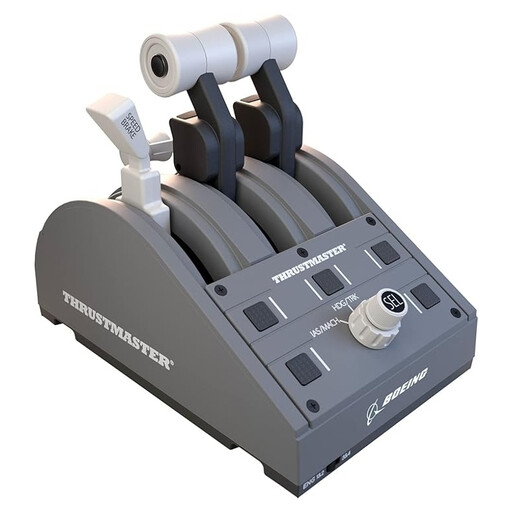
A good fit if you want to practise using physical autopilot controls alongside the throttle in a Boeing-style setup.
The product description lists three axes and 17 action buttons. Thrustmaster describes controls for altitude, speed and heading.
The product title lists compatibility with PC and Xbox.
Not without checking that it supports the commands you want. Microsoft Flight Simulator lets you adjust settings for a recognised controller; a throttle with levers only won’t offer the same direct control as a model with autopilot buttons.
Select the recognised controller in the simulator and check that its assigned commands suit your aircraft. Microsoft Flight Simulator Support recommends assigning functions manually if a controller profile isn’t suitable; also check for duplicate assignments.
Measure the desk space and mounting area available. Honeycomb Aeronautical lists the Bravo’s base dimensions as 273 × 382 mm, excluding the mounting plate or clamp, and specifies two mounting options.
If a product is faulty, you’re entitled to a product that works properly as a consumer and can contact the seller, according to the Dutch government. There is no fixed statutory guarantee period for all products in the Netherlands. For many eligible online purchases from a business, you also have 14 days to change your mind, although exceptions may apply.
According to Honeycomb Aeronautical, using the Bravo with Xbox also requires an Alpha XPC and Xbox Hub. Also check that the functions you want to practise can be assigned in your simulator and aircraft.