
Practising navigation across multiple screens
You want to fly and control frequently used viewing and flight functions while following your route and instruments across different monitors.


Choose a flight stick based on the controls you want within easy reach during a navigation flight and the space available on your desk. A stick with programmable buttons can be a compact solution, while a separate throttle gives you independent control. Whether you choose a stick or a yoke depends on the aircraft you want to emulate. A different stick won’t fix problems with displaying the simulator across multiple monitors, so check those settings separately in your simulator.
You want to fly and control frequently used viewing and flight functions while following your route and instruments across different monitors.
You’re looking for controls for virtual flights, but want to check whether there’s room for a separate throttle alongside your stick and other equipment.
You want the shape of the controls to match the aircraft you usually practise in, such as a sidestick or a yoke.
Best for: anyone who wants to fly while navigating, with viewing or flight functions close to hand, without a separate throttle taking up desk space.
Consider: you may need to assign functions in your simulator; check that the controls are compatible with your aircraft.
Best for: anyone who wants to control power and steering with both hands at the same time and has room for both units.
Consider: the throttle takes up extra space, so check whether it’s included and how you can position it.
Best for: anyone who wants the controls to match the aircraft they usually emulate.
Consider: the right shape depends on the aircraft. Microsoft Flight Simulator doesn’t describe one setup as right for every aircraft.
| Factor to consider | What should you check? | Who is this important for? |
|---|---|---|
| Viewing and flight functions | Check where the buttons are positioned and whether your simulator lets you assign the functions you want to the stick. | During a navigation flight, I want to control my viewing direction and frequently used functions without taking my attention away from the route and instruments. Around 40% of consumers prioritise having these functions close to hand. |
| Separate power control | Check whether the throttle is included, can be positioned separately and can control the functions you need. | I want to control power with my other hand while using the stick. Around 30% of consumers prioritise separate power control. |
| Desk space | Measure the space available and allow for your mouse, stick and any separate throttle. | With multiple screens and other peripherals, I want to avoid overcrowding my workspace with controls. Around 20% of consumers prioritise a compact desk layout. |
| Aircraft control layout | Decide which aircraft you want to emulate and check whether a stick or yoke setup is suitable. | I want the controls to match the aircraft I usually practise in. Around 10% of consumers prioritise this level of aircraft authenticity. |
The stick handles input; displaying the simulator across multiple screens is set up separately in the simulator and on your computer.
First, test your screen layout with your current input device. Then choose a stick based on the controls you’re missing.
Flight sticks vary: some have levers on the base, while other sets include a throttle that can be positioned separately.
Check what’s included and consider which power controls are right for your aircraft and simulator.
According to the Government of the Netherlands, a manufacturer’s warranty is in addition to your right to a product that meets the required standards. There is no fixed statutory warranty period in the Netherlands.
Check any additional warranty terms separately and contact the seller if there’s a fault.
The Extreme 3D Pro is a standalone stick for anyone looking for rudder control and assignable functions in one device.
The range includes models from the T.Flight Hotas One with detachable throttle to the T.16000M FCS HOTAS and the aircraft-specific TCA Officer Pack Airbus Edition.
The VelocityOne Flightstick combines a stick with levers and trim controls on the same device.
According to Honeycomb, the Foxtrot Aviation Stick is designed for stick-controlled aircraft and is compatible with, among others, X-Plane 11 and 12 and Microsoft Flight Simulator.
This selection includes a flight stick with base-mounted controls, a stick with a throttle and a Boeing Edition quadrant. Check that each model’s controls are suitable for your simulator, aircraft and desk layout.
 No image available
An option for anyone looking for a flight stick with programmable controls and levers on the base; when using it with a PC, you’ll need to select PC input mode.
The product name lists USB-C, 8 axes, 27 programmable buttons, an OLED display and compatibility with Xbox Series X|S, Xbox One and PCs running Windows 10/11.
 No image available
An option for anyone who wants to operate a stick and throttle separately. Check that the layout and function assignments suit your simulator and the space available on your desk.
 No image available
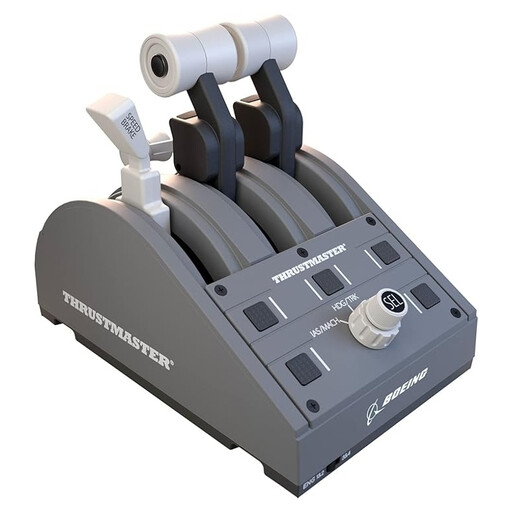
A Boeing Edition quadrant may suit anyone considering a separate control module. Before buying, check that it’s compatible with your existing stick and simulator.
The product name lists the colour as grey and mentions USB.
No. A flight stick handles input; you set up the display across multiple screens separately in your simulator and on your computer. Check the screen layout in the simulator you use.
First, assign the control axes and functions you use during a navigation flight in your simulator, then check the calibration. Laminar Research explains the joystick axis and calibration settings for X-Plane 12. For PC use, Turtle Beach specifies PC input mode for the VelocityOne Flightstick.
A separate throttle may suit you if you want to control power and steering with both hands at the same time and have enough room for both units. Check whether the throttle is included, where you can position it and whether your simulator supports the functions you want.
According to the Government of the Netherlands, there’s no fixed statutory warranty period in the Netherlands; you’re entitled to a product that meets the required standards and can contact the seller if there’s a problem. For online purchases from a business, a 14-day cooling-off period applies in many cases. Check the relevant terms and exceptions.