
Focused on one aircraft type
You mainly simulate an Airbus- or Boeing-style aircraft and want levers and extra controls that match its cockpit layout. Thrustmaster describes its TCA quadrants as Airbus- and Boeing-inspired options.


Start by choosing a setup that suits the aircraft you simulate most often. An Airbus- or Boeing-style quadrant is a good fit if you want controls modelled on that cockpit, while configurable levers make more sense if you switch between aircraft types. Then check that you can assign the axes and buttons in your simulator, and that the throttle fits on your desk with its mount and enough room for your hands. Multiple monitors don’t, in themselves, mean you need a particular type of throttle.
You mainly simulate an Airbus- or Boeing-style aircraft and want levers and extra controls that match its cockpit layout. Thrustmaster describes its TCA quadrants as Airbus- and Boeing-inspired options.
You switch between aircraft or engine configurations, so levers you can reassign are more useful than a fixed cockpit layout. Honeycomb Aeronautical and Logitech G describe their controls as configurable or assignable.
You use multiple monitors and want your throttle within easy reach without overlooking the desk space and mounting room available. Microsoft Flight Simulator describes multi-monitor setups as a PC option, while Thrustmaster and Honeycomb Aeronautical provide information about the mounting options and dimensions of specific products.
First, decide whether a layout for one type of cockpit or the flexibility to switch between aircraft matters more to you. Then check the physical controls and how much space your complete setup will take up.
| What to consider | What should you check? | Who is this more important for? |
|---|---|---|
| Controls for the aircraft you fly most | Check which axes, detents and buttons you can assign in your simulator. | If I mainly fly an Airbus- or Boeing-style aircraft, I want controls that suit that cockpit style. Around 33% of consumers prioritise the type of aircraft they fly most. |
| Levers for different aircraft | Count the functions you want to control at the same time, then check the axis and button assignments. | When I switch between different regional aircraft, I look for levers I can configure to suit each one. Around 27% of consumers make flexibility between aircraft their top priority. |
| Positioning alongside multiple monitors | Measure the available space, desk edge and room for your hand and levers. Check the chosen mount separately. | If my desk is already taken up by multiple screens, I want to know in advance where the throttle will fit within easy reach. Around 20% of consumers choose mainly based on the space available in their setup. |
| Extra physical controls | Make a note of the flight functions you want to control with buttons, and check that you can assign them in your simulator. | If I’d rather control extra flight functions with physical buttons, I look at the controls available on the quadrant. Around 20% of consumers prioritise extra functions they can reach directly. |
An Airbus- or Boeing-inspired layout won’t automatically match the controls of every other aircraft. The number and arrangement of levers vary between models.
Make a list of the axes and functions on the aircraft you simulate most often. Then compare them with the levers and assignable controls on the exact model you’re considering.
The stated dimensions of the Honeycomb Bravo don’t include the mounting plate or clamp. A separate desk clamp may also have its own requirements for desktop thickness.
Measure the space needed for mounting and hand movement, as well as the edge of your desk. Check which mounting parts are included with the version you’ve chosen.
You may need a separate mount if you don’t already have a suitable mounting solution or one isn’t included.
A bundle may include different components from a standalone throttle, and a sidestick is a different type of control altogether.
Check the full product name and what’s included in the box, especially if you already use a joystick or yoke.
Thrustmaster describes the TCA Quadrant Airbus Edition and TCA Quadrant Boeing Edition as different control layouts inspired by commercial aircraft.
According to Honeycomb, the Bravo Throttle Quadrant is designed for a configurable setup across different aircraft types and has an integrated autopilot panel.
According to Logitech G, the Flight Throttle Quadrant provides extra levers you can assign yourself, including when used with a Flight Yoke System.
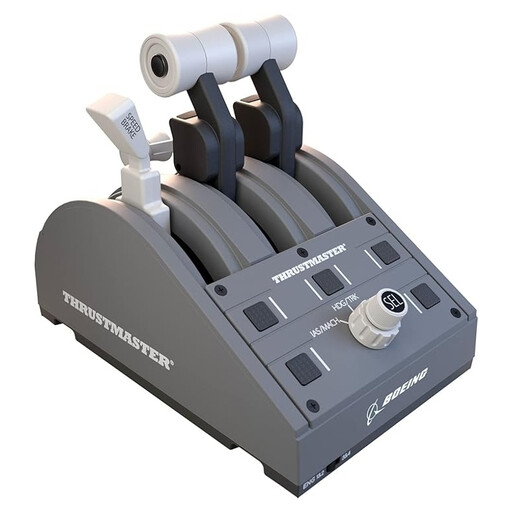
This Joybuy pick is aimed at anyone looking for a Boeing-inspired quadrant for PC flight simulation.
 No image available
A good fit if you’re looking for Boeing-inspired controls and physical autopilot controls. Thrustmaster describes controls for altitude, airspeed and heading.
No. Your monitor layout and throttle controls are separate parts of your setup. Microsoft Flight Simulator lists PC support for a range of peripherals and multi-monitor setups. Choose a throttle based on its controls and compatibility, and measure the space available on your desk separately.
First, check the system requirements and manual for the exact model. Thrustmaster provides information on PC setup, calibration and drivers for Windows 10/11 for the TCA Quadrant Airbus Edition. Then check the axis and button assignments in your simulator.
Thrustmaster offers a separate TM Flying Desk Mount for the TCA Quadrant Boeing Edition. The manufacturer specifies a desktop thickness of 15–50 mm and describes the clamp as specially designed for that quadrant. Check the thickness and available space before choosing a mount.
For eligible distance purchases, you generally have a 14-day cooling-off period; check the terms that apply to your purchase. If a product is faulty, the Dutch government says the seller must provide a solution. This is separate from the cooling-off period.