Choose based on the action you want to move off your screen during take-off: operating physical throttles, using switches or reading flight data. A throttle quadrant is a good choice if you want to practise with physical throttle levers. A separate switch or instrument panel is more focused if you mainly want to operate the take-off procedure or view data away from your main screen. Before buying, check support for your simulator and platform, your aircraft’s functions and the space available on your desk.
Who is a flight simulator panel relevant for?
Practising take-offs with physical throttle controls
You practise the take-off roll repeatedly and want to operate levers without having to find a throttle control on your only monitor. Honeycomb Aeronautical and Thrustmaster describe throttle quadrants with physical levers.
Reading flight data away from the main screen
You want to keep the outside view on your main monitor and check your speed or altitude on a separate panel. Logitech G describes an instrument panel with switchable displays.
Practising take-off procedures with switches
You want physical controls for things such as ignition and lighting before and during take-off, but don’t necessarily need a second instrument display. Logitech G describes a separate switch panel for aircraft functions.
What should you look for when choosing a panel?
Throttle quadrant
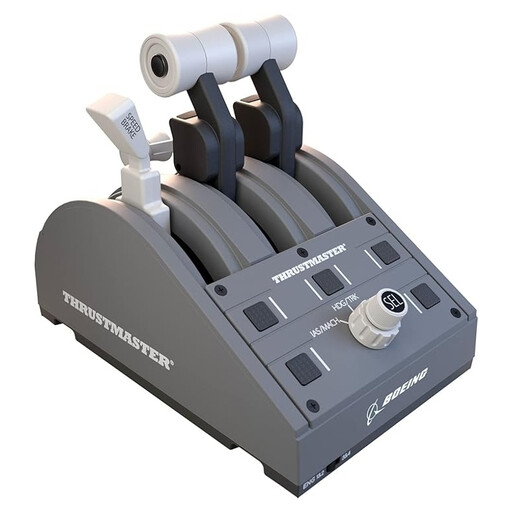
A good fit if: you mainly want to use physical throttle levers during the take-off roll. The Honeycomb Bravo combines configurable levers with panel functions, while the Thrustmaster TCA Quadrant Boeing Edition has a Boeing-inspired layout.
Bear in mind: the space available on your desk and the controls you already have. A quadrant doesn’t automatically replace a joystick or yoke; also check the platform requirements for your chosen model.
Separate take-off and switch panel
A good fit if: you mainly want physical controls for functions such as ignition, lighting and landing gear. The Logitech G Flight Switch Panel includes a five-position ignition switch.
Bear in mind: this panel doesn’t provide a separate speed or altitude display, or any throttle levers. Check which functions work with your simulator and aircraft.
Separate instrument panel
A good fit if: you want to move data such as speed or altitude off your main monitor during take-off. The Logitech G Flight Simulator Instrument Panel has its own display with switchable views.
Bear in mind: one panel doesn’t show every instrument at once; you switch between views. It doesn’t add a physical throttle lever.
Autopilot multi-panel
A good fit if: you want to adjust autopilot settings, flaps or trim physically during the flight as well as for take-offs.
Bear in mind: it’s less directly suited to the take-off roll than a throttle quadrant or take-off panel. Logitech G says a plug-in is available for supported PC simulator software.
| What to consider |
What should you look for? |
Who is this important for? |
| Physical throttle controls |
Compare the lever layout with the aircraft you practise with, and check which controls you already have. |
If you want to practise the take-off roll with physical levers and don’t want to use your screen to operate the throttle, a throttle quadrant should be your priority. Around 28% of consumers choose throttle controls as their first consideration. |
| Reading instruments |
Check which values you need and whether the panel displays them all at once or switches between views. |
If you want to see your speed or altitude while your main monitor shows the outside view, check the instrument displays and how to switch between them. Around 22% of consumers prioritise reading instruments. |
| Take-off switches |
Compare the available switches with your aircraft’s functions; don’t assume the same LED feedback will be available in every simulator. |
If you mainly want to carry out pre-flight checks and the take-off procedure using physical switches, check that the panel has the functions you need. Around 22% of consumers put take-off switches first. |
| Autopilot and trim |
Check which software is supported and whether the panel needs a plug-in. |
If you want to use a panel for autopilot, flaps or trim after take-off too, look beyond the take-off roll. Around 11% of consumers give these functions top priority. |
| Compatibility and setup |
Check the exact model, your platform and simulator version, any connection requirements and the space available on your desk. |
If you want to add a panel to an existing PC or console setup, check the requirements and available desk space in advance. Around 17% of consumers start with compatibility and how the panel will fit into their setup. |
Common mistakes when choosing a flight simulator panel
-
Mistaking an autopilot panel for a throttle panel
An autopilot multi-panel and a throttle quadrant control different functions. Logitech G describes the Multi Panel as offering autopilot, flap and trim controls; Honeycomb Aeronautical and Thrustmaster describe their quadrants as having physical throttle levers.
First, decide which action you want to practise repeatedly during the take-off roll.
If you need to see separate views at the same time, you may want to use more than one panel.
-
Taking compatibility with your PC, console and simulator for granted
Requirements vary from one panel to another. Honeycomb specifies a particular combination for using the Bravo with Xbox; Logitech G says the Multi Panel needs a plug-in for supported software.
Before buying, check the requirements for your exact platform, panel and simulator version.
Brands to compare
Logitech G
Offers separate panels for switches, instrument displays and autopilot controls.
- The product ranges focus on different tasks: take-off switches, an instrument display, or autopilot, flap and trim controls.
- The instrument panel switches between views; Logitech G says the Multi Panel needs a plug-in for supported software.
Honeycomb Aeronautical
The Bravo Throttle Quadrant is designed for configurable throttle levers with integrated panel functions.
- Honeycomb describes layouts for a range of aircraft, from single-engine GA aircraft to four-engine airliners.
- The Bravo takes up desk space. Honeycomb specifies a particular combination requirement for Xbox use.
Thrustmaster
The TCA Quadrant Boeing Edition is designed for Boeing-inspired throttle control, with additional controls.
- Thrustmaster lists interchangeable levers and controls for altitude, speed and heading.
- It isn’t a general-purpose instrument display. For Xbox, check the required connection to your existing controls.
MOZA Racing
The MTLP is a separate, configurable switch panel for PC, with a layout inspired by an F/A-18 landing panel.
- MOZA describes standalone USB use and assignable switches.
- The F/A-18-inspired layout may not be the obvious choice for general aviation; a desk clamp is listed as optional.
Products at Joybuy
This product selection is focused on physical throttle control when practising the take-off roll.
 No image available
Thrustmaster TCA Quadrant Boeing Edition Grey
Well suited to practising with physical throttle controls; the Boeing-inspired layout is relevant if it matches the aircraft you simulate.
The product description lists four interchangeable levers for throttle, brakes and flaps.
According to the product description, the TCA Yoke Boeing Edition must be connected for use with Xbox systems.
View at Joybuy
Frequently asked questions
Do I need a joystick or yoke as well as a panel?
A separate switch or instrument panel doesn’t automatically replace the aircraft controls. Microsoft recommends a gamepad or joystick for controlling aircraft, so check which controls you already have and what else your setup needs.
Can I see all my flight data at once on one instrument panel?
Not on the Logitech G Flight Simulator Instrument Panel: Logitech G describes 15 views that you can switch between. Check which data you want to keep visible during take-off and whether switching between views suits the way you use it.
Will every panel work with my simulator and platform?
Don’t assume so; check the requirements for the exact panel, platform and simulator version. Logitech G says the Multi Panel needs a plug-in for supported PC software, while Honeycomb specifies a particular combination requirement for using the Bravo with Xbox.
What should I check if I want to use the Thrustmaster TCA Quadrant Boeing Edition with Xbox?
Check that the required TCA Yoke Boeing Edition is connected to your setup. Thrustmaster lists this connection as a requirement for use with Xbox systems.


