Which controls are right for you?

Sim pilot looking to taxi more precisely

If you want to practise turning and braking without relying on keys or a twist stick for these functions, compare rudder controls and separate brakes. Thrustmaster describes separate brakes on the T.Flight Rudder Pedals, while Turtle Beach describes rudder movement and toe brakes on the VelocityOne Rudder.

Sim pilot with a crowded main screen

If you want to keep more of the outside view visible while taxiing, consider which cockpit information you actually want to control or view away from the main display. Switch, radio and instrument panels each serve different purposes.

Beginner with limited desk space

If you want to start with one main controller and add separate modules later, compare the features of an integrated control with separate pedals. A twist stick and separate foot brakes are not the same thing.

What should you look for when practising taxiing?

Rudder pedals with brakes

Choose these if: you already have a main controller and are mainly looking for foot controls for steering and braking.

Bear in mind: pedals need floor space, and you should also check that the connection is compatible with your PC or console.

Integrated main controller

Choose this if: you still need a main controller and want to combine several functions in one device.

Bear in mind: a twist stick provides rudder control, but does not replace separate foot brakes. The VelocityOne Flight features built-in rudder and brake controls.

Switch, radio or instrument panel

Choose this if: you want to control or view a specific cockpit function or instrument display away from the main screen.

Bear in mind: these panels do not steer or brake the aircraft. Check which functions your simulator supports.

Priority What to look for Who is this important for?
Steering and braking Check for a rudder axis and separate left and right brakes, and make sure the connection is suitable for your platform. If I want to practise turning and braking with foot controls, I’m mainly looking for direct control over steering and brakes. Around 36% of consumers put steering and brake control first.
Visibility and instruments Compare the available displays with the instrument information you need during your taxi route. If I want to keep more of the outside view visible while taxiing, I’ll consider which information really needs to be on a separate screen. Around 29% of consumers prioritise keeping the main view clear.
Compact controls Work out what your current controller already does and which brake functions you still need to assign. If I’m starting out with limited desk space, I don’t want to buy separate controls straight away if my main controller can already do the job. Around 21% of consumers prioritise an all-in-one compact setup.
Cockpit procedures Check your simulator version and platform, as well as support for the switches or radio functions in your chosen aircraft. If I want to use physical switches or radio controls during procedures, I’ll first check whether my simulator supports those functions. Around 14% of consumers put cockpit procedures first.

Common buying mistakes

  • Buying a radio or switch panel to improve steering

    Logitech describes features such as lighting and radio controls for its panels; separate brake controls are described for the pedals covered here. A cockpit panel won’t automatically solve a steering or braking problem.

    Start with the action you’re struggling with while taxiing, then choose controls that perform that specific function.

  • Assuming an instrument display shows a taxi map

    The displays Logitech lists for its Flight Instrument Panel are instrument displays. A taxi map isn’t mentioned.

    Check the specific displays available before choosing a separate screen for route information.

  • Assuming PC compatibility means console compatibility

    Microsoft warns that most PC flight sim peripherals are not automatically compatible with Xbox Series X|S. For the VelocityOne Rudder, Turtle Beach describes a direct connection to PC and a connection to Xbox via VelocityOne Flight.

    Check the full connection setup for your console and the exact model.

Brands worth considering

Thrustmaster

Worth considering for separate rudder pedals for taxiing practice.

  • Thrustmaster describes separate brakes on the T.Flight Rudder Pedals.
  • The pedals are not an instrument panel; check that the connection is compatible with your platform.

Turtle Beach

VelocityOne offers integrated controls as well as separate pedals.

  • Turtle Beach says the Flightstick has a twist rudder, while the VelocityOne Flight has built-in rudder and brake controls.
  • The Xbox connection described for the VelocityOne Rudder runs via VelocityOne Flight.

Logitech G

Offers panels for switches, radio functions and instrument displays.

  • Features vary by panel and include lighting, COM controls and switchable instrument displays.
  • Logitech describes a plug-in for Microsoft Flight Simulator; check support for your simulator version.

Honeycomb Aeronautical

Alpha Flight Controls combines a yoke with switches for broader cockpit control.

  • Honeycomb lists PC and Mac as platforms for the standard Alpha and mentions integrated lighting and ignition switches.
  • Don’t confuse the standard Alpha with the Alpha XPC: for the Xbox setup described, Honeycomb also specifies an Xbox Hub.

Joybuy flight sim controls

This selection focuses on main controllers and additional controls for flight sim use, including models that may be useful for directional control and cockpit functions.

Turtle Beach VelocityOne Flightstick

Turtle Beach VelocityOne Flightstick

An option if you’re looking for a joystick with twist rudder control; Turtle Beach describes this feature for this model.

The product name lists USB-C, 8 axes, 27 programmable buttons and an OLED display. Stated compatibility includes Xbox Series X|S, Xbox One and PC with Windows 10/11.

Joybuy

Logitech G Saitek X52 Pro Flight Control System, black

Logitech G Saitek X52 Pro Flight Control System

Worth comparing if you’re looking for a Logitech G main controller for PC; check that the controls suit your existing flight sim setup.

The product name specifies the colour as black and indicates PC use.

Joybuy
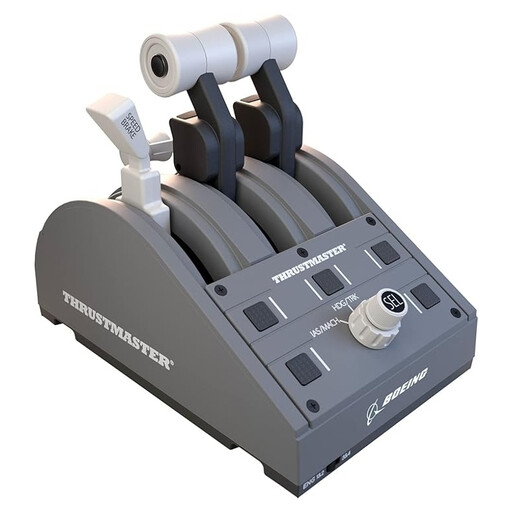
Thrustmaster TCA Quadrant Boeing Edition, grey

Thrustmaster TCA Quadrant Boeing Edition

A throttle quadrant to consider if you’re looking for additional physical cockpit controls; it’s not a replacement for rudder pedals.

The product name lists USB and PC and Xbox use. For Xbox, the product information says it connects via the TCA Yoke Boeing Edition.

Joybuy

Frequently asked questions

Do I need an extra panel to practise taxiing with a single monitor?

No, you don’t need an extra panel to use Microsoft Flight Simulator 2024. Microsoft also lists a keyboard, mouse and controllers as input devices; choose a panel for a specific control or display.

How can I practise before buying pedals or a panel?

First, test your existing steering and brake assignments, then see which action is getting in the way of your practice. According to the Microsoft Flight Simulator team, you can assign a key in Microsoft Flight Simulator 2024 to toggle the visual taxi ribbon on or off. This changes the display, not the physical brake controls.

Will PC pedals or panels work on Xbox automatically?

Don’t assume they will: Microsoft warns that most PC flight sim peripherals are not compatible with Xbox Series X|S unless the manufacturer explicitly says so. For the VelocityOne Rudder, Turtle Beach describes a direct PC connection and an Xbox connection via VelocityOne Flight.

Do I need software for a Logitech Flight Panel?

Logitech describes a Microsoft Flight Simulator plug-in for its instrument, switch, multi and radio panels. Check the latest download and support for your simulator version. Logitech’s plug-in instructions were updated on 8 September 2020 and don’t by themselves confirm that it works with every later version.

Is an instrument panel the same as a taxi map or brake control?

No. An instrument panel shows the displays supported by that model and your simulator; that doesn’t automatically mean it provides a taxi map or brake controls. Check the specific displays and functions before choosing a panel to address a particular taxiing issue.
