
Practising crosswind landings without a stick
You’re looking for a compact setup with controls for pitch, roll, rudder and engine power. A standalone throttle won’t provide all the controls you need.


A standalone throttle isn’t enough if you don’t already have suitable pitch, roll and rudder controls for a simulated crosswind landing. If you don’t have a stick, compare a stick with built-in levers or a HOTAS set. If you already have suitable flight controls, a standalone quadrant may be all you need. Also check the desk space required, platform support and axis assignments in your simulator.
You’re looking for a compact setup with controls for pitch, roll, rudder and engine power. A standalone throttle won’t provide all the controls you need.
You can already control your aircraft and are looking for a separate throttle that stays within easy reach without taking up too much extra desk space.
You want to be able to rearrange the levers for different simulated aircraft, and are weighing that flexibility against the space required.
Start by checking which pitch, roll and rudder controls you already have. Then consider how much space the throttle and controls will take up during use.
| What to consider | What to look for | Who is this important for? |
|---|---|---|
| Rudder control | Check whether your current setup has a usable rudder axis and that it isn’t assigned to more than one control in the simulator. | If I want to use a throttle for crosswind scenarios, I’ll also need suitable rudder control. Around 36% of consumers prioritise rudder control. |
| Space and range of movement | Measure the space for the device and its mount, as well as the room needed to move the stick and levers. | If my desk is short on space, I’ll want to know whether the full setup will fit and remain within easy reach. Around 29% of consumers prioritise space. |
| Adding to your existing controls | Make a note of the controls and axes you already have, and check compatibility with your platform. | If I have a suitable stick or yoke, I don’t want an unnecessary second set of flight controls; I want to add a compatible throttle. Around 21% of consumers prioritise complementing their existing controls. |
| Aircraft-specific levers | Decide which aircraft you want to simulate and check the axes and settings required for each one. | If I switch between aircraft types, I’ll want to choose levers that suit my preferred layout. Around 14% of consumers prioritise an aircraft-specific lever layout. |
A standalone quadrant gives you levers, but it won’t automatically provide the pitch, roll and rudder controls you need for this simulation.
First check which pitch, roll and rudder axes are available, then choose an add-on.
Levers and mounting hardware also need space. Honeycomb Aeronautical lists the Bravo base as measuring 273 × 382 mm, excluding the mounting plate and clamp.
Before choosing a setup, check the full operating space and allow room for any clamp.
Duplicate axis assignments or a setting in the simulator profile can affect how the controls behave. Microsoft Flight Simulator lists duplicate assignments as something to check.
Check the active profile, any axis conflicts and the sensitivity settings.
According to the Dutch Government, the Netherlands has no fixed statutory warranty period. If a product is faulty, the seller is your point of contact.
Check what any additional warranty covers and keep your proof of purchase.
Offers both the T.Flight Hotas One, with a detachable throttle, and standalone quadrants, including the Airbus Edition.
The original VelocityOne Flightstick combines a stick with two multifunction levers on a single base, for supported PC and Xbox platforms.
The Flight Throttle Quadrant is a standalone add-on with three programmable levers, designed for those who already have suitable flight controls.
The Bravo Throttle Quadrant offers configurable levers for simulated GA aircraft and airliners.
This selection includes a flightstick with integrated levers, a flight sim system with a stick and throttle, and a standalone throttle quadrant to complement your existing flight controls.
 No image available
Ideal if you’re looking for stick controls and integrated levers in a single controller.
The product name lists 8 axes, 27 programmable buttons, an OLED screen, USB-C and compatibility with Xbox Series X|S, Xbox One and Windows 10/11.
 No image available
An option for consumers looking for stick, throttle and 3D rudder controls in one flight sim system.
The product name states that it’s for use with a PC.
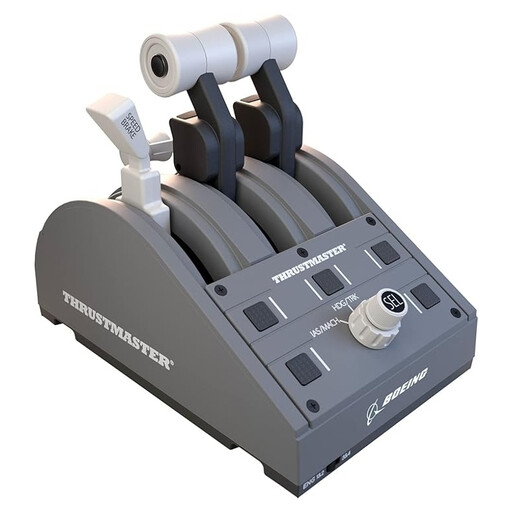 No image available
A standalone throttle quadrant to complement your existing flight controls; it isn’t a complete setup for pitch, roll and rudder control.
The product name specifies the Boeing Edition model.
Not if the throttle is your only control: you’ll also need a way to control the aircraft and operate the rudder. The available axes depend on your other devices and the assignments in your simulator.
In Microsoft Flight Simulator, check whether the rudder function is assigned more than once, for example to both the stick and pedals. The simulator’s support guidance also recommends checking sensitivity and assistance settings.
Microsoft Flight Simulator describes general profiles, profiles for each aircraft category and profiles for specific aircraft models. When switching aircraft, check which profile and axes are active.
According to the Dutch Government, when you buy online from a business, you’ll often have 14 days to change your mind. Terms and exceptions apply. You’re also entitled to a product that is of satisfactory quality. The Netherlands has no fixed statutory warranty period; if there’s a fault, the seller is your point of contact.