
Researcher with individual articles
Wants to save pages digitally and find them again later. So, pay attention to the scanning workflow and whether you can create searchable files.


For individual A4 pages that you scan one at a time, a compact flatbed is a good fit. If you often scan bound material, how the page sits by the spine matters most, while piles of loose sheets may justify a flatbed with an automatic document feeder. An automatic feeder won’t help with bound pages and takes up more space. Also check that the software supplied with the exact model can create searchable PDFs and works with your computer.
Wants to save pages digitally and find them again later. So, pay attention to the scanning workflow and whether you can create searchable files.
Regularly scans book chapters or bound articles, and is particularly concerned with how the page sits on the glass by the spine.
Handles lots of loose sheets and wants to switch between automatic feeding and the flatbed glass.
Choose this option: you mainly scan individual pages or delicate originals and can change the pages yourself.
Bear in mind: you’ll still need to change pages by hand; a PDF button doesn’t prove that the software includes OCR.
Choose this option: you often scan bound articles or book chapters, so how the page sits by the spine is important.
Bear in mind: check the specific model, software bundle and compatibility with your computer.
Choose this option: you regularly handle piles of loose sheets but also want a flatbed for bound or delicate originals.
Bear in mind: the feeder is designed for loose documents and doesn’t replace the flatbed for bound material.
| What to consider | What should you check? | Who is this most important for? |
|---|---|---|
| Finding text later | Check whether the software supplied with the exact model supports OCR and export to searchable PDF. | If I want to find quotes later using keywords, I check that the software can do this. Around 36% of consumers put searchable text first. |
| Bound material | Check how the page sits by the spine and whether a thick original fits on the flatbed without being forced. | When I scan bound articles, I want to be able to position the page by the spine without forcing the book. Around 29% of consumers prioritise scanning bound material. |
| Piles of loose sheets | Check whether there’s an automatic document feeder and whether the flatbed remains available for other originals. | For recurring piles, I want to spend less time loading sheets individually. Around 21% of consumers prioritise processing loose sheets. |
| Desk space and connection | Check the setup, the connection required and compatibility with your computer. | If my desk is short on space, the scanner needs to fit and work with my computer. Around 14% of consumers prioritise desk space and connectivity. |
A button for saving as a PDF and software for searchable text aren’t the same thing. Check the OCR feature, software version and export options for the exact model.
Making a scan searchable afterwards may require extra software or time.
An automatic document feeder is designed for loose sheets; bound pages need to go on the flatbed.
Sort your material into loose sheets and bound originals first, then choose the right scanning method for each type.
With mixed piles, you may need to separate the originals by hand and switch between scanning methods.
According to the Dutch government, a private copy for personal use must not be distributed or made public. Publications from licensed sources may be subject to additional terms.
Check the copyright and any library licence before sharing a scan.
The CanoScan LiDE 300 and LiDE 400 are compact A4 flatbeds for individual documents.
The Perfection V39II is a compact flatbed, while the WorkForce DS-1730 combines a flatbed with an automatic document feeder.
The OpticBook 4800 is a book-friendly flatbed for anyone who regularly scans bound research material.
These models combine a flatbed with an automatic document feeder, making them suitable for processing loose sheets as well as scanning originals on the glass.
 No image available
Ideal if you handle piles of loose pages and also want to place books or delicate originals on the flatbed.
The product description mentions CaptureOnTouch 3 and export to editable PDF. The automatic feeder can hold 50 sheets and scans both sides.
The stated resolution is 600 × 600 dpi.
 No image available
Ideal if you want to scan bound or delicate originals on the flatbed as well as feed loose sheets automatically.
The product description mentions two-sided automatic feeding, Wi-Fi and USB 3.0.
The stated dimensions are 451 mm wide and the weight is 3,9 kg.
 No image available
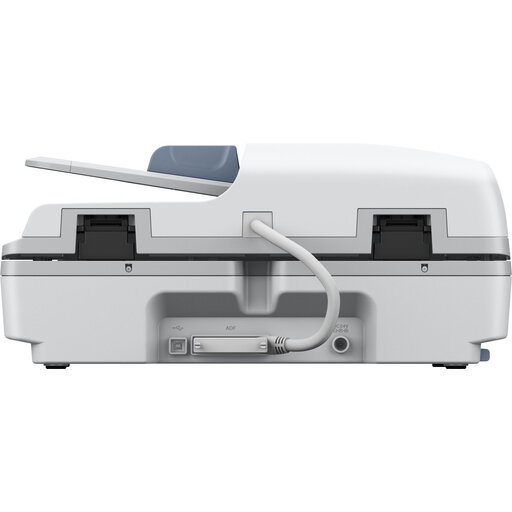
Ideal if you want to process piles of loose sheets and search documents by text.
The product description mentions a flatbed, an automatic feeder for 100 sheets and searchable PDFs.
The stated dimensions are 495 × 360 × 217 mm and the weight is 9,8 kg; make sure you have enough desk space.
No, not based on that figure alone. First consider the size of your originals, the PDF or OCR workflow you want and the scanning method. For the LiDE 400, Canon distinguishes between optical and selectable resolution. The stated A4 scan time applies to a scan at 300 dpi, not to every setting or a complete article.
Position the original so that the spine and cover aren’t under strain. If you do this often, compare book-friendly flatbeds. Plustek describes the OpticBook 4800 as having a 2 mm book-edge design; this is the manufacturer’s description of the design, not a guarantee that it will suit every book.
No. The Dutch government explains that when you buy as a consumer in the Netherlands, you have statutory rights if a product is faulty and can ask the seller to put things right. There’s no fixed statutory warranty period; an extended warranty is only useful if its terms give you additional rights.
According to the Dutch government, a private copy for personal use must not be distributed or made public. Erasmus University Library points out that additional terms may apply to publications from licensed sources. Check those terms before sharing a scan.