What should you look for when choosing?
Start with the size and condition of your originals. Then decide how many loose sheets you’ll scan, how much space the scanner can take up and what software you need on the shared computer.
| What to consider |
What should you check? |
Who should pay particular attention? |
| Readable, easy-to-find files |
Check whether the software supports OCR and works on your computer; a PDF button doesn’t guarantee text recognition. |
If I want to find letters and forms again later, I’ll look at readability and file format. Around 36% of consumers say organising documents is their top priority. |
| Space and shared use |
Compare how the scanner can be set up, how it connects and where scans can be stored. USB doesn’t automatically mean that several computers can access it independently. |
If several people use the desk, I’ll want to be able to put the scanner away and agree who can access the files. Around 29% of consumers say shared workspace is their top priority. |
| Size and fragility |
Measure your largest original and check the condition of its binding; don’t force a fragile book flat on the glass. |
For old or bound items, I’ll want to place them without putting strain on the spine. Around 21% of consumers say handling originals safely is their top priority. |
| Larger stacks |
Compare placing sheets manually with using an automatic document feeder, and check which sheets it can handle. |
If I scan lots of loose sheets, I’ll want to turn pages over manually less often. Around 14% of consumers say handling stacks is their top priority. |
Scanners at Joybuy
These product options combine a flatbed for individual or bound originals with an automatic document feeder for suitable loose sheets.
 No image available
Canon imageFORMULA DR-F120, A4 flatbed scanner with ADF
The combination of a flatbed and feeder is a good fit if you scan both individual originals and stacks of loose sheets.
The ADF holds 50 sheets and scans both sides. The product description says it can scan to editable PDFs; check that the software works with your computer.
According to the product description, the flatbed is designed for books and delicate materials. With larger stacks, you’ll need to reload the ADF several times.
Joybuy
 No image available
Epson WorkForce DS-1660W, A4 flatbed scanner
The flatbed and document feeder let you choose between scanning individual originals and loose sheets.
The product name lists 1200 × 1200 dpi and A4. The product description mentions USB and wireless connectivity; check which software and connection you need for the computers you use.
The description says it supports books, bound documents and delicate items.
Joybuy
 No image available
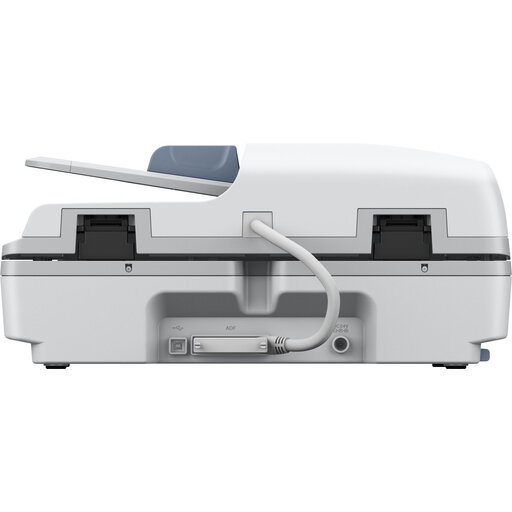
Epson WorkForce DS-6500 Power PDF
This model is designed for people who want to feed in stacks of loose sheets as well as scan individual originals on a flatbed.
The ADF holds 100 sheets and scans both sides in a single pass. Its stated speed of up to 25 pages per minute applies to the feeder.
The stated dimensions are 495 × 360 × 217 mm and it weighs 9,8 kg. Allow for the desk space it needs and consider how you’ll move it; the network interface for shared network use is described as optional.
Joybuy
Frequently asked questions
Do I need to choose a high dpi setting for family documents?
First check that the original fits fully on the glass and that small text is legible in a test scan. According to Canon, the Canon CanoScan LiDE 400 has a maximum optical resolution of 4800 × 4800 dpi. Canon also notes that setting a higher resolution can reduce the maximum scan area. A higher number alone doesn’t prove your documents will be easier to read.
Can everyone at the shared desk scan straight from their own computer?
Don’t assume so just because it has a USB connection. Check the connection, drivers and software for the computers people will actually use. Also agree which folder scans should go into, and keep important files backed up.
What can I do if the scanner doesn’t work properly after I buy it?
According to the Dutch government, you’re entitled to a product that works properly in the Netherlands, and there’s no fixed statutory guarantee period. Report any fault to the seller. Any manufacturer’s guarantee or extra cover you’ve bought is in addition to your statutory rights.
Can I scan and share family photos and documents?
This depends, among other things, on what’s shown in the scan and who you share it with. The Dutch Data Protection Authority describes an exception for personal or household use when images remain private or are shared with, at most, a very limited group; sharing them publicly doesn’t automatically fall under this exception. According to the Dutch government, you can make a private copy of someone else’s copyright-protected work for your own use, but you mustn’t distribute it or make it public.


