If you mainly scan individual certificates that fit on A4, a compact A4 flatbed scanner is a sensible choice. Compare the scanning area, connectivity and software available. Choose a larger scanning area for certificates that won’t fit on A4, or a flatbed scanner with a document feeder if you also regularly scan piles of ordinary paperwork. Check that scans are legible and include all the edges, and don’t assume that your own scan replaces an official document.
Who is this choice relevant to?
If you keep individual certificates
You want to place each original on the glass separately and check that all the information and edges have been captured. The National Archives lists checks for image quality and skipped pages as part of its digitisation process.
If you have larger certificates
If your certificates may be larger than A4, the maximum scanning area determines whether you can capture them in a single scan. Canon specifies a scanning area of 216 × 297 mm for the CanoScan LiDE 400; Plustek lists a maximum of 297 × 431.8 mm for the OpticSlim 1180.
If you also scan piles of documents at home
If you regularly scan ordinary paperwork as well as certificates, a device with both a flatbed and a document feeder may suit your needs. HP describes both scanning methods for the ScanJet Pro 2600 f1.
What should you look for when buying?
Compact A4 flatbed scanner
Best for: individual certificates that fit on A4 and desks with limited space.
Bear in mind: you place each sheet on the scanner individually; larger originals won’t fit fully on the glass.
Larger flatbed scanner
Best for: certificates that won’t fit on an A4 scanning area.
Bear in mind: the larger body and any separate power supply; Plustek lists these features for the OpticSlim 1180.
Flatbed scanner with a document feeder
Best for: scanning individual certificates on the glass while also regularly processing piles of ordinary documents.
Bear in mind: the stated feeder speed doesn’t tell you how quickly a single flatbed scan will be completed.
First, measure your largest certificate, then decide whether you’ll only scan individual originals or process piles of documents too. This will help you choose a scanning area and feed method that suit the way you work.
| What to consider |
What should you check? |
Who is this most important for? |
| Scanning individual certificates in full |
Compare the maximum scanning area with the dimensions of your largest certificate. Check the saved scan for cropped edges and missing pages. |
If I want to check each original individually, I focus on positioning and completeness; around 29% of consumers prioritise carefully scanning individual certificates. |
| Reading small text and details |
Compare the optical resolution for each scanning method. Make a test scan and check small text and stamps at the size you want to read them. |
If I need to be able to read small text or stamps later, I want to assess the result myself; around 23% of consumers give legibility top priority. |
| Capturing larger certificates |
Measure the original in both directions and compare those measurements with the stated maximum scanning area. |
If I have a certificate that may be larger than A4, I want to know whether it will fit in a single scan; around 18% of consumers prioritise scanning size. |
| Finding scans later |
Check which PDF and OCR features are available for the exact model and your operating system. Test whether your own scan is searchable. |
If I want to find certificates by their contents later, I look at the file and search options; around 18% of consumers give searchability top priority. |
| Processing piles of documents too |
Compare the flatbed and document feeder separately. Only consider stated feeder speeds for documents you’ll actually scan using the feeder. |
If I regularly process piles of ordinary documents, feeder capacity may matter more than extra features for individual scans; around 12% of consumers prioritise processing piles. |
Common buying mistakes
-
Assuming A4 is large enough for every certificate
A certificate that extends beyond the scanning area can’t be captured in full in a single scan. Canon gives the Canon CanoScan LiDE 400 a scanning area of 216 × 297 mm; Plustek lists a larger scanning area of 297 × 431.8 mm for the OpticSlim 1180.
Measure your largest certificate in both directions and compare its dimensions with the maximum scanning area.
A scanning area that’s too small can mean extra work, such as rescanning, joining sections together or using a larger device after all.
-
Taking a dpi or speed figure as a guarantee of a usable archive
A specification alone doesn’t tell you whether the text, stamps and all the edges of your certificate will be legible in the saved file. You should also check scans for image quality and completeness.
Compare the relevant resolution specification, make a test scan of your own document and open the file to check its details and edges.
Repeated scans and checks take extra time.
-
Assuming your own scan is the same as an official diploma extract
A scan you make yourself isn’t automatically an official replacement document. The Dutch Government describes a digital extract issued by DUO as equivalent to an original diploma, but records aren’t available for every course.
Ask the organisation receiving the document which proof it accepts, and check separately whether an official digital extract is available for your course.
-
Choosing a document feeder for speed when you mainly scan individual originals
The stated feeder speed applies to documents fed through the document feeder, not to individual certificates placed on the glass.
Compare the number of suitable ordinary sheets you actually process in batches with the number of individual originals you scan.
Relevant brands for these scanning options
Canon
The CanoScan LiDE 300 and LiDE 400 are A4 flatbed options for individual documents in a home office.
- Canon specifies a 216 × 297 mm scanning area, USB power and PDF buttons for the LiDE 400.
- The scanning area won’t accommodate certificates larger than the glass. Canon’s stated scan time of around 8 seconds applies to an A4 colour scan at 300 dpi under the specified test conditions.
Epson
The Perfection V39II is a compact flatbed scanner for individual photos and documents.
- Epson lists an integrated stand, USB power and text enhancement features for this model.
- These manufacturer specifications alone don’t establish how well a specific certificate will scan or how accurately text recognition will work.
Plustek
The OpticSlim 1180 is a flatbed option for larger originals that won’t fit on an A4 glass.
- Plustek specifies a maximum scanning area of 297 × 431.8 mm and includes OCR software.
- The body measures 589 × 407 × 68 mm and uses a separate power supply; check that it suits your desk and workflow.
HP
The ScanJet Pro 2600 f1 combines a flatbed for individual originals with a document feeder for suitable batches.
- HP specifies a 60-page feeder and two-sided scanning through the feeder.
- The stated speed applies to the document feeder, not to individual scans on the glass.
Joybuy products for flatbed scans and piles of documents
These Joybuy products combine a flatbed with a document feeder. They may suit you if you want to scan certificates individually on the glass and also process piles of ordinary documents.
 No image available
Canon imageFORMULA DR-F120 flatbed and ADF scanner, 600 × 600 dpi, A4, black
The combination of a flatbed and document feeder may suit you if you scan individual originals as well as ordinary batches.
The product information lists a 50-sheet feeder and two-sided scanning.
Joybuy
 No image available
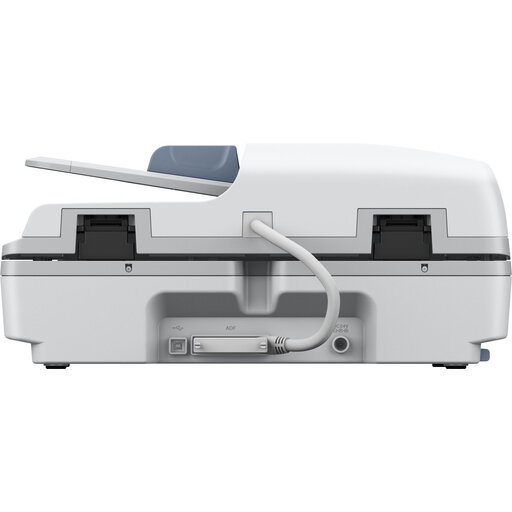
Epson WorkForce DS-6500 Power PDF
The flatbed and document feeder are useful if you want to scan both individual certificates and batches.
The product information lists 1200 dpi, a 100-sheet document feeder and searchable PDF.
Joybuy
 No image available
Epson WorkForce DS-1660W flatbed scanner, 1200 × 1200 dpi, A4, black and white
This model may suit you if you want to scan A4 originals on the glass and also process ordinary batches.
The product information lists an automatic document feeder, two-sided scanning, and wireless and USB connectivity.
Joybuy
Frequently asked questions
Should I dispose of my paper certificate once it’s been scanned?
No. Don’t assume that a scan you make yourself replaces the original or an official document. According to the Dutch Government, a digital extract issued by DUO has the same value as an original diploma, but records aren’t available for every course. Keep the paper original if you’re unsure what format the organisation receiving it requires.
How do I check an archival scan?
Check the saved file for legibility, complete edges and any missing pages. The National Archives lists image quality and skipped pages as checks in its digitisation process; use these as practical points to consider, not as a mandatory standard for home use.
What if I use the scanner for work documents containing personal data?
Handle work documents containing personal data carefully, even when scanning at home. The Dutch Data Protection Authority advises storing sensitive work documents on your work server. The measures that apply to your organisation will depend on how the data is processed.
Is the manufacturer’s warranty the same as my statutory protection if there’s a fault?
No. According to the Dutch Government, there’s no fixed statutory warranty period in the Netherlands; you can expect a product to meet what you may reasonably expect from it. A manufacturer’s or retailer’s warranty is in addition to this. If a product is faulty, contact the retailer.


