
Student with loose notes
Wants to keep A4 sheets and drawings legible, placing each sheet on the glass separately. Canon Netherlands and Epson Netherlands describe A4 flatbed models.


For loose A4 notes, a flatbed with suitable PDF features is a practical starting point; don’t choose based on the maximum dpi figure alone. If you also scan bound materials, check the lid design and the thickness the model can accommodate. For searchable PDFs, check which OCR software is compatible with the exact model and your operating system; Canon, Epson and Plustek describe different features and requirements.
Wants to keep A4 sheets and drawings legible, placing each sheet on the glass separately. Canon Netherlands and Epson Netherlands describe A4 flatbed models.
Wants to search for typed passages in scans, so checks that the OCR software is compatible with their operating system. Plustek describes different software for Windows and Mac.
Also wants to scan pages from exercise books or books without feeding them through a document feeder. The lid and hinges are important considerations; Canon Netherlands and Plustek describe solutions for thicker materials.
First decide what you want to scan and how you plan to use the files afterwards. For notes for a school project, loose sheets, typed text, bound pages and the space available for studying may each be a different priority.
| What to consider | What should you check? | Who is this important for? |
|---|---|---|
| Legible scans of loose notes | Check the A4 scan area and PDF controls; try scanning some of your own material. | If I want to keep loose sheets and drawings clearly, I need to know whether they fit properly on the glass. Around 40% of consumers say that legible scans of loose notes are their top priority. |
| Finding typed text in PDFs | Check the OCR feature, the software included and support for your operating system. | If you want to find typed passages later, suitable OCR is more useful than simply having a scan file. Around 30% of consumers prioritise searchable text. |
| Positioning bound exercise books or books | Check how the lid moves and the maximum material thickness specified for the model. | If I want to scan an exercise book or book without removing the pages, the lid needs to accommodate the bound material. Around 20% of consumers say this is their main requirement. |
| Limited space and connectivity | Compare the dimensions, options for storing the scanner upright, USB connection and software support. | In a small study area, I want the scanner to fit and work with my computer; USB power alone says nothing about software compatibility. Around 10% of consumers name limited desk space as their main consideration. |
The stated optical resolution alone doesn’t tell you whether your handwriting will be legible or searchable.
Start with the scan area and how you’ll process your documents. Try scanning some of your own material first.
Plustek mentions OCR software and searchable PDFs, but that doesn’t prove it will recognise your handwriting.
Check which software and operating systems are compatible with the exact model. Save the scan as an image if recognition doesn’t meet your expectations.
A feeder for loose sheets works differently from a flatbed with a lid that accommodates bound materials.
Choose the scanning method based on the material you actually want to digitise.
Canon describes the CanoScan LiDE 300 and LiDE 400 as compact A4 flatbed scanners with USB power and PDF controls.
The Perfection V39II is Epson’s A4 flatbed option, with a stand for storing the scanner upright and ScanSmart software.
Plustek presents the OpticSlim 2610 Plus as suitable for documents and thicker books, among other things.
These product picks are suited to digitising study materials and include flatbed models, as well as models whose product name mentions a combination with a document feeder.
 No image available
The product name mentions both a flatbed and an ADF (automatic document feeder); check whether this combination suits your loose and bound study materials.
The product name lists 600 × 600 DPI and A4.
 No image available
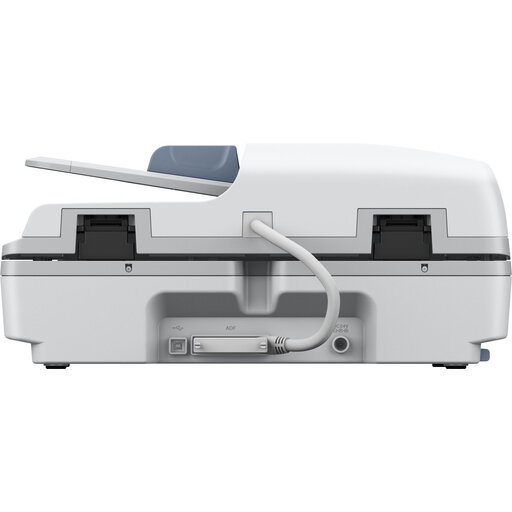
This product listing may be relevant if you’re looking for the WorkForce DS-6500. Before buying, check which scanning method and PDF features come with the exact model, and whether they suit your project.
The product name mentions Power PDF.
 No image available
The product name specifies an A4 flatbed scanner; check that the scan area suits the pages you want to digitise for your school project.
The product name lists 1200 × 1200 DPI, A4 and the colour descriptions Black and White.
You can’t tell from the scan resolution or a general mention of OCR. Check that the software for the exact model supports your operating system, then try a page with your handwriting.
Canon says the LiDE 400 has a PDF button for creating a file with multiple pages. Check the settings and the page order in the saved file.
In the Netherlands, statutory consumer rights apply in addition to any commercial warranty. If the product doesn’t provide what you could reasonably expect, the seller is responsible for offering a suitable solution; this doesn’t mean that every scanner has the same fixed warranty period. ACM ConsuWijzer explains these consumer rights.
Not automatically: according to the Dutch government, you may make a private copy of copyright-protected material for your own use, but you may not distribute it or make it available to the public. Before sharing it with a project group, check what rights or permission apply to that specific use.
The Dutch Data Protection Authority explains that schools must comply with the GDPR when processing pupil data. Limit the sharing of scans containing other people’s information and follow your school’s guidelines.