
Filmmaker with a growing archive
You want to keep the film, source footage and previous versions without using up too much space on storage equipment. First, work out how much material you want to keep and how you’ll organise separate copies.


Choose a portable HDD if you mainly want to store a lot of footage and source material in a compact space, and only use the drive for occasional backups. An SSD is a better fit if you regularly take it with you or transfer large files. The capacity you need depends on your files and the versions you want to keep, while the SSD speed you can achieve also depends on your computer and connection. Keep separate copies too, and test that you can restore your files: one external drive is not a complete backup plan, as Seagate explains in its advice on the 3-2-1 rule.
You want to keep the film, source footage and previous versions without using up too much space on storage equipment. First, work out how much material you want to keep and how you’ll organise separate copies.
You move between editing locations or transfer large project files. As well as capacity, consider the connection and the speed your computer and cable can actually support.
You want to know who can access the footage and whether a version can be restored. If an organisation processes footage of identifiable people, data protection obligations apply. The Dutch Data Protection Authority also highlights the importance of appropriate security.
First, add up the project files and versions you want to keep. Then decide whether the drive will mainly be an archive copy or whether you’ll also take it with you to an editing location regularly.
| What to consider | What should you look for? | Who is this important for? |
|---|---|---|
| Capacity and size | Add up your source footage, final edit and any versions you want to keep. Also check the drive’s dimensions and whether it’s powered via USB. | If I want to keep source material and versions in a compact space, having enough room is my priority. Around 33% of consumers say capacity is their main purchasing need. |
| Transfers and editing | Check that your computer’s port and cable are compatible with the drive. Decide whether you’ll only use it for backups or also work directly from it. | If I often move files between workspaces, I want to know what my own equipment can handle. Around 25% of consumers prioritise transfers and editing on the go. |
| File recovery | Plan separate copies, including one stored in another location, and test that you can restore your files. | If I don’t want to lose a film because a drive fails or goes missing, I want to plan for recovery in advance. Around 33% of consumers prioritise peace of mind about recovery. |
| Connection and file system | Check the ports on your computers and which file system your backup software needs. Make a copy elsewhere before formatting the drive. | If I want to use the drive with my existing computers, I want to avoid connection or file system issues. Around 9% of consumers say compatibility is their main need. |
If your only drive fails or goes missing, you could lose the copy stored on it. Seagate describes the 3-2-1 rule as backup advice: keep multiple copies, use different types of storage and store one copy elsewhere.
Before buying, decide where the other copies will be kept and test that you can restore a file. Then choose an external drive based on the role it will play in your plan.
Manufacturer figures don’t guarantee the same transfer speed on your computer. The connection, cable and rest of your setup all play a part.
Check the ports on your equipment. Maximum speed won’t necessarily be a deciding factor for occasional backups, but it may matter if you regularly transfer files.
Crucial warns that reformatting erases data on the X9. A mistake could therefore delete files already stored on the drive.
Check the file system first and, if necessary, make a copy in another location before formatting.
The WD Elements Portable range includes portable HDD models with different capacities, including 5 TB.
The Expansion Portable STKM5000400 is a 5 TB HDD that Seagate says is powered via USB.
The T7 Shield 4 TB is a portable SSD for anyone who regularly moves or transfers a project.
The X9 4 TB is a portable SSD option if your project fits within its available capacity.
This selection includes portable HDDs for storing film projects and a portable SSD for anyone who regularly transfers files.
 Image unavailable
A portable HDD option for keeping a copy of your film and video files.
The product listing specifies 5 TB of storage, USB-C and USB 3.2 Gen 1.
Image unavailable
A portable HDD option if your archive needs more storage space.
The product listing specifies 6 TB of storage, USB 3.0 and 256-bit AES hardware encryption with password protection.
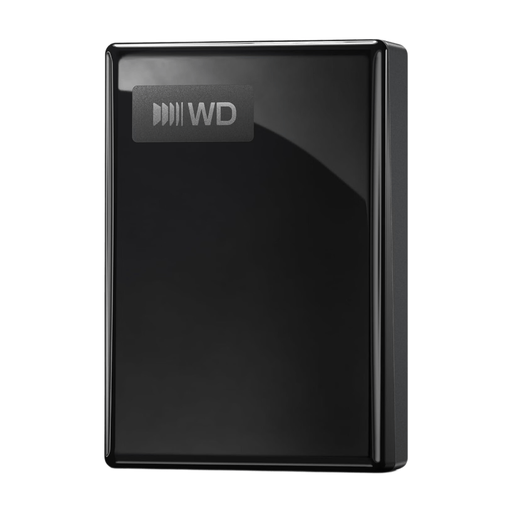 Image unavailable
A portable HDD for a film copy, powered via USB.
The product listing specifies 5 TB, exFAT and 256-bit AES hardware encryption with password protection.
 Image unavailable
A portable HDD option for storing video and project files.
The product listing specifies 4 TB, USB 3.2 Gen 1 and a compact 2.5-inch design. For use with macOS, the description says reformatting is required; make a copy elsewhere first.
 Image unavailable
A portable SSD option for anyone who regularly transfers large files.
The product listing specifies USB 3.2 Gen 2x2, maximum read and write speeds of 2.000 MB/s and 256-bit AES hardware encryption. The maximum speed isn’t guaranteed on your own computer setup.
A portable HDD is a good fit for a backup that mainly stores a lot of project material in a compact space. An SSD may be better if you regularly transfer files or work directly from the drive. In either case, check the capacity you need and make sure the connection is compatible with your equipment.
Add up the files you want to keep, including source footage and any previous versions. Leave room for files you may add later, and choose the capacity based on that inventory, not just the finished film.
Not if you want to avoid losing your only copy when that one drive fails or goes missing. Seagate describes the 3-2-1 rule as backup advice: keep separate copies, including one stored elsewhere, and test that you can restore your files.
Not automatically. First, check whether the existing file system works with your computers and backup software. Western Digital notes that reformatting may be needed for other operating systems; Crucial warns that formatting erases data already on the drive. So make a copy in another location first.
If an organisation processes footage of identifiable people, the Dutch Data Protection Authority says that footage falls under the GDPR. The organisation must apply appropriate security measures. The appropriate retention period depends on how the footage is processed and isn’t determined by the choice of drive alone.