
Student working with demanding 4K footage
You’re actually editing 4K or higher-resolution footage and want to match your setup to your editing software’s requirements, rather than relying on the graphics card’s name alone.


For an HD film, a desktop with a more modest configuration may be sufficient, provided it suits your editing software. For Premiere on Windows, Adobe recommends 32 GB RAM or more for 4K and above. Choose a compact Mac mini if macOS and a small, permanent workspace are important to you, or compare Windows towers by their exact configuration. In either case, you’ll also need to consider storage for your source footage and the equipment you’ll use to screen your film.
You’re actually editing 4K or higher-resolution footage and want to match your setup to your editing software’s requirements, rather than relying on the graphics card’s name alone.
You want to know what equipment you’ll need in addition to the computer. A basic configuration doesn’t automatically make for a complete editing setup.
You’re looking for a compact, permanent setup while still needing enough storage and the right connections for your monitor and external media.
Start with your editing software and the resolution of your source footage. Then check how much space you’ll need for media and working copies, and which components you’ll need for your complete workspace.
| What to consider | What to look for | Who it matters to |
|---|---|---|
| Editing performance | Make a note of your software version, operating system and source resolution. For Premiere on Windows, Adobe recommends 16 GB RAM for HD and 32 GB or more for 4K and above. Also check the recommended graphics card specifications for your software version. | If I use Premiere on Windows and want to work with 4K footage, I compare its requirements with the exact configuration. Around 40% of consumers put editing performance first when making this choice. |
| Media management | Work out how much space you need for source footage, project files and any proxy files. Adobe describes proxies as lighter editing copies; you use the originals for the final export. | If I want to keep source footage, projects and working copies organised, I check how much storage I’ll need. Around 30% of consumers give media management top priority. |
| Complete workspace | Check which components are included with the configuration you’ve chosen, and whether you still need a monitor, keyboard, mouse, storage or editing software. | If I want to use the computer as a complete editing setup straight away, I check what equipment I’m still missing. Around 20% of consumers put the complete workspace first. |
| Space and connections | Compare the computer’s dimensions and available connections with your monitor and external storage. | If I have limited desk space and want to keep using my existing equipment, I check the dimensions and ports of the configuration I’ve chosen. Around 10% of consumers give space and connections top priority. |
The configuration you need depends on your software and the resolution you’re working with. For Premiere on Windows, Adobe gives different RAM recommendations for HD and for 4K and above.
First decide which software you’ll use and the resolution of your source footage. Then check the exact configuration you’re buying, not just the product range.
You may need to upgrade the memory if your software and footage demand more than the basic configuration offers.
A monitor or input devices may not be included. Apple says that monitors and keyboards for the Mac mini are sold separately.
Make a list of the equipment and software you’ll need in advance, and check what’s included with each configuration.
You may also need separate storage for your project files and footage.
Adobe describes proxies as lighter copies that make demanding footage easier to edit; switch back to the originals for the final export.
Keep your source files and check which files will be used in the final export.
Keeping both originals and working copies means you’ll need space for both.
The Dell Tower ECT1250 is a configurable Windows tower worth comparing for tasks including HD editing.
The Mac mini M6 is a compact macOS desktop worth comparing if your editing software is compatible with macOS and you want a small, permanent workspace.
The HP OMEN 35L GT16-1680nd is a Windows configuration worth comparing if your project genuinely needs more memory, SSD space and video memory.
This Joybuy selection features Windows gaming desktops to compare for film editing. When choosing, check the exact configuration, your editing software and how much space your project files will need.
 Image unavailable
A Windows desktop worth comparing for Premiere on Windows when editing 4K footage; Adobe recommends 32 GB RAM or more for this.
The product name lists 32 GB DDR5, a GeForce RTX 5080, a 1 TB NVMe SSD and Windows 11 Trial. Check which Windows licence is right for your needs.
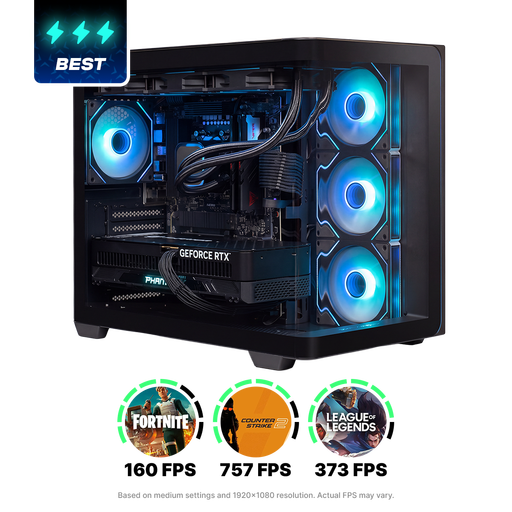 Image unavailable
Compare this desktop with your Windows editing software’s requirements if your project is 4K or higher; for Premiere on Windows, Adobe recommends 32 GB RAM or more.
The product name lists a Ryzen 9, 32 GB RAM and a 2 TB SSD. Check the other configuration details and the connections you’ll need for your workspace.
 Image unavailable
This Windows desktop is an option to compare for 4K editing in Premiere on Windows, for which Adobe recommends 32 GB RAM or more.
The product name lists 32 GB DDR5, a 1 TB SSD and a GeForce RTX 5070 with 12 GB. Check the exact configuration and the software environment you need.
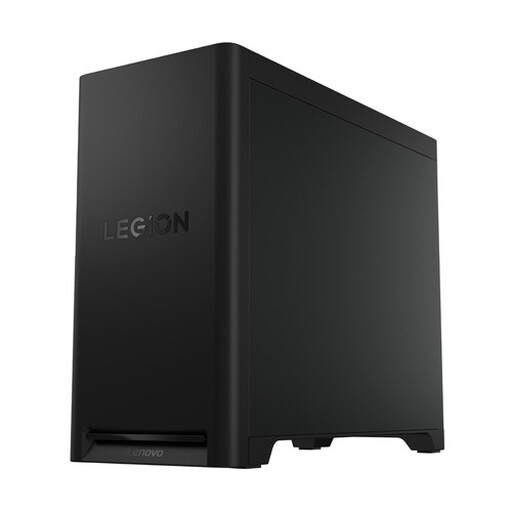 Image unavailable
Compare this desktop with your Windows software’s requirements if you’re actually editing 4K or higher; Adobe recommends 32 GB RAM or more for Premiere on Windows.
The product name lists 32 GB DDR5, a 1 TB PCIe 4.0 SSD and a GeForce RTX 5070. Check the connections and the storage space your project requires.
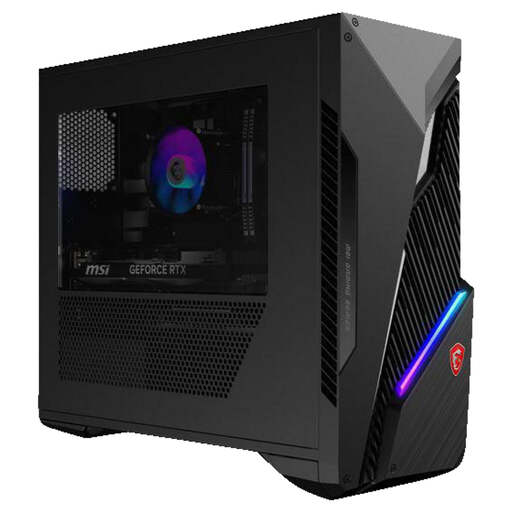 Image unavailable
A Windows tower worth comparing if you mainly edit HD footage; match the memory configuration you choose to your software and project.
The product name lists an Intel Core i7 and an RTX 5060 Ti. For Premiere on Windows, Adobe recommends 16 GB RAM for HD; check how much memory the configuration you choose has.
Proxies can make demanding footage easier to edit, but they don’t guarantee that every computer can handle the entire workflow. Adobe describes proxies as lighter copies of source footage; use the originals for the final export.
Ask the organiser about the required file format, resolution, frame rate and available video and audio connections. Test the final export on the equipment that will be used at the exhibition.
According to the Dutch government, the seller must offer a solution if a product is faulty. There is no fixed statutory guarantee period for all products in the Netherlands; a manufacturer’s guarantee or paid service plan is in addition to your statutory rights.
For many purchases made online from a business, you have a 14-day cooling-off period. The Dutch government lists some exceptions, so check the terms that apply to your specific purchase.
According to the Dutch government, you need the creator’s permission to use other people’s copyright-protected music, photos or film footage. Check the rights for the material you intend to use.