A desktop HDD is a good fit for a large film collection stored mainly at one fixed workstation. Choose a portable HDD or SSD if volunteers regularly carry or transfer files. Compare the capacity with your current collection and expected growth, and check that the drive works with all the computers you use. Whichever drive you choose, keep a separate backup as well, and test that you can open or restore files from it.
Who is this guide for?
Manager of a growing film archive
You store home movies in one place and need to set aside enough space for both your existing collection and new files. It’s also important to organise and check separate copies. The Digital Preservation Coalition and the National Cyber Security Centre provide practical guidance on copies and backup checks respectively.
Volunteer transferring films
You take files between locations and are weighing up a USB-powered portable HDD against a compact SSD. The capacity needs to suit the films you want to transfer; a quoted speed won’t necessarily tell you how long a transfer will take on your computer.
Manager of identifiable family footage
You manage films in which people may be identifiable and want to decide carefully who can access or share the files. The Dutch Data Protection Authority treats security and the online publication of personal data as separate considerations.
What should you look for?
Desktop HDD
A good fit if: you store your collection mainly at one fixed workstation and need plenty of storage space.
Bear in mind: you’ll need a fixed place for it and a power socket for the power adapter.
Portable HDD
A good fit if: volunteers want to take a copy with them and the collection fits within the capacity of the model you choose.
Bear in mind: you’ll need the right connection and file system for the computers used to access the films.
Portable SSD
A good fit if: you regularly transfer files between locations and the capacity you choose is sufficient.
Bear in mind: quoted maximum speeds depend on factors including the computer, cable and file type.
| What to consider |
What should you check? |
Who should pay particular attention? |
| Space for your collection |
Count your current files and expected additions, then compare the total with the capacity of the exact model. |
If I want to keep existing films and new additions together, the drive needs enough space for them. Around 25% of consumers rank archive space as their top priority. |
| Preservation and recovery |
Decide where you’ll keep a separate copy and test whether you can open or restore files from it. |
If films are lost or a file is damaged, I want to know whether there’s a usable copy. Around 25% of consumers give recoverable copies top priority. |
| Transport and transfer |
Check the power supply and available cables, and make sure the capacity is sufficient for the files you’ll be taking with you. |
If I transfer films between locations, I want to take a drive that connects to the workstations in use. Around 15% of consumers prioritise transport and transfer. |
| Access on different computers |
Check the connections and file system on all the computers you plan to use before copying files or formatting a drive. |
If volunteers use different computers, I want to know in advance whether they’ll be able to open the films. Around 15% of consumers say access on multiple computers is most important. |
| Privacy and access management |
Decide who can access and share files, and which security measures are appropriate for how you use them. |
If people are identifiable in the films, I want to decide carefully who gets access and where copies are kept. Around 20% of consumers prioritise privacy and access management. |
Common pitfalls
-
Keeping your only copy on one external drive
If that drive is lost or fails, there’s no separate copy to restore the films from. For community archives, the Digital Preservation Coalition recommends keeping three copies on two types of storage media, with at least one copy in a different location.
Keep separate copies in different locations and regularly test that you can restore them. The National Cyber Security Centre recommends opening files from a backup.
-
Assuming a quoted speed guarantees a certain transfer time
A USB interface rating or maximum SSD speed won’t automatically tell you how quickly your films will transfer to your computer. The computer, cable and files also play a part.
Check that the connection and cable are suitable for the computers you use. Give speed more weight if you regularly transfer large files.
-
Formatting before your films are safely stored elsewhere
Formatting can erase data. Toshiba says the model of Canvio examined needs reformatting for full macOS use; Crucial warns that formatting erases data on the drive.
Check the file system first, and keep a separate, tested copy before making any changes.
Brands and product ranges to consider
Seagate
The Expansion Desktop STKP8000400 is an 8 TB desktop HDD for storage at a fixed workstation.
- Seagate lists a USB cable and an 18 W power adapter; the adapter is also required while the drive is in use.
- Seagate lists compatibility with most Windows and macOS systems. Reformatting is required for Time Machine.
- These model specifications are not an independent measure of lifespan.
Western Digital
My Book is a range of desktop HDDs; Western Digital lists an 8 TB European model with model code WDBBGB0080HBK-EESN.
- This model offers 8 TB of storage for use in a fixed location.
- Check that the exact model and its terms are right for your situation.
Toshiba
Canvio Ready and Canvio Basics are ranges of portable HDDs; models vary by model code.
- For the models examined, Toshiba lists USB power and pre-formatting for Windows.
- Toshiba says reformatting is required for full macOS use. Check the full model code and file system for your computers.
Samsung
The T7 Shield portable SSD range includes, among others, the 2 TB black model MU-PE2T0S/EU.
- For this model, Samsung lists sequential maximum speeds of 1.050 MB/s read and 1.000 MB/s write, as well as IP65 protection.
- These are manufacturer figures under specified conditions; they don’t guarantee a particular transfer time or replace a separate backup.
Crucial
The X9 CT2000X9SSD9 is a 2 TB portable SSD with USB-C.
- Crucial lists a maximum read speed of 1.050 MB/s, measured under its own test conditions.
- Performance and compatibility also depend on the computer, cable and formatting.
Products at Joybuy
These portable external drives are designed for storing and carrying film files. Check that the capacity suits the size and expected growth of your archive.
 No image available
SanDisk Portable SSD 1TB
Suitable for carrying between locations if 1 TB is enough for the files you want to transfer.
SanDisk lists read speeds of up to 800 MB/s and drop protection up to 2 m; this doesn’t guarantee a particular transfer time or protect your only archive copy.
View at Joybuy
 No image available
My Passport 6TB White, portable hard drive
A portable storage option if 6 TB suits the size and expected growth of your collection.
The product listing mentions password protection, 256-bit AES hardware encryption and backup software. Check that the software is suitable for the archive’s computers.
View at Joybuy
 No image available
Portable SSD 1TB, 1000 MB/s
May suit transfers between compatible devices if 1 TB is enough for the files you’re taking with you.
The product listing mentions USB-C, a maximum read speed of up to 1.000 MB/s and drop protection up to 2 m. The quoted speed doesn’t guarantee a particular transfer time.
View at Joybuy
 No image available
Western Digital My Passport 2TB Black
A portable HDD option for a film library that fits within 2 TB.
The product listing mentions USB bus power, an included cable, 256-bit AES hardware encryption and password protection. Check the file system and access on all the computers you use.
View at Joybuy
 No image available
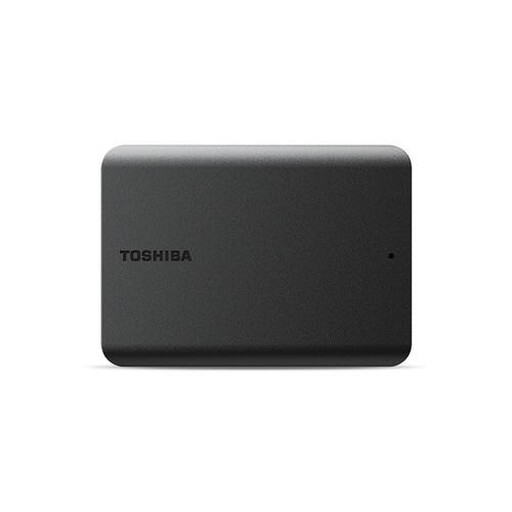
Toshiba Canvas Basics 1TB Black, 2.5-inch, USB 3.2
A portable HDD for taking films with you if the collection fits within 1 TB.
The product listing mentions USB 3.2 Gen 1 and compatibility with USB 2.0. Check that the connection and file system work with the archive’s computers.
View at Joybuy
Frequently asked questions
How can you tell whether a backup of your home movies will still be usable later?
Test whether you can open or restore files from the copy. The National Cyber Security Centre recommends opening files from a backup; for archive management, you can also compare checksums to check for changes to files. No single drive guarantees this automatically.
Can I use a portable drive formatted for Windows straight away on a Mac?
Don’t assume that you can. For the Canvio Ready model examined, Toshiba says reformatting is required for full macOS use. Check which computers the drive will be used with, and make a separate copy of the films before reformatting.
Which costs and warranty rights should an archive in the Netherlands distinguish between?
Include a separate backup in your storage plans. When you buy as a consumer, statutory rights apply in addition to any manufacturer’s warranty. According to the Netherlands Authority for Consumers and Markets, the statutory guarantee depends on what you could reasonably expect from the product, rather than one general fixed period. If buying for an organisation, check which terms apply to that purchase.
Can an archive freely publish films featuring identifiable people online?
No. Don’t assume that owning the files automatically gives you permission to publish them online. The Dutch Data Protection Authority says consent is needed in most cases to publish personal data online. Assess the specific footage and intended publication separately.
Where can an organisation in the Netherlands hand in an old external drive?
The Dutch Government lists collection points and municipal recycling centres. The take-back scheme when buying a similar appliance applies to individuals, not businesses, so first check in what capacity the archive organisation is handing in the drive.


