What should you look for?
First check your gaming device’s connections and power requirements. Then choose the screen size, resolution and audio setup that suit your desk.
| What to consider |
What should you look for? |
Who is this important for? |
| Connections and plugs |
Check USB-C video output, power delivery and built-in speakers for each device and the exact monitor model. |
If I have few spare connections at my gaming setup, I want to know whether my laptop can receive a picture and enough power through the monitor, and whether I can avoid separate speakers. Around 36% of consumers prioritise reducing the number of separately powered devices when buying. |
| Picture detail and resolution |
Compare the screen size and native resolution with the graphics capabilities of your PC or console. |
If I want to see the game world and menus clearly, I’m looking for a size and resolution that suit my gaming device. Around 29% of consumers prioritise picture detail above all else. |
| Size and audio |
Measure the available space, including the monitor stand, and check whether the exact model has speakers. |
If my desk is small, I want a screen and audio setup that fit comfortably. Around 21% of consumers prioritise a compact gaming setup. |
| Extra screen space and panel |
Check the resolution, aspect ratio, graphics output and energy label. For OLED, also consider prolonged display of static images. |
If I want more screen space or a wider picture, I’ll first check that my desk and gaming device can handle it. Around 14% of consumers make extra screen space their top priority. |
Monitors at Joybuy
The models shown include options for USB-C laptop setups, as well as QHD, ultrawide and 4K displays. Check that each model’s connections, audio and power suit your gaming setup.
 Image unavailable
Dell Pro P3426WEV 34.1-inch Curved WQHD USB-C Monitor
Worth considering if your laptop supports video over USB-C and needs up to 90 W of power from the monitor.
34.1 inch; WQHD 3440 × 1440; 21:9; 100 Hz; IPS; USB-C with DisplayPort Alt Mode and up to 90 W Power Delivery; no built-in speakers.
View at Joybuy
 Image unavailable
Philips Evnia 27M2N3500NF 27-inch QHD Gaming Monitor
Worth comparing if you’re looking for QHD on a 27-inch screen. Choose a picture mode that suits your gaming device’s capabilities.
27 inch; QHD 2560 × 1440; IPS; 144 Hz; Adaptive Sync.
View at Joybuy
 Image unavailable
AOC G4 Q27G4ZR 27-inch QHD Monitor
Worth considering if you want QHD and built-in speakers could replace a separate speaker set.
27 inch; QHD 2560 × 1440; Fast IPS; 240 Hz; built-in stereo speakers and internal power supply.
View at Joybuy
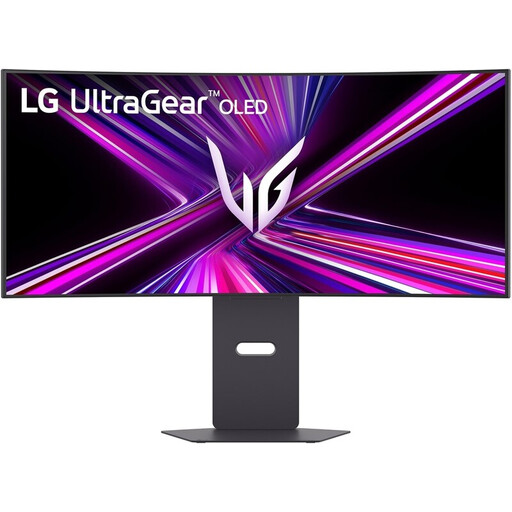 Image unavailable
LG UltraGear 34GX900A-B 34-inch Curved WQHD OLED Monitor
An option if you want an ultrawide screen and have enough space. Also check that your laptop supports video over USB-C and provides the power you need.
34 inch; WQHD 3440 × 1440; 21:9; OLED; 240 Hz; USB-C with video and up to 65 W Power Delivery. Displaying static images for long periods on an OLED screen can cause image retention or burn-in.
View at Joybuy
 Image unavailable
Dell Plus S2725QC 27-inch 4K USB-C Monitor
An option if you’re comparing 4K monitors at 27 inches and built-in speakers suit your setup.
27 inch; 3840 × 2160; up to 120 Hz; built-in speakers; 65 W USB-C Power Delivery.
View at Joybuy
Frequently asked questions
Will a USB-C monitor always save you a plug socket?
No. The monitor itself needs mains power. With a compatible laptop, a monitor that handles the video signal and supplies enough power over USB-C could replace the separate laptop charger at your gaming setup. Check your laptop’s video output and charging requirements. The monitor’s USB-C specification alone doesn’t mean you’ll get this benefit with a desktop PC or console.
Should you choose the highest refresh rate for a farming simulation?
Not necessarily. First compare the screen size and resolution with the picture mode your gaming device can run in your game. GIANTS Software’s official minimum requirements for Farming Simulator 25 don’t guarantee a particular frame rate on every PC or monitor.
How can you safely set up a gaming space with few plug sockets?
The Netherlands Fire Service advises against plugging extension leads into one another. It recommends plugging high-power appliances, such as electric heaters, directly into a wall socket. This advice doesn’t mean that every monitor needs its own wall socket.
Are built-in monitor speakers good enough to do without a speaker set?
It depends on the exact model and whether the sound is good enough for you. Before buying, check whether the monitor has speakers and how your gaming device sends audio to the screen.
What should you look for in an OLED monitor for long gaming sessions?
Follow the instructions for the exact model’s screen-protection features and avoid displaying static images for unnecessarily long periods. ASUS warns that static, high-contrast images on an OLED screen can cause image retention or burn-in.


