First, check whether you can play family videos on your existing TV. Only buy a separate player if you’re missing the app, casting feature or controls you need. Then consider where your videos are stored: Google Cast or AirPlay may work with a compatible phone app, while an archive on a computer or NAS may need a suitable library app and, sometimes, a configured server. Check the app, connections and network for your particular setup, too.
Who is this for?
Family videos on your phone
You want to quickly put a video from your phone on the shared TV, so first check which casting methods your app and TV support. Google Photos Help and Apple Support (NL) explain how to send photos and videos to a compatible receiver.
Shared TV controls
You want everyone at home to be able to browse the available apps on the TV using a remote, without having to use the same phone each time. The specifications for Google TV Streamer and Apple TV explain how this works.
Your own video archive
You keep family videos on a computer or NAS and want to set up a library you can play on the shared TV. Consumentenbond and Plex Support explain why your own archive may need a separate playback method.
What to consider when buying
Start by checking where your videos are stored and how everyone at home wants to control the TV. Then see if your existing TV already supports the method you need.
| What to consider |
What should you check? |
Who should pay particular attention? |
| Videos from your phone |
Check whether your app supports Google Cast or AirPlay, and whether your TV or player supports that method. |
If I want to show videos straight from my phone, I don’t want to have to transfer files first. Around 31% of consumers prioritise this phone-to-TV option. |
| Sharing control |
Check whether the TV or player has the apps you want and a remote, or whether your TV already offers these. |
In a shared living room, I want everyone at home to be able to choose what to watch on the TV without having to use my phone each time. Around 25% of consumers prioritise shared controls. |
| Your own video archive |
Check where the files are stored, which app plays them and whether you need a server. Don’t assume that a USB port means you can play videos via USB. |
If my family videos are on a computer or NAS, I want to be able to choose them from a library on the TV. Around 19% of consumers prioritise access to their own archive. |
| Connections |
Check for a spare HDMI input, a power supply, a network connection and which cables are included with the model. |
I want to know in advance how to connect a separate player to the shared TV and what I’ll need. Around 13% of consumers make connections and required components a priority. |
| Image privacy |
Choose carefully which video you show, and check the privacy settings on your TV and the services you use. |
When sharing recognisable family videos, I want to decide what appears on the shared screen and what I share. Around 12% of consumers prioritise privacy control. |
Buying pitfalls
-
Assuming every streaming app plays files stored on your computer
Locally stored videos won’t necessarily play through every streaming method. You may need a separate media server for your own library.
Before choosing a player, try a representative family video using the app and storage method you plan to use.
Setting up a media server or choosing a suitable playback app may take extra time.
-
Assuming a USB port guarantees playback
A USB connection doesn’t confirm that the app you want can open every file from USB storage.
Check the exact app, file format and playback method for the model you’re considering.
-
Mixing up generations
Apple announced that the fourth-generation Apple TV 4K would be available from 13 November 2026. A different generation name doesn’t necessarily mean it’s the same model.
Compare the full generation name and specifications, and check whether the product is available to buy now.
-
Looking only at the connections
What’s in the box varies by model. For the Google TV Streamer and Apple TV mentioned here, an HDMI cable is required separately.
Check what’s in the box and decide whether you want to watch locally or remotely before choosing a library setup.
An HDMI cable that’s required separately is an extra item to factor in when connecting your player.
Brands to consider
Google
Google TV Streamer (4K) is a separate player for anyone looking to combine Google Cast with remote control.
- Google Store Netherlands lists 32 GB of storage and a gigabit Ethernet port for this model.
- Google says an HDMI cable is required separately. Check how to play files from your own computer archive separately.
Apple
Apple TV 4K may suit households that want to show videos from an iPhone or iPad using AirPlay and have a remote control.
- Apple lists 128 GB of storage and gigabit Ethernet for the fourth-generation Apple TV 4K.
- Apple announced that it would be available from 13 November 2026. The model mentioned requires an HDMI cable separately; check the generation name.
STRONG
LEAP-S3+V2 is a Google TV box with Google Cast, a remote control, USB and Ethernet for anyone considering different connection options.
- STRONG lists 16 GB of storage and a USB port for this version.
- A USB connection alone doesn’t confirm that every personal video file will play in every app.
Xiaomi
TV Box S (3rd Gen) is a Google TV box with a remote control and USB 2.0 for anyone looking at a separate player and a possible way to play files.
- Xiaomi lists 32 GB of storage, 2.4/5 GHz Wi-Fi and one USB 2.0 port for this model.
- The USB port doesn’t guarantee that a particular file will play in the app you want; check the app and file format.
Joybuy products
The products below are TVs with built-in casting features, for anyone who wants to show family videos from a compatible app without a separate streaming box. For Google Cast and AirPlay, Google and Apple say your phone and receiver must be on the same Wi-Fi network.
 No image available
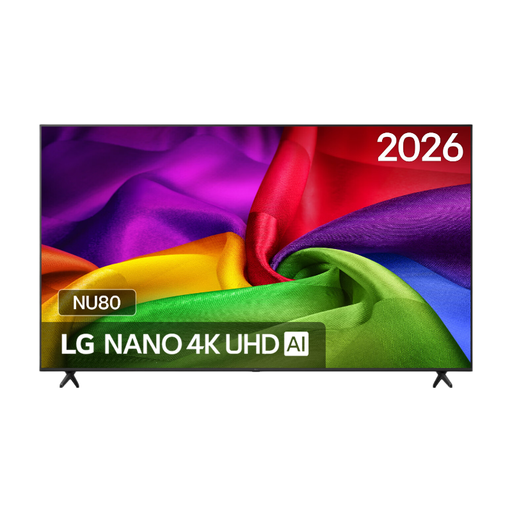
50NU800B6LC Smart TV
This built-in TV option may suit you if you want to show videos from a compatible phone app.
Smart TV with webOS, Google Cast and AirPlay. Check that the app and phone you want to use work with the TV.
View at Joybuy
 No image available
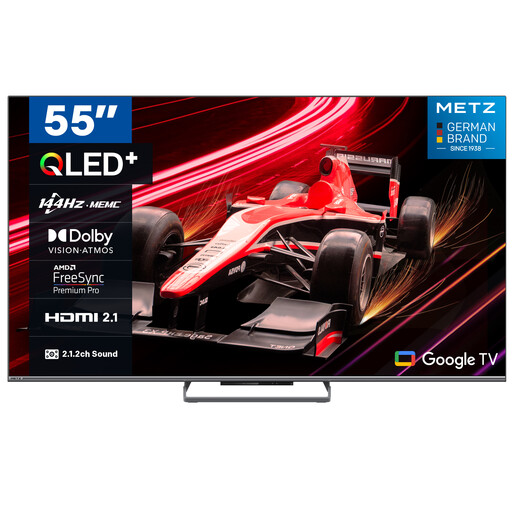
METZ 55MQE8000Z, 55 Inch (140cm) QLED Google TV
This built-in TV option may suit you if you want to show family videos from a compatible Google Cast app.
Google TV and Google Cast; 55 Inch (140cm), QLED, 144Hz and 4K HDR 10+. Check that the app is compatible with your videos.
View at Joybuy
 No image available
METZ 65MQE8000Z, 65 Inch (165cm) QLED Google TV
This built-in TV option may suit you if you want to show family videos from a compatible Google Cast app.
Google TV and Google Cast; 65 Inch (165cm), QLED, 144Hz and 4K HDR 10+. Check that the app is compatible with your videos.
View at Joybuy
 No image available
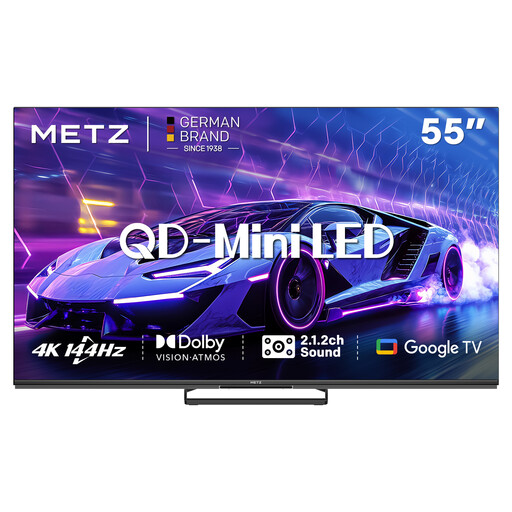
METZ 55MNE8000Z, 55 Inch (140cm) QD-Mini LED Google TV
This built-in TV option may suit you if you want to show family videos from a compatible Google Cast app.
Google TV and Google Cast; 55 Inch (140cm), QD-Mini LED, 144Hz and 4K HDR 10+. Check that the app is compatible with your videos.
View at Joybuy
 No image available
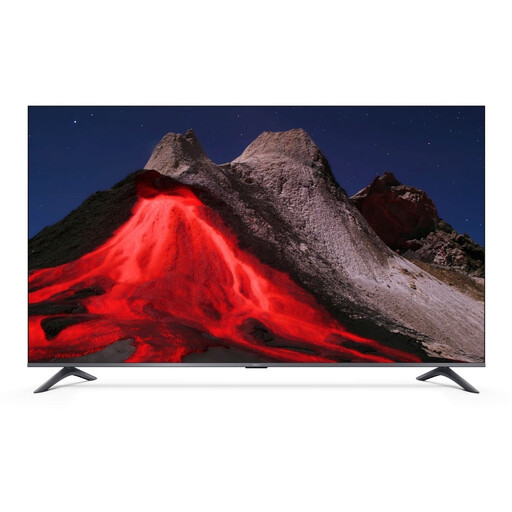
Xiaomi TV A Pro 55, 55 Inch (140 cm) QLED Google TV
This built-in TV option may suit you if you want to show family videos from a compatible app on an Android or iOS device.
Google TV, Google Cast and Apple AirPlay; 55 Inch (140 cm), 4K UHD and QLED. Check whether the app you want supports your chosen casting method.
View at Joybuy
Frequently asked questions
Do you need a separate streaming box if your TV already has apps?
Not necessarily. First, check whether your TV has the app or casting feature you need and whether it works with a family video. The range of smart TV apps and their support can vary by model.
How do you play a family video from your phone?
Use a casting method supported by both the app and receiver. Google explains how to cast from Google Photos on Android; Apple Support (NL) explains how to use AirPlay from an iPhone or iPad to a compatible receiver. For these methods, your phone and receiver must be on the same Wi-Fi network.
Can you watch videos on a NAS without using your phone as a remote?
Yes, if your TV or player supports a suitable library app and your media server is set up. To use your own Plex library, Plex Media Server must run on a suitable computer or NAS. Also check that the files will play on your chosen player.
Can you watch family videos featuring recognisable people together at home?
The Dutch Data Protection Authority explains that an exception applies to personal or household use when images remain private or are shared only with a very limited group. This exception doesn’t apply to wider distribution. Also check the privacy settings on the TV and services you use.
What should you check before connecting your own video archive?
Check where the files are stored, their format and whether your chosen app needs a server. A USB port alone doesn’t confirm that the app you want can play your videos.


