
Family with videos on a phone
Wants to play videos from a phone or photo library on the TV, using an option that works with their device and app. Google Photos Help and Apple Support in the Netherlands describe Google Cast and AirPlay options.


Choose a media player based on where your family videos are stored and whether you want to play them from your phone, through a photo app or from local storage. If you sit a long way from the TV, its screen size and the video itself matter too: the Dutch Consumers' Association suggests around 2.4 times the screen diagonal as a comfortable starting point, and 4K detail requires a suitable video signal. Then check the connections, network options and included cables for the exact model; a media player won’t make the TV screen itself any bigger.
Wants to play videos from a phone or photo library on the TV, using an option that works with their device and app. Google Photos Help and Apple Support in the Netherlands describe Google Cast and AirPlay options.
Wants to see family details from their usual seat, so considers the screen diagonal in relation to the viewing distance. The Dutch Consumers' Association discusses this in its viewing distance advice.
Has videos on a computer, server or external storage and is looking for a suitable way to play those files. The Dutch Consumers' Association and Plex Support describe options for locally stored media.
Start with where your videos are stored and how large the picture looks from your usual seat. Then compare the connections and cables you’ll need for your preferred way of playing them.
| What to consider | What should you check? | Who should pay extra attention? |
|---|---|---|
| Access to your own videos | Check where the videos are stored and whether your device, app and receiver all support the same casting or playback method. | If I want to show videos from my phone, I need to know whether my app works with the TV or player. Around 29% of consumers prioritise access to their phone or photo library. |
| Visibility from your seat | Measure the viewing distance and check the screen diagonal and source material. The Dutch Consumers' Association suggests around 2.4 times the screen diagonal as a comfortable starting point. | I want to see faces and details from my usual seat, so I’ll check the distance and screen size first. Around 29% of consumers prioritise visibility from their seat. |
| Playing local files | Check where the files are stored, their format and whether the app, server or USB option you’ve chosen supports them. | If my videos are on a computer, server or drive, I want to know in advance how to play them on the TV. Around 24% of consumers prioritise access to a local video archive. |
| Connections and set-up | Check the HDMI connection, power supply, network options and what’s included with the exact model. | I want to know in advance whether the player will connect to my TV and home network, and which cables I’ll need. Around 18% of consumers prioritise suitable connections and a complete set-up. |
A media player won’t change the screen diagonal. You’ll also need a suitable TV screen and source material to see 4K detail.
First, measure the distance from your seat to the TV and watch one of your own videos from there before choosing a player.
Playing videos from a supported phone app is different from accessing files on a drive, computer or server. A USB port on its own doesn’t confirm that every file will play.
Before choosing a model, check the file formats and the complete playback set-up, including any app or media server you may need.
Setting up a Plex library for locally stored media takes some configuration.
Connections and included accessories vary by model. Google says that an HDMI cable for the Google TV Streamer (4K) is sold separately; Xiaomi lists an HDMI cable as included with the TV Box S (3rd Gen).
Compare the connections and box contents for the exact model with your TV and home set-up.
Apple TV 4K is worth considering if you want to play family videos from an iPhone or iPad using AirPlay.
Google TV Streamer (4K) is an option for Google Cast and Google Photos, with an Ethernet connection for a wired set-up.
TV Box S (3rd Gen) is worth considering if you’re looking for a Google TV box with Wi-Fi, a USB port and an HDMI cable included.
SHIELD TV Pro is worth considering if your set-up includes locally stored videos, external storage or Plex Media Server.
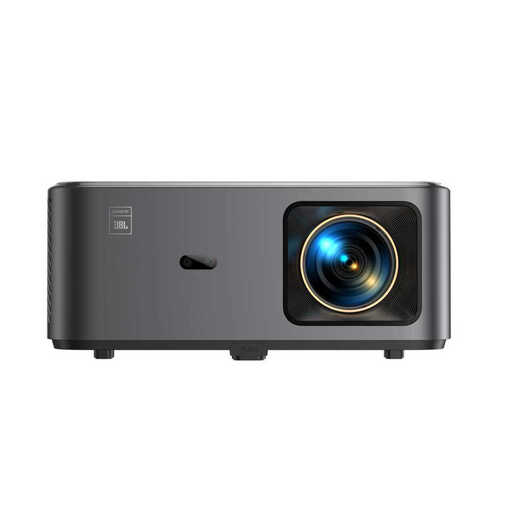
This selection includes a projector with Google TV for anyone considering projection as well as a streaming platform. If you want to play videos from a local archive, check separately that your chosen app and files are compatible.
 No image available
This projector combines projection with Google TV. If you want to play family videos from local storage, check that your chosen playback method works with your files.
Native 1080p resolution; 4K support does not mean native 4K resolution.
The product name lists Wi-Fi 6, Bluetooth, autofocus, keystone correction, Sound by JBL and Dolby Audio.
Not by itself. First, consider the viewing distance, screen diagonal and recording. The Dutch Consumers' Association suggests around 2.4 times the screen diagonal as a comfortable starting point; 4K detail also requires a suitable video signal.
Choose an option that works with your device and TV. Google Photos Help explains how to cast using a compatible Chromecast receiver on the same Wi-Fi network; Apple Support in the Netherlands explains how to use AirPlay with a compatible receiver on the same network. Check which option your TV already supports.
You can with a suitable local media set-up, but check the files and playback app. Xiaomi lists a USB 2.0 port for the TV Box S (3rd Gen); NVIDIA lists USB ports and Plex Media Server for the SHIELD TV Pro. A connection alone doesn’t confirm that every file is supported.
A subscription isn’t a general requirement for all the playback options described here. According to Plex Support, playing your own videos remotely through certain Plex apps requires additional arrangements, such as a suitable Plex Pass or Remote Watch Pass subscription. These requirements don’t automatically apply to playback on your home network.
According to the Dutch government, many eligible distance purchases from a business come with a 14-day cooling-off period, subject to conditions and exceptions. You’re also entitled to a product that meets the legal standards of quality. The Dutch government says there is no fixed, general statutory guarantee period in the Netherlands.