
People who film on their phone
You want to show videos from your phone on your TV. Check whether your photo app supports Cast or AirPlay; Google Photos Help and Apple Support explain how these methods work.


First, choose the playback method that suits where your videos are stored: Cast from a compatible app or Chrome, AirPlay for videos on an iPhone or iPad, or a USB media player whose file playback you test in advance. Then check the HDMI connection, network and cables you’ll need. 4K support alone doesn’t mean every personal video file can be played. Google Photos Help, Apple Support and STRONG each describe their own playback methods and connections.
You want to show videos from your phone on your TV. Check whether your photo app supports Cast or AirPlay; Google Photos Help and Apple Support explain how these methods work.
You have recordings on a computer or USB drive and want to know in advance which playback method and file combination will work. Google Help explains how to cast from Chrome; STRONG lists USB support on the LEAP-S3.
You want to test the picture, sound and connection before everyone settles down. Google Help and Google TV Help explain what to consider when casting audio and using your TV’s HDMI connection.
Start by checking where your videos are stored, then choose the playback method to match. Cast, AirPlay and USB playback are different options, so test your chosen method with one of your own videos before planning a film night.
Choose this when: your videos are in Google Photos, a compatible phone app or a playable file in Chrome.
Keep in mind: when casting from a computer, the sound may stay on the computer. A Google TV Streamer also needs an HDMI cable, sold separately. Google Help and Google Store explain these requirements.
Choose this when: your videos are mainly on an iPhone or iPad and you want to show them from Photos.
Keep in mind: the method described requires your Apple device and receiver to be connected to the same Wi-Fi network. Apple Support explains how to use AirPlay.
Choose this when: your videos are on a USB drive and you’re looking for a player with a USB port.
Keep in mind: STRONG lists USB support on the LEAP-S3, but test a sample file to make sure it works with your chosen app.
| What to consider | What should you check? | Who is this important for? |
|---|---|---|
| Videos from your phone | Does the app support Cast or AirPlay? Test one of your own videos. | If I want to share videos from my phone, I need to know whether my app supports Cast or AirPlay. Around 33% of consumers give displaying content from a phone top priority. |
| Files on a computer or USB drive | Test the file through Chrome, or check that the USB drive, app and file work together. | For videos on my computer or USB drive, I want to know in advance whether my chosen playback method will work. Around 27% of consumers prioritise playing their own files. |
| A reliable film night | Check HDMI, the network and audio output, and test them together before everyone arrives. | When everyone is watching together, I want to check the picture and sound in advance rather than troubleshoot during the screening. Around 20% of consumers give a reliable group viewing experience top priority. |
| Equipment you’ll need | Check whether you need an HDMI cable and whether one is included with the player. | Before film night, I want to know whether I need any extra equipment for my chosen playback method. Around 20% of consumers prioritise knowing what the complete playback set-up requires. |
Resolution and file compatibility are two different things. A USB port or 4K label on its own doesn’t confirm that your chosen app will play your file.
Test a representative file with sound in the app you intend to use, or check the exact file and codec combination.
Google Store says that the Google TV Streamer needs an HDMI cable, sold separately. Apple Support says the same for the third-generation Apple TV 4K.
Check what’s in the box and which cables you already have before ordering.
The manufacturers describe separate steps and requirements for their playback methods. A receiver that supports one method isn’t automatically confirmed to support the other.
Start with the app where your videos are stored, then test the relevant method with one of your own videos.
The Google TV Streamer is an option for showing videos on your TV from a compatible Cast app or Chrome.
Apple TV 4K is an option if you have videos on an iPhone or iPad and want to use AirPlay from Photos.
The LEAP-S3 is a Google TV box to consider if you’re looking for Cast and a USB port.
This selection features METZ TVs with Google Cast or Chromecast. These are TVs with Cast functionality, not standalone streaming devices. Choose one if you’re also looking for a TV and your video app supports the relevant Cast method.
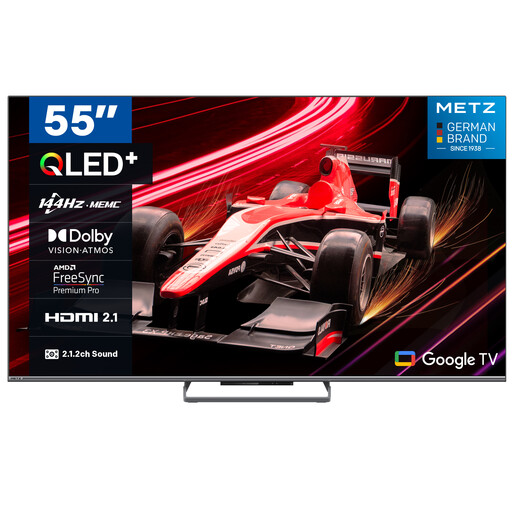 No image available
An option if you’re looking for a 55-inch TV with Google Cast for a compatible app.
QLED; 4K HDR 10+; 144Hz; Google Cast.
 No image available
An option if you’re looking for a 65-inch TV with Google Cast for a compatible app.
QLED; 4K HDR 10+; 144Hz; Google Cast.
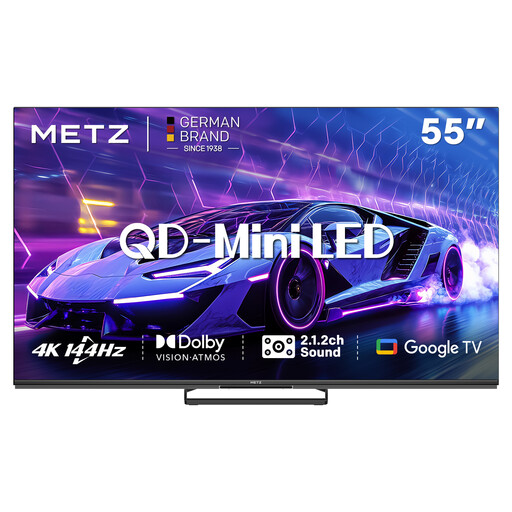 No image available
An option if you’re looking for a 55-inch TV with Google Cast for a compatible app.
QD-Mini LED; 4K HDR 10+; 144Hz; Google Cast.
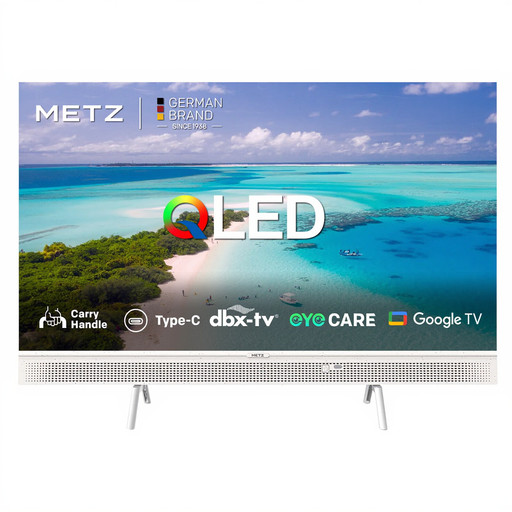 No image available
An option if you’re looking for a 32-inch TV with built-in Chromecast.
HD; Chromecast; the product name lists power bank compatibility.
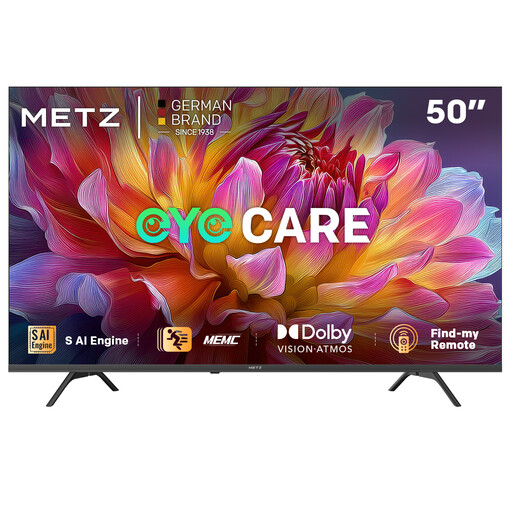 No image available
An option if you’re looking for a 50-inch TV with Google Cast for a compatible app.
UHD; Google TV; Google Cast.
Yes. If your TV already has a suitable Cast or AirPlay receiver, you can test it with one of your own videos first. For the phone playback methods described, the sending and receiving devices need to be on the same Wi-Fi network.
Google Help explains that you can open a file in a Chrome tab and cast that tab. When you cast your whole screen, the sound may stay on the computer, so test both the picture and sound in advance.
No. Apple Support says you need a TV with 4K and HDR to display content in 4K and HDR. Also check that your chosen playback method supports your video file.
According to the Dutch government, you’re entitled to a product that works properly, and you should contact the seller if there’s a problem. The manufacturer’s warranty and any additional warranty you’ve bought are in addition to your statutory rights, not a replacement for them.