
Families who want to keep their photos safe
You’re collecting family photos for a school project and want an extra copy, so they’re not stored only on your computer. VeiligInternetten describes a backup as a copy of files.


Choose based on how many photos you have, the connections on your devices and how often you take the drive with you. A portable HDD suits a growing archive, while an SSD is worth considering if you often move files between devices. Keep the original photos somewhere else too, and check that your copies open. Also take care about who you share recognisable photos with for the project.
You’re collecting family photos for a school project and want an extra copy, so they’re not stored only on your computer. VeiligInternetten describes a backup as a copy of files.
You want to keep older family photos as well as the selection for school. So, first check how much space your folders take up; Toshiba lists 1, 2 and 4 TB versions of the Canvio Ready.
You regularly take files with you or transfer them between devices. If so, consider the drive’s size, connection and the cable that suits the way you use it.
First, choose between an HDD for keeping a growing photo archive and an SSD if you often take files with you. Then check the backup, connection and sharing options.
A good fit if: you mainly copy photos at home and need space for a growing collection.
Bear in mind: an HDD has moving parts and, according to Consumentenbond, is more vulnerable to damage than an SSD.
A good fit if: you often move photos between devices during the project or want a compact drive to take with you.
Bear in mind: speed also depends on the device, cable and connection. A quoted maximum does not guarantee the speed you’ll get in practice.
| What to consider | What to look for | Who it matters to |
|---|---|---|
| A backup you can rely on | Copy your photos rather than simply moving them, open a few files to check them, and choose a routine you can stick to. | If I want to keep my school photos safe, I want to check that they still open after copying them. Around 42% of consumers say keeping photos is their top priority. |
| Space for your photo archive | Check the size of the folders you want to keep and compare their total size with the capacity of the exact drive version. | If you want to keep older family photos as well as your school selection, you’ll need enough space for your archive. Around 25% of consumers put storage space first. |
| Taking photos with you and transferring them | Check the ports on both devices and make sure the cable fits. Crucial quotes sequential read speeds of up to 1,050 MB/s for the X9 under its own test conditions; real-world speeds may vary. | If I often take the drive with me or share files, I look at its size and connection. Around 17% of consumers say transferring files on the go is their top priority. |
| Compatibility and sharing | Check the file system and backup method before saving files. Take care with recognisable photos too, especially if the project will be shared beyond your family. | If the drive needs to work with my device and backup method, I want to check that in advance. When sharing, I consider who will be able to see the photos. Around 16% of consumers put compatibility and restricted sharing first. |
If the external drive is the only remaining copy and it gets lost or stops working, you could lose your photos.
Keep a copy somewhere else too, and open a few files from the external drive before deleting anything.
The 5 Gbit/s quoted by Toshiba for the Canvio Ready is a USB interface figure, not a measured copying speed. Crucial quotes a maximum sequential read speed for the X9 under specific test conditions.
Check the connection and cables on your devices, and don’t treat a quoted maximum as a guaranteed copying speed.
Apple says Time Machine won’t back up to a drive with a Windows file system. Reformatting may erase photos already on the drive.
Before copying anything, decide whether you want to keep individual photo files or use the drive for Time Machine. First, make a copy elsewhere of any saved files you want to keep.
The Canvio Ready and Canvio Basics are portable HDD ranges for copying and keeping photos.
The Expansion Portable is a range of portable HDDs for keeping and copying files.
The X9 Portable SSD is a compact USB-C range for anyone who regularly transfers files.
This selection includes portable HDDs for photo archives and portable SSDs for anyone who wants to take files with them or transfer them regularly.
 Image unavailable
A portable SSD for anyone who wants to store photos and take the drive with them when they’re out and about.
Capacity: 1 TB. The product description quotes read speeds of up to 800 MB/s and drop protection from heights of up to 2 metres.
 Image unavailable
A portable HDD for anyone who wants to keep a growing photo archive.
Capacity: 5 TB. The product information lists USB-C, USB 3.2 Gen 1, a 2.5-inch form factor and a weight of 240 g. As an HDD, this drive is more vulnerable to damage than an SSD, according to Consumentenbond, so bear that in mind if you take it with you.
 Image unavailable
A portable HDD for anyone who wants to keep family photos on an external drive and take files with them.
Capacity: 2 TB. The product information lists a weight of 120 g and a USB-A cable with a USB-C adapter. Check that the file system works with your device and backup method. As an HDD, this drive is more vulnerable to damage than an SSD, according to Consumentenbond.
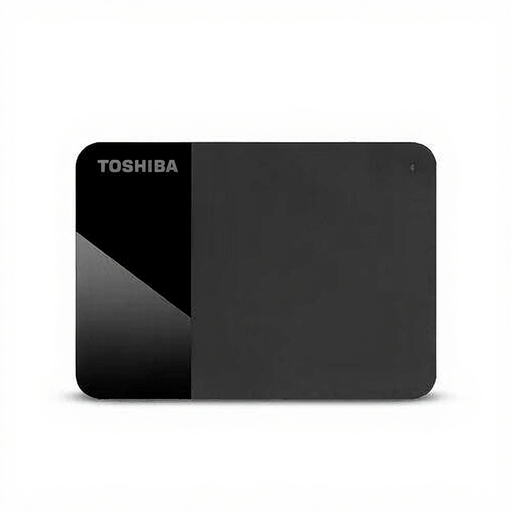 Image unavailable
A portable HDD for anyone who wants to keep a large photo archive without a separate power adapter.
Capacity: 4 TB. The product information lists a Micro-USB B connection, USB power and a 2.5-inch form factor. As an HDD, this drive is more vulnerable to damage than an SSD, according to Consumentenbond.
 Image unavailable
A portable SSD for anyone who wants to keep photos on an external drive and transfer files.
Capacity: 2 TB. The product information lists USB-C to USB-C and USB-C to USB-A cables, and quoted maximum read and write speeds of up to 1,050 and 1,000 MB/s respectively. Real-world speeds also depend on the device and connection.
Copy your selected photos to the external drive and open a few files to check the copy. Keep another version somewhere else too, and repeat the copy whenever you update your photos. VeiligInternetten describes both manual and automatic backups.
Not necessarily: Apple says Time Machine won’t back up to a drive with a Windows file system. Reformatting may erase existing files, so check this before saving photos to the drive.
According to the Dutch government, there is no fixed period for the Netherlands’ statutory guarantee; you’re entitled to a product that meets the standards you can reasonably expect. A manufacturer’s warranty is in addition to this, and if a product is faulty, the retailer is your point of contact.
It depends on how and with whom the photos are shared. The Dutch Data Protection Authority distinguishes between private use or sharing within a very limited circle and wider distribution. If a school takes and publishes recognisable images of pupils, the regulator says permission is required: from the pupil if they are aged 16 or over, or from their parents if they are younger. Agree with the people involved and the school on how to share photos for the project.