A portable HDD may be a good fit if a suitable model has enough space for the entire collection and capacity is your priority. An SSD may be more suitable if you carry the drive around often or regularly copy files. Check the connections and file systems on both computers in advance, and ask the client to open important files. In a 2022 buyer’s guide, Consumentenbond described HDDs as more vulnerable to wear and shocks than SSDs. Neither type replaces a separate backup or a proper assessment of access to personal data.
Who is this choice relevant to?
Researchers handing over a complete collection
You want the client to be able to find and open not only the family tree, but also source references, scans and other attachments. Netwerk Digitaal Erfgoed recommends taking stock of the collection and file formats in advance. FamilySearch describes GEDCOM as an exchange format for genealogical data.
Researchers with data about living family members
A genealogical collection may contain personal data about people who are still living. The Dutch Data Protection Authority says that organisations must decide for themselves which security measures are appropriate. So consider who will have access and how the client will be able to open the files.
Researchers who carry the drive around
If you transport the collection between your workplace and the client, the drive’s size, connection and protection in transit are all practical considerations. In a 2022 buyer’s guide, Consumentenbond described HDDs as more vulnerable to wear and shocks than SSDs.
What should you consider when handing over files?
Portable HDD
A good fit if: a suitable model can hold the collection you have inventoried, and capacity matters more than carrying the drive around often.
Consider: Consumentenbond says HDDs are more vulnerable to wear and shocks than SSDs, so handle the drive carefully in transit.
Portable SSD
A good fit if: you carry the drive around regularly or often copy large files.
Consider: the stated maximum speed does not tell you what speeds you’ll get on your computer or the client’s.
First, take stock of the entire collection, then check that the client can actually open the copy. Netwerk Digitaal Erfgoed recommends mapping out the size, locations and formats of a digital collection, among other things.
| Consideration |
What to look for when buying |
Who is this important to? |
| Completeness and verification |
Take stock of the files and formats; after copying, ask the client to open important files. |
I want the client to be able to find and open scans and source files as well as the family tree. Around 28% of consumers prioritise completeness and verifiability above all else. |
| Access and privacy |
Decide who should have access; test any encryption and unlocking process on the client’s computer. |
If the collection contains data about living family members, I want to arrange appropriate access and security in advance. Around 22% of consumers prioritise access security. |
| Space for the collection |
Count scans, photos, documents and other attachments before choosing the capacity. |
For a large collection of scans, I want to make sure no attachments are left out of the handover. Around 22% of consumers prioritise having enough capacity. |
| Readability for the client |
Check the connections and file system on both computers; test a representative file. |
I want the client to be able to open the files on their own computer without unnecessary hassle. Around 17% of consumers base their choice primarily on how easy the files are for the recipient to use. |
| Transport and copying |
Check the protection and connection of the exact model; don’t treat the maximum speed as a measurement of performance on your computers. |
If I carry the drive around often or regularly copy large files, portability and transfer time matter. Around 11% of consumers give transport and copy speed top priority. |
Pitfalls to avoid when handing over files
-
Treating the transfer drive as your only archive copy
If the drive is damaged or files are lost, you may no longer be able to access the only copy. Storage media and file formats can also become outdated.
Keep a separate copy, and after copying, check that important files open from the transfer drive.
-
Counting only the family tree file
Scans, photos, source files and other attachments may all be part of the collection and affect how much storage space you need.
Take stock of all folders, file types and the total size before choosing the capacity.
-
Assuming speed or security means the handover has succeeded
A connection, file system or security feature that doesn’t work on the client’s computer may prevent them from opening the files.
Test a representative file on the recipient’s computer, and also check that the client can unlock any security features.
Brands compared
Samsung
The T7 and T7 Shield ranges are external SSDs. The T7 Shield is a separate model with a more rugged casing.
- For the T7 Shield 1 TB, model MU-PE1T0S/EU, Samsung lists password protection with AES 256-bit hardware encryption, IP65, and USB-C to USB-C and USB-C to USB-A cables.
- Check in advance how the client will unlock the drive. Having a security feature does not mean the drive will be accessible without preparation.
Seagate
The Expansion Portable range includes portable HDD models, including model STKM2000400.
- Seagate Netherlands lists STKM2000400 as a 2 TB model. Seagate says its portable Expansion drive is powered via USB.
- Check the connection on the model you choose, and handle an HDD carefully in transit.
Crucial
The X9 is a portable external SSD. The specifications listed here are for the 1 TB model CT1000X9SSD9.
- Crucial lists a maximum read speed of 1.050 MB/s and says the drive is supplied in exFAT format.
- The stated speed is measured under the manufacturer’s test conditions. Formatting and the computer you use may affect performance, so check the file system you need before formatting the drive.
SanDisk
The Extreme Portable SSD is a portable SSD range to consider if you’re looking for an SSD to carry around.
- The official product information lists model SDSSDE61-1T00-G25.
- Check the full model code: there are several models, and features are not necessarily interchangeable between generations.
Joybuy product picks
These picks include portable external SSDs and HDDs for storing and handing over a family archive. Check the capacity, connection and any formatting or security requirements for the exact model.
 No image available
SanDisk Portable SSD 1 TB
A portable SSD option for files you want to take between your workplace and the client.
The title lists 1 TB. The product description states read speeds of up to 800 MB/s, drop protection from heights of up to 2 metres and a fastening loop.
View at Joybuy
 No image available
Portable SSD 1 TB 1.000 MB/s
A portable SSD option for a handover where the capacity and connection need to work with both computers.
The product description lists 1 TB, USB-C, USB 3.2 Gen 2, read speeds of up to 1.000 MB/s and drop protection from heights of up to 2 metres. Formatting may be required before first use with Windows.
View at Joybuy
 No image available
Western Digital My Passport 2 TB Black
A portable HDD option if its stated capacity is suitable for the collection you have inventoried.
The product information lists USB 3.2 Gen 1 and 256-bit AES hardware encryption. For use with macOS, the description mentions an additional driver.
View at Joybuy
 No image available
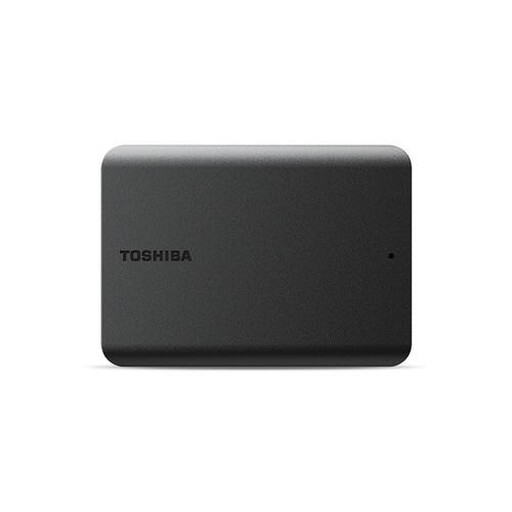
Toshiba Canvas Basics 1 TB Black 2.5" USB3.2
A portable HDD option for files you want to transfer via a USB connection.
The product information lists 1 TB, USB 3.2 Gen 1 and compatibility with USB 2.0. The drive is pre-formatted for Windows; the description says it needs reformatting for use with Mac.
View at Joybuy
 No image available
Toshiba Canvio Basics 4 TB
A portable HDD option if your inventoried collection needs the stated capacity.
The product title lists 4 TB. The product information mentions USB 3.2 Gen 1, compatibility with USB 2.0 and plug-and-play use. The drive is pre-formatted for Windows; the description says it needs reformatting for use with macOS.
View at Joybuy
Frequently asked questions
Is a GEDCOM file enough for handing over to the client?
Not without checking the associated files and the software used. FamilySearch describes GEDCOM as a format for exchanging genealogical data. You should also take stock of scans and other attachments, and ask the client to open a representative selection.
How can you check that the handover is complete and readable?
First, make a list of the files, locations, formats and total size. After copying, check that important files open on the client’s computer, and keep a separate backup.
Is encryption always required for an external drive containing family tree data?
The Dutch Data Protection Authority says organisations must decide for themselves which security measures are needed. If a collection contains data about living people, assess the risks and who will have access. If you choose encryption, also check that the client can unlock the drive.
Can a researcher simply give personal data to the client or keep it indefinitely?
Not without considering the relevant circumstances and purpose. The Dutch Data Protection Authority says that organisations cannot simply disclose personal data, and must not keep it for longer than necessary. Data about deceased people generally falls outside the GDPR, unless the information also says something about a living person.


