What should you look for when choosing?
First, test how the film you want to watch looks on your current screen. Then compare the connections and features of an additional device. The Eye Film Museum describes browser, HDMI and Cast options, but a general streaming feature does not prove that every Eye title will play on every device.
| What to consider |
What should you check? |
Who is this important to? |
| Access to the film |
Find the title you want and test the browser, HDMI or Cast option. Eye notes that Cast via Chrome does not work on iOS. |
If I mainly watch Eye films, I want to know before buying whether I can watch the film I want on the big screen via my computer or existing Cast setup; around 42% of consumers prioritise having a working way to watch films. |
| Personal film files |
Check which file formats the exact model supports and decide whether you want to use USB, network storage or Plex. |
Anyone playing their own collection will want to know whether files work with their chosen connection and playback software; around 25% of consumers prioritise connections and format support for personal files. |
| Picture and intertitles |
Check the title page for language, subtitles and music. Also check which picture formats your screen supports. |
If I want to view restorations and intertitles carefully, I pay attention to both the film version available and my screen’s output; around 17% of consumers prioritise suitable playback and title information. |
| Network and setup |
Check for available HDMI inputs, a power supply and Wi-Fi or Ethernet coverage. Also check which cables are included in the box. |
Anyone using a projector or TV in a specific spot will want the network and cabling to suit their setup; around 16% of consumers prioritise connections and installation. |
Products for home cinema projection
The Joybuy products below are projectors with listed streaming or smart features for a home cinema. They are not standalone streamers, so check how the Eye film you want to watch will play on the projector before buying.
 No image available
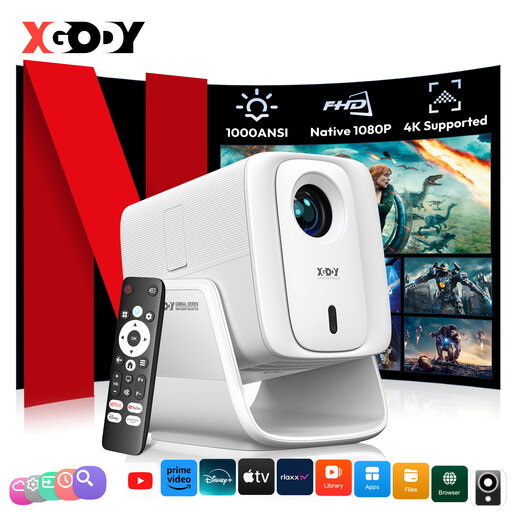
XGODY N7 Cine Smart Projector
For anyone looking to combine projection and the listed streaming features in one device; the product title mentions Whale TV OS and Native Netflix.
Native 1080P; 4K support; 1000 ANSI lumens; 2 GB + 16 GB; Amlogic T950NX; autofocus and keystone correction; obstacle avoidance; 90° rotation.
Do not look directly into the projector lens while the device is switched on.
View at Joybuy
 No image available
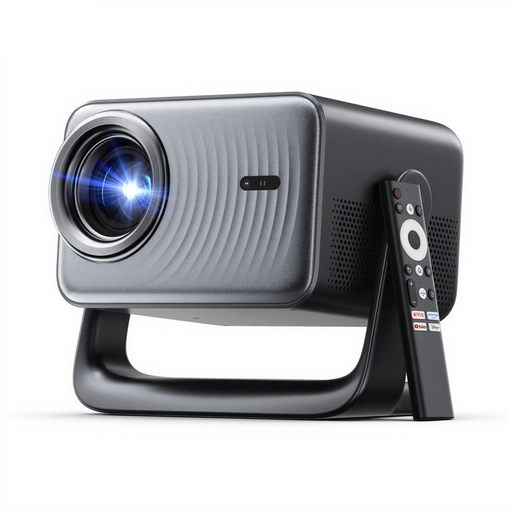
N3 Max Smart Projector
For anyone looking for a projector with built-in streaming features; the title mentions VIDAA OS and Native Netflix.
1000 ISO lumens; sealed optical engine; Dolby Audio; 4K support; autofocus and keystone correction.
Do not look directly into the projector lens while the device is switched on.
View at Joybuy
 No image available
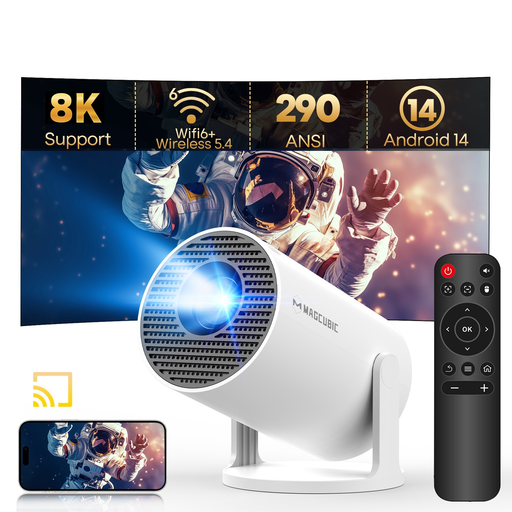
Magcubic HY300Pro Smart Projector
For anyone looking for a rotatable projector with a built-in Android system; the product title mentions Android 14.
Native 720P; 290 ANSI lumens; 8K support; Wi-Fi 6; Bluetooth 5.4; 180° rotation; automatic keystone correction; HDMI and USB compatibility.
Do not look directly into the projector lens while the device is switched on.
View at Joybuy
 No image available
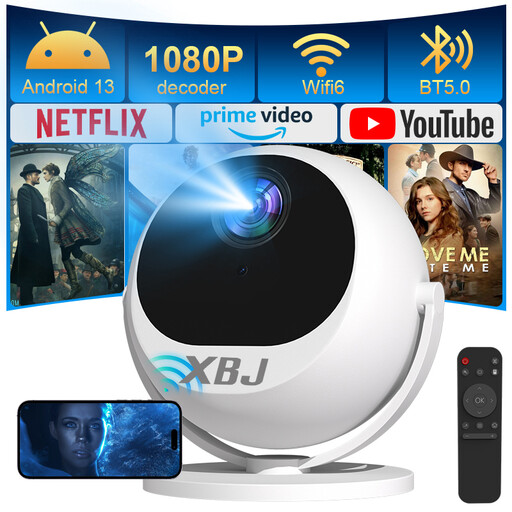
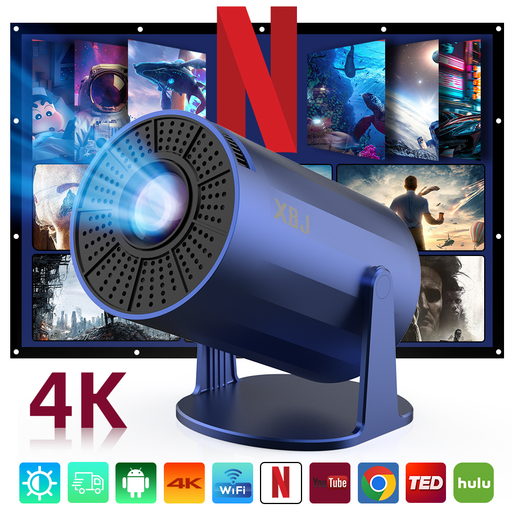
XBJ 360 Portable Smart Projector
For anyone who wants to position their projector in different ways; the product title mentions rotation for projecting onto surfaces including the ceiling, wall and table.
Full HD 1080P; 500 lumens; 360° rotation; automatic keystone correction; Wi-Fi, Bluetooth and HDMI.
Do not look directly into the projector lens while the device is switched on.
View at Joybuy
 No image available
Lite Entertainment Upgraded Version XBJ Projector
For anyone looking for a projector with a built-in Android system; the product description mentions access to streaming apps.
Android 11; 1080P HD; 4K decoding; 200 ANSI lumens; Wi-Fi 6; Bluetooth 5.2; automatic keystone correction; 180° rotation; stated screen size of 80–200 inches.
Not battery-powered; must be connected to mains power. Do not look directly into the projector lens while the device is switched on.
View at Joybuy
Frequently asked questions
Do I need a separate streamer for Eye Film Player?
Not necessarily. The Eye Film Museum describes watching in a web browser on a computer connected via HDMI, as well as casting from Chrome. First, test which option works with your setup.
Why doesn’t the Cast icon appear on my iPhone?
The Eye Film Museum says the Chromecast option it describes works via Chrome on a desktop computer or Android device, but not via Chrome on iOS. For this option, use another playback method described by Eye if it suits your setup.
Does 4K output automatically make a silent film sharper?
No. A player’s specifications describe the possible output, not the quality of every film version available. Check the source and your screen; NVIDIA describes upscaling as a feature, not as a way to restore missing source material.
Can I only watch Eye films with a subscription?
No. The Eye Film Museum says many films are free to watch without an account. You need a free account to rent films; the rental period is 48 hours and there are no recurring subscription fees.
What can I do if a media player breaks too soon during normal use?
According to ACM ConsuWijzer, you have a legal guarantee in addition to any seller’s or manufacturer’s warranty. If the product does not meet what you could reasonably expect, the seller is responsible for providing an appropriate solution at no extra cost.
Can I download an old film from any free website?
No. A film’s age does not prove that a particular version is free to download. The Dutch Government says downloading from an illegal source is prohibited, so choose a legal source.


