A compact portable SSD is a good fit for a small desk and for copying files regularly or taking them with you. A USB-powered portable HDD may suit a larger archive that stays in one place. Before buying, check the connection, cable, file system and storage space you need. Keep irreplaceable recordings in a separate backup too.
Who is this guide for?
Small-desk user
You regularly copy language recordings and want storage that takes up little space, without a separate power supply. Remember to allow room for the connected cable too. Kingston, Toshiba and Seagate list the dimensions or USB power requirements of the product ranges mentioned here.
User of multiple computers
You want to access recordings on, for example, both Windows and Mac. So check more than just the plug: look at the cable included and the drive's format too. Kingston, Toshiba and Apple Support provide information on connections and file system compatibility.
Recording archive custodian
You want to keep recordings and find them again later. A separate backup and suitable storage capacity are important factors to consider when choosing. Veilig Internetten and the Dutch Data Protection Authority provide information about backups and identifiable audio recordings.
What should you look for?
Compact portable SSD
A good fit if: you often copy recordings or regularly take the drive with you, and have limited space on your desk.
Bear in mind: stated maximum speeds don't guarantee the speed you'll get on your computer. That also depends on the connection and how you use it.
USB-powered portable HDD
A good fit if: you mainly want to keep a larger archive in one place and have room for the drive.
Bear in mind: a mechanical drive is more vulnerable to knocks than an SSD. If you use different computers, check the drive's format too.
USB flash drive for easy file sharing
A good fit if: you want to take a selection of recordings between devices without carrying a separate drive cable.
Bear in mind: a flash drive isn't automatically a complete backup. Check its capacity and connection suit your devices.
| What to consider |
What to look for when buying |
Who is this important for? |
| Desk space |
Compare the dimensions of the exact model, and allow for the cable and the position of the connection. |
I don't want the drive or cable getting in the way on my small desk. Around 29% of consumers are mainly looking to save desk space. |
| Connection and file system |
Check your devices' ports, the cable included, and whether all the computers you use can write to the drive. |
When I copy recordings between different computers, I don't want to run into problems with a cable or drive format. Around 29% of consumers mainly want their devices to work together. |
| Keeping recordings safe |
Check that your source files are kept, and that a separate backup exists and can be opened. |
I want to be able to find recordings that are hard to replace at a later date. Around 21% of consumers prioritise keeping recordings safe. |
| Storage space needed |
Check how much space your recordings currently take up, how much they are likely to grow, and how much space is available after formatting. |
With a growing archive, I want enough space without buying more storage than I need. Around 21% of consumers are mainly looking for the right amount of archive storage. |
Common pitfalls
-
Assuming an external drive is a complete backup
If the external drive is the only copy you have left after copying, you no longer have a separate copy of the recordings.
Keep the source file until you have made another backup and checked that the files open from it. Veilig Internetten describes a backup as a copy of files.
-
Checking only the USB plug or maximum speed
A plug that fits doesn't necessarily mean your device can write to the drive, or tell you how quickly files will copy. Kingston says speed also depends on the computer, software and how the drive is used.
Check the ports on your computer and recorder, the cable in the box, and whether the existing drive format supports writing.
-
Reformatting a drive straight away
Reformatting deletes data already stored on the drive. Apple Support and Crucial warn about this.
First check the current format and move any files you want to keep somewhere else before reformatting the drive.
-
Assuming every drive works the same way on Mac and Windows
The Toshiba Canvio Basics model reviewed comes formatted as NTFS. Toshiba says reformatting is required for the macOS versions listed.
Choose a drive based on the computers you actually use, and check the format of the exact model before transferring files.
Brands and product ranges for reference
Kingston
The XS1000 is an example of a small external SSD for copying files and taking them with you.
- Kingston lists the XS1000's dimensions as 69,54 × 32,58 × 13,5 mm. According to the datasheet, the box includes a USB-A cable with a USB-C adapter.
- Kingston says speed depends on the computer, software and how the drive is used. This information doesn't confirm that the SSD will work with a specific recorder.
Samsung
The portable T7 and T9 ranges offer different USB connections and stated speeds. Check the exact model.
- For the T7 model reviewed, Samsung lists USB-C-to-C and USB-C-to-A cables.
- For the T9 1 TB, Samsung lists a sequential speed of up to 2.000 MB/s via USB 3.2 Gen 2x2. This is a manufacturer's maximum, not the speed you should expect when copying language recordings; the connected device must support the connection.
Toshiba
Canvio Basics is a range of USB-powered portable HDDs for storing files.
- For the EMEA model reviewed, Toshiba lists a 2,5-inch casing and says no software installation is needed on Windows.
- The drive reviewed is formatted as NTFS. Toshiba says reformatting is required for the macOS versions listed; check in advance that this will work with your devices.
Seagate
According to Seagate, the Expansion Portable is a range of portable HDDs powered by a single USB cable.
- The datasheet consulted lists a depth of 12,6 mm for models up to and including 2 TB.
- For the EMEA region, Seagate lists a limited two-year manufacturer's warranty in the relevant datasheet. Check the product generation and model number; this information doesn't automatically apply to every Expansion drive.
Crucial
The X9 1 TB is a compact USB-C SSD to consider if you're looking for portable storage.
- Crucial lists the X9's dimensions as 65 × 50 mm and says it comes formatted as exFAT.
- Crucial warns that compatibility depends on the format and the connected device. Reformatting deletes data on the drive.
Products available at Joybuy
This selection includes portable SSDs, USB-powered portable HDDs and a USB flash drive for copying or storing language recordings.
 No image available
SanDisk Portable SSD 1TB
A portable SSD for taking recordings with you or transferring them using USB-C devices.
1 TB storage, USB 3.2 Gen 2 and an integrated USB-C cable.
View at Joybuy
 No image available
My Passport 2TB Red portable hard drive
A portable HDD for anyone who wants to keep a larger recording archive in one place.
2 TB storage, USB-C connection and USB power. The product information lists compatibility with Windows and Mac.
The product information warns against physical knocks; handle the drive with care.
View at Joybuy
 No image available
SanDisk Ultra Flair USB flash drive 64GB USB 3.0
A compact option for taking or sharing a small selection of recordings via a USB-A port.
64 GB storage and USB 3.0.
View at Joybuy
 No image available
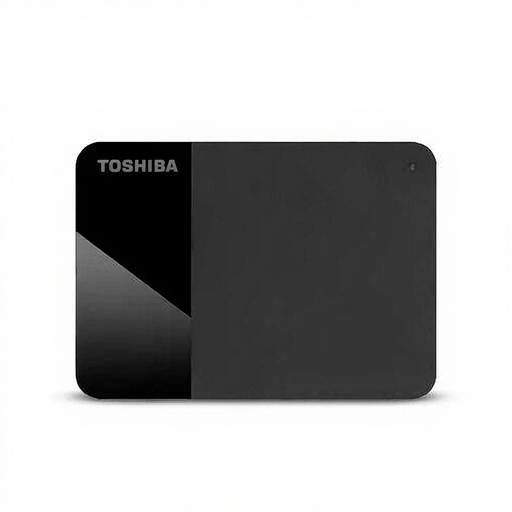
Toshiba Canvio Ready 1TB portable hard drive
A USB-powered HDD for storing recordings at a fixed workstation.
1 TB storage, Micro-USB B and USB 3.2 Gen 1. The stated dimensions are 109 × 78 × 14 mm.
The product instructions warn against moving or shaking the drive while it is in use.
View at Joybuy
 No image available
Samsung Portable SSD T7 1 TB Blue
A portable SSD for copying recordings on a small desk.
1 TB storage and USB 3.2 Gen 2. The product information lists USB-C-to-C and USB-C-to-A cables, and compatibility with Windows and macOS.
View at Joybuy
Frequently asked questions
Can I copy recordings between a Windows PC and a Mac?
That depends in part on the drive's format. Apple Support lists exFAT as a format compatible with Windows, and warns that a Mac may be able to read an NTFS drive but not necessarily write to it. Check the format before transferring files, and make a copy elsewhere if reformatting turns out to be necessary.
How do I copy and disconnect the drive without losing my recordings?
First check that the copied files open, and keep the original file until you have checked your backup. Use the eject or safely remove function before disconnecting the drive; Seagate warns that disconnecting it incorrectly can cause data loss.
Does Dutch law always give you exactly two years' warranty on an external drive?
No. The legal guarantee isn't automatically exactly two years for every drive. According to ACM ConsuWijzer, in addition to any manufacturer's or seller's warranty, you're entitled to a legal guarantee for as long as the product must meet what you could reasonably expect from it under normal use.
Can I copy and share other people's language recordings?
That depends on the rights involved and what the recording contains. The Dutch Government describes a private copy of copyright-protected work for personal use, but not its distribution or making it public. An identifiable voice on an audio recording may also be personal data. According to the Dutch Data Protection Authority, personal or household use only is exempt from the GDPR; for any other use, you must assess the applicable rules separately.


