
Editor working directly from the drive
You want to use large media files directly from external storage. Consider the working speed and connection; Adobe recommends fast external storage for media and media cache.


Choose an external SSD if you edit directly from the drive; a desktop HDD is better suited to large-scale storage or archiving in a fixed workspace. Adobe recommends fast SSD or NVMe storage for active video media, and warns that a single spinning drive without RAID may not be fast enough for HD and UHD editing. You should also keep a separate, up-to-date copy of your project folder, and check that the connection and file system work with your computers.
You want to use large media files directly from external storage. Consider the working speed and connection; Adobe recommends fast external storage for media and media cache.
You want to keep lots of source footage and completed project folders in one place. Consider the capacity and keep a separate copy; VeiligInternetten defines a backup as a copy of files.
You move project folders between workstations, possibly with different operating systems. Check the file system and make sure you bring the required media files; Apple lists ExFAT as an option compatible with Windows, while Adobe explains how Premiere can collect and copy media used in a project.
Best suited to: working with active video media directly from the external drive.
Bear in mind: a quoted maximum speed doesn’t guarantee the same speed when you’re editing; check the port and cable too.
Best suited to: keeping lots of footage in a fixed workspace when you won’t be editing directly from the drive all the time.
Bear in mind: Adobe warns that single spinning drives without RAID may not be fast enough for HD and UHD editing; a desktop model may also need mains power.
Best suited to: working from external media while keeping a recent copy of unique project files.
Bear in mind: you’ll be managing more than one storage location, and you’ll need to update and check the copy.
| Consideration | What to look for when buying | Who is this important to? |
|---|---|---|
| Space for project folders | Compare the total size of your source footage and project folders with the drive’s capacity. | If I want to keep lots of source footage and project folders, I start by checking their total size and how much space I need. Around 33% of consumers prioritise capacity. |
| Editing directly from the drive | Decide whether you’ll edit from the drive, and check that your computer, port and cable support the connection. | If I edit media directly from an external drive, I focus on choosing a suitable working drive and connection. Around 27% of consumers prioritise editing speed. |
| A separate project copy | Check where the second copy is stored, how you’ll update it and whether you can restore the files you need. | If my project files would be difficult to recreate, I want to keep and check a recent copy in addition to my working drive. Around 27% of consumers prioritise preserving their files. |
| Switching between computers | Check the file system before formatting, and make sure you bring the media needed for the project. | If I move project folders between computers with different operating systems, I want to be able to use the files on both workstations. Around 13% of consumers prioritise compatibility. |
A drive holding the only copy of your project won’t give you a separate recovery copy if the data is lost.
Keep a separate copy of the project folder and required media, update it regularly and check that you can open the files again.
Crucial quotes maximum sequential speeds for the X9 Pro and says that a suitable USB-C cable and a compatible USB 3.2 Gen 2 port are required to achieve the best speeds. This doesn’t guarantee the speed you’ll get in an editing workflow.
Compare the drive’s connection with your computer’s port and cable, and treat quoted MB/s figures as maximums under the stated conditions.
A desktop model may suit storage in a fixed workspace, but Adobe recommends fast SSD or NVMe storage for active video media and warns against single spinning drives without RAID for HD and UHD editing.
Decide in advance whether you’ll mainly use the drive for storage and archiving, or whether you want to edit directly from it. If you choose a desktop model, remember that it may need mains power.
The X9 Pro is a range of portable SSDs; the documented product variant is the X9 Pro 4 TB, CT4000X9PROSSD9.
Western Digital Netherlands lists the 8 TB WD Elements Desktop, model WDBWLG0080HBK-EESN, as an external HDD for storage.
The Expansion Desktop is a range of desktop HDDs for storage and archiving. The product page described is for a US model: the 4 TB STNP4000400.
The T9 is a range of portable SSDs. The product specifications described are for the US 4 TB model MU-PG4T0B/AM.
These product picks include external SSDs for an active working drive and external HDDs for storage or archiving.
 No image available
An SSD option for anyone considering external storage as an active working drive.
The product name lists 1 TB and 1000 MB/s; a quoted speed isn’t a measurement of your editing workflow.
 No image available
A portable SSD option if you want to take storage for project files with you.
The product name lists 1 TB and USB 3.2 Gen 2x2, with speeds of up to 2000 MB/s. The quoted speed isn’t a measurement of your editing workflow.
 No image available
A portable SSD option if you’re looking for an external working drive or storage for project files.
The product name lists 2 TB, USB Type-C and USB 3.2 Gen 2.
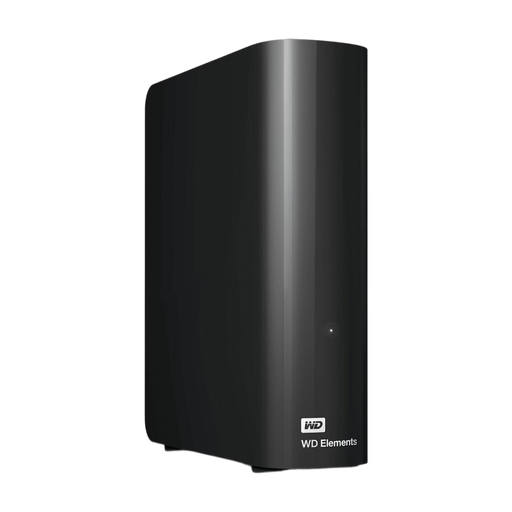 No image available
A desktop HDD option for large project folders kept in a fixed workspace, but not necessarily for active editing.
The product name lists 12 TB and USB 3.0. It requires an external power adapter; Adobe recommends fast SSD or NVMe storage for active Premiere media.
 No image available
A portable HDD option if you want to store project files and source footage externally.
The product name lists 6 TB and a portable hard drive. Adobe recommends fast SSD or NVMe storage for active video media; a single spinning drive isn’t necessarily suitable as an active editing drive.
A single HDD isn’t necessarily suitable as a fast working drive. Adobe recommends fast SSD or NVMe storage for active Premiere media and warns against spinning drives without RAID for HD and UHD video. A desktop HDD can still serve another purpose, such as storage or archiving.
For selected sequences in Premiere Project Manager, use the ‘Collect Files and Copy to New Location’ option to copy the media used and a new project file to one location. Check the options, including those for unused clips, and open the copy before deleting the original.
Apple lists ExFAT as a Windows-compatible option for larger volumes that you format using Disk Utility on a Mac. Check the requirements of your own computers and editing software too; formatting erases the data already on the drive.
When you buy as a consumer, you have a statutory right to a product that is fit for purpose; according to the Dutch government, there is no fixed statutory warranty period in the Netherlands. If there’s a fault, contact the seller. This answer concerns a consumer purchase and doesn’t establish the same rights for a business purchase.
The Dutch Data Protection Authority considers images of identifiable people to be personal data. Whether and how the GDPR applies to your recordings and their use depends, among other things, on who is filming, the purpose and what happens to the footage; the exception for purely personal use doesn’t necessarily apply to a documentary production. This doesn’t mean that every buyer has a specific storage or encryption obligation.