Vandaag of morgen in huis

Kwaliteit gegarandeerd

Welkomstaanbiedingen ontgrendelen: GRATIS bezorging | Tot 80% korting | Gratis 30 dagen JoyPlus-proefperiode
Download de app
Whether you're backing up holiday photos, expanding your game library, or carrying large project files, the search for the right external storage can be overwhelming. Manufacturers bombard you with technical terms and high speeds, but what do you really need? This guide will help you avoid the common pitfalls and make a choice that fits your needs, without overspending.
Before we dive into specifications, it's crucial to recognise the marketing traps that often lead to a bad purchase.
You don't need to be a tech expert to make a good choice. Focus on these three practical specifications.
This is the most important choice.
Don't be tempted to buy more than you need. Here's an estimate:
The connection determines the speed and ease of use.
Below are some products that align well with specific needs, based on their objective specifications.
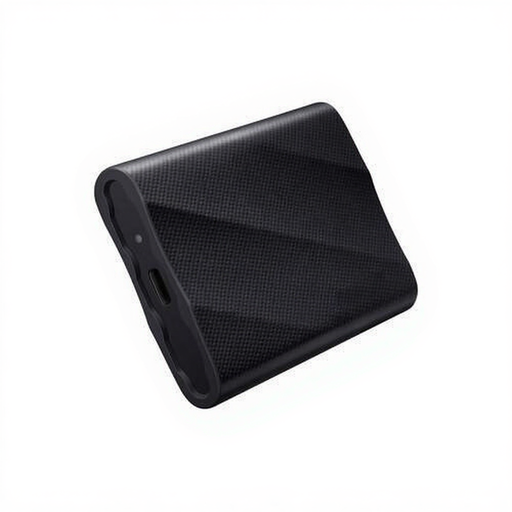
Why This Fits Their Persona: For those who work on the go with large files (video, 3D models, RAW photos), speed and reliability are crucial. This compact SSD is designed for high performance and can withstand a few bumps.
The Samsung T9 uses a USB 3.2 Gen 2x2 interface that, provided your device supports it, actually achieves speeds of up to 2,000 MB/s. Additionally, it is drop-resistant up to 3 meters, which avoids the pitfall of a fragile drive.
High read and write speeds (up to 2,000/1,950 MB/s). Compact and robust design. Comes with both USB-C to C and USB-C to A cables for broad compatibility.
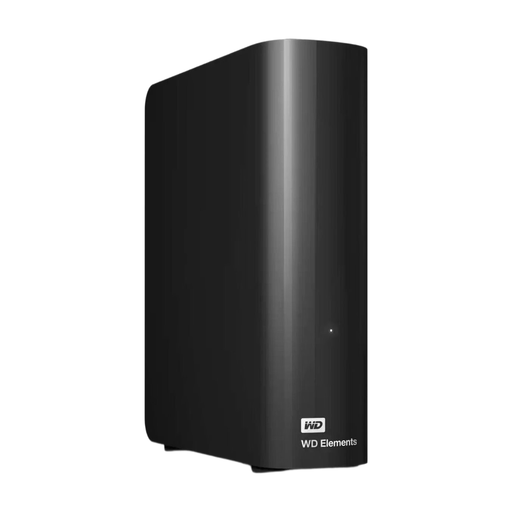
Why This Fits Their Persona: Ideal for creating full system backups or archiving years of photos and videos. This drive stays in a fixed location and offers maximum storage for a relatively low price.
This is a deliberate choice for an external hard drive (HDD). The pitfall of fragility is less relevant here, as a desktop model is not meant to be carried around. You are not paying for the portability and speed of an SSD that you don't need for this purpose.
Enormous storage capacity (16 TB) for a low price per terabyte. Simple plug-and-play setup for Windows. Requires external power.
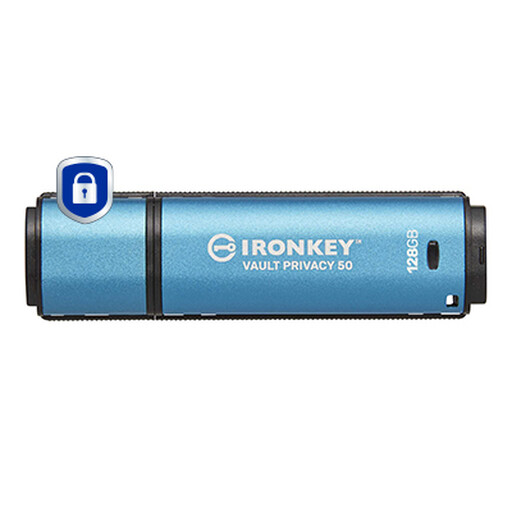
Why This Fits Their Persona: For transporting sensitive business or personal data, standard storage is not enough. This encrypted drive offers a high level of security to protect data from unauthorised access.
Many standard drives offer software-based encryption, but this IronKey has FIPS 197-certified AES 256-bit hardware encryption. This is a much more robust security measure that is independent of the computer and protects against advanced attacks.
Hardware-based encryption. Protection against Brute Force attacks. Option to set multiple passwords (admin/user). Waterproof and rugged design.
We have compiled a complete, up-to-date list of products that fully meet these strict selection criteria and local regulations.
Most external drives work on both Windows and Mac, but sometimes a small adjustment is needed. Many drives, like the WD Elements, are formatted for Windows (NTFS) by default. A Mac can read from this format, but not write to it. To use the drive fully on a Mac, you need to format it to APFS or HFS+ (for Mac only) or exFAT (for use on both Mac and Windows). This process erases all data on the drive, so do it immediately after purchase. An external drive for Mac is therefore often just a matter of formatting.
Although both use flash memory, there are key differences. An external SSD is essentially an internal SSD in an enclosure. It is designed for high, sustained speeds, making it ideal for transferring large files, running games (SSD for gaming), or video editing. A USB stick, like a SanDisk USB, is primarily designed for portability and quickly exchanging smaller files. Its speeds and durability under intensive use are typically lower than those of a portable SSD.
This depends entirely on your files.