
Architect managing multiple project versions
Wants enough local storage for the model, linked project files and restore points, without relying on the cloud. The NCSC advises keeping multiple backup versions and testing recovery.


Choose an external HDD if you mainly need space for several project versions and can keep the drive in a secure, fixed location. A portable SSD is a better fit if you regularly transfer or carry large files. First, check the size of the entire project, along with the connections, file format and security. The NCSC advises keeping backups in multiple locations and testing your recovery process: one fast or robust drive is not, by itself, a recovery strategy.
Wants enough local storage for the model, linked project files and restore points, without relying on the cloud. The NCSC advises keeping multiple backup versions and testing recovery.
Regularly copies large projects between workstations and weighs transfer speed against storage capacity and the connections available on their computers.
Wants to control who can access a portable copy. If a project contains personal data, the organisation must assess appropriate security measures; the Dutch Data Protection Authority says these depend on the circumstances.
First, work out which project files and versions you want to keep. Then check that you can update and restore the copy from your workstations. The NCSC advises testing backups.
| What to consider | What should you check? | Which consumers is this important for? |
|---|---|---|
| Recoverable copy | Decide which files to copy, keep a copy at another physical location and test that you can restore your files. | If I want to avoid losing or being unable to use my backup in the same incident, I prioritise confidence in recovery. Around 28% of consumers put recovery confidence first. |
| Space for projects and versions | Measure all the files you want to keep and decide how many versions and how much future growth to allow for. Compare the stated capacity with your needs. | When my project files and saved versions grow together, I want to know in advance how much space I need. Around 22% of consumers mainly value storage capacity. |
| Transfer and portability | Check the USB port and cable at every workstation. Manufacturer speed ratings are not guaranteed with every computer or cable. | If I often transfer large projects between workstations or take the drive with me, transfer speed and portability are important. Around 17% of consumers put these needs first. |
| Confidential files | Consider who is allowed to use the drive and how passwords and any recovery keys will be managed. An encrypted drive does not replace a second copy. | If I don’t want everyone to have access to my projects, access management is a priority. Around 17% of consumers put confidentiality first. |
| Compatibility and workflow | Check the operating system, ports, file format and modelling software. Reformatting can erase data; with Revit, the recovery process also depends on the model type. | If I need to restore files across different workstations or using a specific modelling workflow, I want to check in advance that the whole process is compatible. Around 16% of consumers put system compatibility first. |
If the original and the copy are in the same place, the same incident could destroy both. The NCSC advises keeping backups elsewhere and testing recovery.
Even without the cloud, plan a second copy at another physical location and practise restoring files.
This may mean you need a second storage device and a separate place to keep it.
A working project may involve more files or recovery steps than just the model. Autodesk describes different recovery processes for Revit, depending on the model type.
List the files used in your project workflow and decide how you would restore a complete, working version.
Cataloguing files, managing versions and testing recovery all take extra time.
Kingston and Crucial state that performance depends on factors such as the host device and test conditions.
Check the USB mode supported by your computer and cable, and don’t base your choice on the highest stated speed alone.
Access protection cannot prevent a copy from being lost or becoming unrecoverable. The Dutch Data Protection Authority lists security measures, including encryption, as dependent on the processing and the risks involved.
Assess access rights and key management separately, and also test whether you can recover your files.
Passwords and recovery keys need careful management to make sure you don’t lock yourself out.
The Expansion Portable is a range of external HDDs for local storage. Seagate lists the STKM4000400 as having a capacity of 4 TB and USB 3.0.
The portable T7 Shield MU-PE2T0S/EU is a 2 TB SSD. The specifications below are the manufacturer's figures for this model.
The XS2000 range includes a 2 TB external SSD with the product number SXS2000/2000G.
The X9 Pro CT2000X9PROSSD9 is a portable 2 TB SSD.
This selection includes portable HDDs and SSDs for local project copies, as well as a desktop HDD for storage at a fixed workstation.
 No image available
A portable HDD option for keeping local project files and copies.
The product information lists 5 TB, USB-C and a portable 2.5-inch design.
 No image available
A portable HDD option for keeping project files locally and controlling access to them.
The product name lists 4 TB; the product description mentions hardware encryption and password protection.
 No image available
A portable SSD option for regularly transferring project files.
The product information lists 2 TB, USB 3.2 Gen 2 and AES 256-bit hardware encryption.
 No image available
A portable SSD option for storing and carrying larger project files.
The product information lists 4 TB, USB 3.2 Gen 2x2 and AES 256-bit hardware encryption with password protection.
 No image available
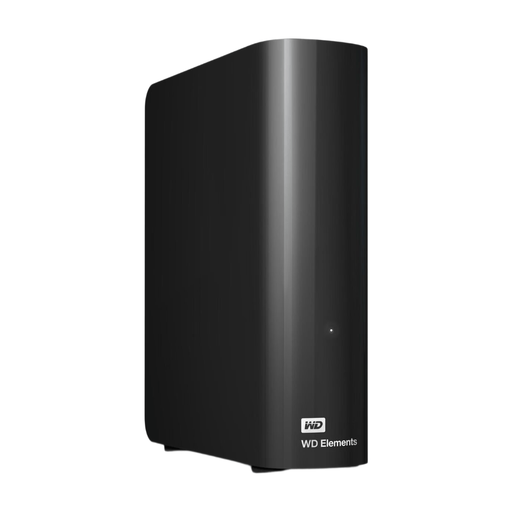
A desktop HDD option for keeping a large local project copy in a fixed location.
The product information lists 6 TB, USB 3.0 and a mains adapter. According to the description, this version does not have password protection or encryption.
Not for a standalone Revit model: Autodesk says the backup files are stored in the same folder as the model. Make a separate copy as well and test your recovery process. For a shared Revit model, first identify the model type, as Autodesk describes different recovery processes for these models.
Before formatting the drive, check the port, cable, operating systems and file format required for your workflow. Crucial says compatibility depends on the host and formatting, and that reformatting erases data. Seagate says you may need to reformat the drive to use it with Time Machine.
Carry out a recovery and check that the correct files are usable. For file backups, the NCSC advises opening some restored files rather than relying only on a message saying the backup task was successful.
The organisation processing personal data must choose appropriate security measures based on the processing and the risks involved, according to the Dutch Data Protection Authority. The DPA gives encryption and backups as examples; which measures are appropriate varies from one situation to another.