Which drive is right for you?

For shoppers short on shelf space

You want a local photo backup that can be stored away without a bulky enclosure or separate power adapter. Compare the dimensions of the exact capacity variant, not just the ‘portable’ label. Toshiba and Western Digital list different external dimensions for their models.

For shoppers with a growing photo archive

You want enough space for your existing photos and future backups. Capacity may matter more than the fastest transfer speed: in 2022, the Consumers’ Association noted that SSDs are generally more expensive than HDDs when you need a lot of storage.

For shoppers who back up regularly

You connect the drive regularly or take it with you, so you want the cable, computer and backup method to work well together. Check which folders your chosen backup settings actually include and whether you can restore a file.

What should you look for when choosing?

Compact external SSD

Best for: moving the drive around regularly and transferring large files often, provided your computer supports the required USB connection.

Trade-off: the Consumers’ Association says SSDs are generally more expensive than HDDs when you need a lot of storage. Manufacturers’ speed figures are maximums, not guaranteed copy times.

USB-powered portable HDD

Best for: a growing photo archive where storage space matters more than high transfer speeds.

Trade-off: an HDD has moving parts and is more vulnerable to knocks than an SSD. Check the dimensions for your chosen capacity, too.

What to consider What to look for Who should pay extra attention?
Storage space Compare the length, width and thickness of the exact capacity variant, and check whether it needs a separate power adapter. If I have limited space on my shelf or in a drawer, I want to know how much room the drive will really take up. Around 33% of consumers prioritise dimensions that fit their space.
Space for photos Check how much space your photo folders take up, allow for future backups and compare the dimensions of each capacity variant. I want enough room for my existing photos and future copies without choosing a drive solely because it has the smallest casing. Around 27% of consumers prioritise capacity for their photo archive.
Backup and connection Check your computer’s port, cable and formatting, as well as which folders the backup software includes. If I want to update my backup regularly and restore files later, the drive needs to work with my computer and routine. Around 20% of consumers prioritise that routine and compatibility.
Speed and portability Check whether your computer’s USB connection supports the stated transfer speed, and compare the cable and model. If I often transfer large photo folders or take the drive with me, speed and portability matter more to me. Around 20% of consumers prioritise these features.

Common pitfalls

  • Deleting photos as soon as they’re on one external drive

    An external drive is a device that can also be lost or fail. If it holds your only copy, your photos could be lost.

    Keep the original files or another independent copy until you’re sure the backup works. Check regularly that you can restore a file.

  • Assuming every capacity has the same slim profile

    The stated thickness can vary between capacities in the same product range. This means a model that looks compact based on the product range alone may not fit your available shelf space as well as you’d expect.

    Compare the external dimensions of the exact capacity with the space where you plan to store the drive.

  • Treating the stated maximum speed as a guaranteed copy time

    Stated SSD speeds are maximums. Your computer’s connection and cable can affect the speed you actually get.

    Check which USB mode your computer supports, and don’t base your choice solely on a maximum speed your connection may not be able to reach.

  • Formatting an existing drive for Time Machine without preparing first

    Apple warns that reformatting can permanently erase existing data.

    Check the file system first and safely move any existing files elsewhere before setting up the drive for Time Machine.

Brands to compare

Toshiba

Canvio Basics is a range of USB-powered portable HDDs. Compare the capacity and external dimensions of the exact model.

  • Toshiba lists dimensions of 78 × 109 × 14 mm for the 2 TB Canvio Basics, along with a USB-A to Micro-B cable.
  • According to Toshiba, the 2TB model works with Windows straight out of the box; reformatting is required for the stated macOS versions. These are manufacturer specifications, not an independent durability test.

Western Digital

WD Elements Portable is a range of portable HDDs whose capacities and external dimensions you can compare side by side.

  • Western Digital’s data sheet lists dimensions of 110,5 × 82,0 × 15,0 mm for the 2TB model, along with a USB-A cable.
  • The 4–6TB models in the same data sheet are thicker. Reformatting may be required for other operating systems.

Samsung

The Portable SSD T7 is a compact SSD range for shoppers who regularly transfer files and want to be able to use USB-C and USB-A cables.

  • Samsung lists maximum speeds of 1.050 MB/s for reading and 1.000 MB/s for writing via USB 3.2 Gen 2 on the T7.
  • These are stated maximums, not guaranteed speeds on your computer. Compare the cost if you mainly need a lot of storage.

Crucial

The X9 is a range of small portable SSDs for a backup drive you can also take between devices.

  • Crucial lists a 65 × 50 mm design for the X9 and a maximum read speed of 1.050 MB/s.
  • According to Crucial, performance also depends on the device and connection. The stated drop test was onto carpet and is not a general guarantee against data loss.

Seagate

Expansion Portable is an additional range of portable HDDs, with 2 and 4 TB models listed on the Dutch manufacturer’s website.

  • Seagate’s current product page lists USB-C.
  • Seagate says regional terms for recovery services and warranties may vary. Check the full model details, as older models with a different connection are not the same variant.

Joybuy products

This selection mainly features portable HDDs for local photo storage, plus a compact SSD for anyone who also values transfer speed and a small casing.

WD Elements Portable 2 TB USB-C, graphite black

WD Elements Portable 2 TB USB-C, graphite black

A portable HDD for a local copy of your photos and other files.

According to the Joybuy product description: 2 TB and a USB-C connection.

View at Joybuy

My Passport 2 TB, red

My Passport 2 TB, red

A portable HDD for a local copy of a photo archive, with no separate power adapter required.

According to the Joybuy product description: 2 TB, USB bus-powered and measuring 75 × 107,2 × 11,2 mm.

The drive is preformatted for Windows, according to the description; a separate compatibility driver is listed for macOS.

View at Joybuy
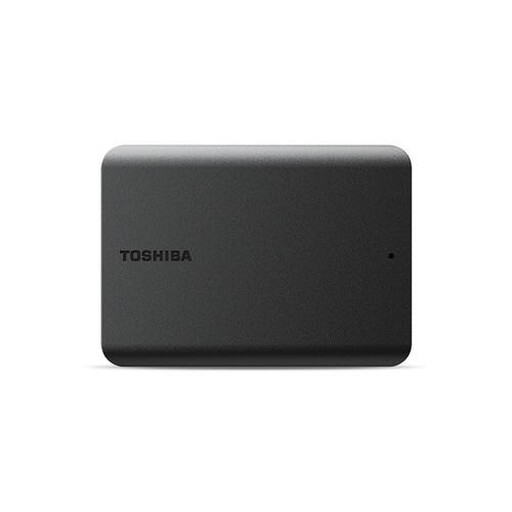
Toshiba Canvas Basics 1 TB, black

Toshiba Canvas Basics 1 TB, black

A portable HDD for anyone who wants to store a local copy of their photos without a separate power supply.

According to the Joybuy product description: 1 TB, USB-powered and measuring 109 × 78 × 14 mm.

The drive is formatted for Windows, according to the description; it needs to be reformatted for use with a Mac.

View at Joybuy

Toshiba Canvio Basics 4 TB, black

Toshiba Canvio Basics 4 TB, black

A portable HDD for a photo archive that needs more storage space.

According to the Joybuy product description: 4 TB, USB-powered, a USB-A to Micro-USB-B cable and dimensions of 109 × 78 × 19,5 mm.

The description says the drive needs to be reformatted for macOS.

View at Joybuy

Samsung Portable SSD T7 2 TB, blue

Samsung Portable SSD T7 2 TB, blue

A compact SSD for anyone who wants to store a local photo backup and regularly transfer files.

According to the Joybuy product description: 2 TB, dimensions of 85 × 57 × 8 mm, and USB-C to C and USB-C to A cables included.

The description lists read and write speeds of up to 1.050 MB/s and 1.000 MB/s via USB 3.2 Gen 2. These are maximums; the connection on the device you use must support that mode.

View at Joybuy

Frequently asked questions

How do I actually make a local photo backup with the drive?

Set up a backup of the files you want to keep, then check that you can restore a photo. Microsoft explains how to use File History in Windows 11; check that your photo folders are in the selected libraries. On a Mac, Time Machine can automatically back up to a connected external drive.

Can a drive supplied for Windows be used straight away as a Time Machine drive?

Check the formatting first: Apple says Time Machine won’t save backups to a drive with a Windows file system. Apple recommends APFS or APFS Encrypted for a new Time Machine drive. Reformatting can permanently erase existing data, so move it somewhere safe first.

Is a two- or three-year manufacturer’s warranty the limit of my rights in the Netherlands?

No. According to ACM ConsuWijzer, your statutory guarantee applies alongside a manufacturer’s or retailer’s warranty. If a product used normally breaks down sooner than you could reasonably expect, the retailer is responsible for offering a suitable solution. There isn’t one fixed statutory guarantee period for every drive.

Where can I recycle a discarded external drive in the Netherlands?

According to the Dutch Government, you can return an old electrical appliance when buying a similar new one, or take it to a local council collection point. Erase your personal photos and other data before handing over the drive.
