Who is an external drive suitable for?

Students looking to prevent project loss

You save interim versions and a separate backup, and want to check that you can restore your files before a deadline. Veilig Internetten describes an external drive as a possible backup location; Autodesk explains how to create a local archive copy in Fusion.

Students who often change where they work

You take CAD files between your own laptop and a school computer. Check in advance that the ports and file format are suitable for both computers; Apple Support explains the limitations of writing to NTFS on a Mac.

Students with lots of project versions

You want to keep older designs, exports and backups, so you compare the capacity you need with the benefits of an SSD for frequent file access. Toshiba and Kingston offer examples of different storage capacities across their product ranges.

What should you look for when choosing?

Portable external SSD

Best for CAD files that you regularly copy, take with you or open from the external drive.

Bear in mind stated maximum speeds do not guarantee the transfer speed you’ll get from your computer or CAD workload. Check the connection and the capacity you need. Kingston lists its speed figures as product specifications.

Portable external HDD

Best for mainly storing project versions and backups, without often opening large files from the drive.

Bear in mind handle the drive with care when carrying it. The Consumentenbond describes external HDDs as more vulnerable to knocks than SSDs.

What to consider What should you check? Who should consider this most?
Restorable project copy Decide where your working copy and separate backup will be stored, and check that you can restore your files. For a distributed Fusion design, Autodesk specifies an F3Z archive. If I don’t want my coursework to depend on a single storage location, I’ll keep a separate copy and check that I can restore it. Around 33% of consumers make a restorable project copy their top priority.
Access to active files Compare the drive’s USB interface with your computer’s. Treat stated MB/s figures as maximums, not guaranteed CAD performance. If I often open or copy large exports, I’ll focus on access and connectivity rather than just the stated speed. Around 27% of consumers prioritise frequent file access.
Space for versions and exports Check how much space your current project folder takes up and how many versions you want to keep, then choose a suitable capacity. If I want to keep older designs and exports alongside my active project, I’ll choose a capacity to suit my own files. Around 20% of consumers make space for versions their top priority.
Sharing files between computers Check the available USB ports, included cables and formatting on both computers. Save your files elsewhere before reformatting, as this will erase existing data. If I want to share files between my laptop and a school computer, I’ll check in advance that the drive can write to both devices. Around 20% of consumers make sharing files between computers their top priority.

What to consider when buying and using one

  • Keeping your only project copy on the external drive

    An external drive can hold a backup, but a single storage location is not itself a backup of your files.

    Keep your working copy and a separate backup, and test that you can retrieve the files you need.

  • Assuming a USB or MB/s figure guarantees CAD speed

    An interface specification or a manufacturer’s stated maximum does not automatically tell you how quickly your project files will transfer.

    Check your computer’s USB interface, and don’t compare interface specifications with a measured transfer rate for your own files.

  • Assuming a drive that can be read can also be written to on a Mac

    Apple Support explains that a Mac can generally read an NTFS drive, but cannot necessarily write to it. Reformatting will erase the existing files.

    Check the file format on both computers before transferring your only project copy or reformatting a drive.

  • Assuming the standard T7 and T7 Shield are the same model

    Samsung’s IP65 protection claim applies to the T7 Shield; this feature does not automatically apply to the standard T7.

    Compare the full model numbers, and only rely on protection claims for the specific model Samsung lists them for.

Brands to compare

Toshiba

According to Toshiba, Canvio Ready is a portable HDD range, while Canvio Flex is a separate range supplied with USB-A and USB-C cables.

  • Toshiba lists a 2 TB version and USB 3.2 Gen 1 among the specifications for Canvio Ready. The stated 5 Gbit/s is an interface specification, not a guaranteed HDD write speed.
  • Check whether you’re looking at Ready or Flex, and which cables come with the version you choose.

Kingston

The XS1000 is a portable SSD range for transferring and storing files.

  • Kingston lists 1 TB and 2 TB versions, with read speeds of up to 1.050 MB/s and write speeds of up to 1.000 MB/s. These are stated product specifications, not the results of an independent CAD test.
  • Check the colour, capacity and connections of the version you choose.

Crucial

According to Crucial, the X9 is a portable USB-C SSD for files you want to store locally or take with you.

  • Crucial lists read speeds of up to 1.050 MB/s for the X9 and exFAT as the supplied file format.
  • Crucial says that speed depends on the system you use. Check the full model code and formatting.

Samsung

The Portable SSD T7 is a portable SSD range; the T7 Shield is a separate model.

  • For the Dutch T7 version MU-PC1T0T/WW, Samsung lists read speeds of up to 1.050 MB/s and write speeds of up to 1.000 MB/s. Samsung lists USB-C-to-C and USB-C-to-A cables with the T7.
  • Samsung lists IP65 for the T7 Shield, not automatically for the standard T7. So check the full model designation.

Seagate

Basic is a portable HDD range for extra storage and backups.

  • The Seagate data sheet lists the EMEA version STJL2000400 with 2 TB capacity and USB power.
  • Seagate says you may need to reformat the drive to use it with a Mac. Check the file format before saving files to the drive.

Joybuy products for CAD projects

These products are portable HDDs and SSDs for storing, carrying and sharing CAD project files and versions.

My Passport 6 TB White portable hard drive

My Passport 6 TB White

A portable HDD for storing project files and older versions; handle the drive with care when carrying it.

The product description lists 6 TB, password protection and software for automatic backups. Keeping a separate backup is still important.

Joybuy
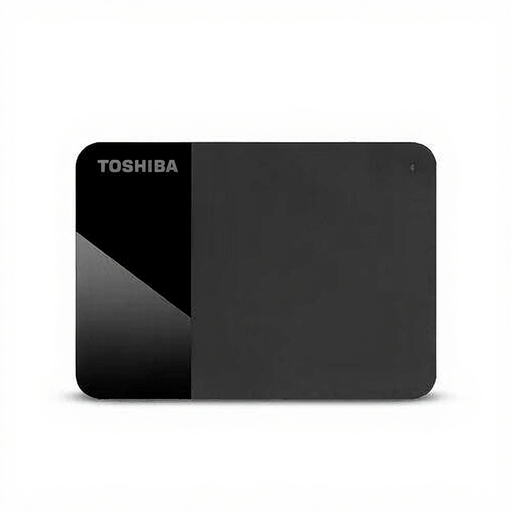
Toshiba Canvio Ready 4 TB external hard drive

Toshiba Canvio Ready 4 TB

A portable HDD for project files and versions; check the connections and formatting on the computers you use before getting started.

The product description lists 4 TB and compatibility with Windows and Mac. As an HDD, this drive is more vulnerable to knocks than an SSD, according to the Consumentenbond.

Joybuy

Samsung Portable SSD T7 2 TB Blue

Samsung Portable SSD T7 2 TB Blue

A portable SSD for carrying and transferring CAD project files.

The product name lists USB-C and USB 3.2 Gen 2. The product description mentions USB-C-to-C and USB-C-to-A cables; check that the connection is suitable for both computers.

Joybuy

Samsung MU-PG2T0B 2 TB Black external SSD

Samsung MU-PG2T0B 2 TB Black

A portable SSD for storing and carrying project files.

The product name lists USB Type-C and USB 3.2 Gen 2x2. The product description mentions USB-C-to-C and USB-C-to-A cables; check the connections on your devices.

Joybuy

Samsung T7 Shield MU-PE2T0R 2 TB Blue external SSD

Samsung T7 Shield MU-PE2T0R 2 TB Blue

A portable SSD for project files you take with you; check your computer’s connections before choosing a model.

The product description lists IP65 protection and drop resistance from heights of up to 3 metres. Samsung says that IP65 does not mean the drive can be submerged.

Joybuy

Frequently asked questions

Should I choose an SSD or HDD for a CAD coursework project?

Choose an SSD if you often open, copy or carry your files. An HDD may be a good choice if you mainly want to store lots of versions. First, check how large your own files are, as the capacity you need will vary from project to project.

Does Autodesk Fusion automatically save my designs to the external drive?

No, connecting an external drive does not automatically save Fusion’s cloud storage locally. Autodesk explains that you need to export an archive file to create a local copy. For a distributed design with external references, Autodesk specifies F3Z. Check the exported copy before relying on it.

Can I use the same drive with a Windows school computer and a Mac?

That depends on the connection and formatting. Apple Support describes exFAT as compatible with Windows and says that a Mac can generally read an NTFS drive, but cannot necessarily write to it. Save existing files elsewhere before reformatting, as this will erase them.

Is the manufacturer’s warranty the limit of my rights if the drive breaks?

No. In the Netherlands, a consumer purchase is also covered by the statutory guarantee, and the retailer must provide a product that is fit for purpose. ACM ConsuWijzer explains that the statutory guarantee does not have a fixed two-year term; what you can reasonably expect depends on the circumstances.

Do I have a cooling-off period when buying online in the Netherlands?

For a qualifying distance purchase, consumers generally have a 14-day cooling-off period. The Rijksoverheid lists some exceptions, so check who the seller is and whether the purchase is covered by the distance-selling rules.
