First decide how you’ll protect and restore your backup, then choose an SSD that works with the connections, operating system and permitted software at your workplace. An SSD with its own keypad or touchscreen may suit you if you want to unlock the drive on the device itself. A standard SSD may be suitable if encryption and recovery are properly managed on the shared computer. Neither option replaces a separate backup that is stored elsewhere and tested.
Who is this choice relevant to?
Anyone responsible for confidential work files
You store spreadsheets that shouldn’t be visible to every user of the shared computer. So consider who can unlock the SSD and how access can be restored. The Dutch Data Protection Authority emphasises that security measures should be appropriate to the specific processing activity.
Anyone responsible for recoverable records
You want to be able to restore the right version of a spreadsheet after an error or incident. The SSD is just one part of your backup setup; the National Cyber Security Centre advises keeping multiple versions of important business data.
Anyone using different work computers
You need to be able to create and restore the backup using the available USB ports, operating systems and permitted unlocking method. Check these requirements on the computers you plan to use with the SSD.
What should you look for when choosing?
SSD with on-device unlocking
Choose this option if: you want to unlock the SSD on the device itself using a keypad or touchscreen.
Bear in mind: updates and recovery procedures vary by model. With the Kingston IronKey, the default setting may cryptographically erase the data after fifteen consecutive incorrect password attempts.
Standard SSD with password software
Choose this option if: the manufacturer’s software is permitted on the shared work computer and you actually set up the password feature.
Bear in mind: installing and using the software must be compatible with the permitted accounts and workplace policies.
SSD with organisation-managed encryption
Choose this option if: your organisation manages encryption, access rights and recovery keys for the shared computer.
Bear in mind: Microsoft says manual BitLocker drive encryption isn’t available on Windows Home. Encrypting a drive on a Mac may erase it first.
For important business data, the National Cyber Security Centre advises keeping at least three versions: the original files and two backups. So don’t just compare unlocking methods; also plan where you’ll keep additional copies and how you’ll test restoring them.
| Consideration |
What to look for |
Who is this important for? |
| Access to files |
Check who can unlock the SSD, how password recovery works and whether security is set up before you create your first backup. |
When I store work files on a shared computer, I want to decide who can access them and how access can be restored; around 36% of consumers say restricted access is their top buying priority. |
| Restoring files |
Decide which versions you need, don’t keep just one copy on the SSD, and open files as part of a recovery test. |
I want to restore the right spreadsheet version after an error or incident and check that it’s readable; around 29% of consumers put recoverability first. |
| Working with your work computer |
Check whether you need USB-A or USB-C, which operating system you use, whether you have administrator rights and whether the required software is permitted. Microsoft says manual BitLocker drive encryption is available on Windows Pro, Enterprise and Education, but not Windows Home. |
When I switch between work computers, I want to be able to connect and unlock the SSD using the available ports and permitted settings; around 21% of consumers choose primarily on compatibility. |
| Capacity and storage |
Work out how much space your files and the versions you want to keep will need. Check the capacity of the specific model and where you’ll store the SSD after use. |
I want enough room for my records without focusing only on maximum transfer speed; around 14% of consumers prioritise capacity and portability. |
Common pitfalls
-
Assuming a password feature automatically protects your files
A feature listed in the product specifications doesn’t tell you whether the SSD is actually protected in your shared workplace.
Set up security before making your first real backup, then test access using the accounts that may need to restore files later.
Allow time for setup, access rights and account recovery, too.
-
Relying on one connected SSD as your entire backup plan
If your only copy is lost or turns out to be unreadable, you have no independent fallback.
Keep a separate copy, then test your backup by restoring and opening a spreadsheet.
This approach also means keeping an extra copy in a different location and allowing time for recovery tests.
-
Skipping the unlocking and update procedures
On the Kingston IronKey reviewed, the default setting may erase data after repeated incorrect password attempts. Verbatim lists a security update for model #53402.
Record who is allowed access, how recovery works and which model-specific update instructions apply before use.
Allow for password management and any required updates.
Brands to consider
The features mentioned apply to the specific product lines below and aren’t an assessment of each brand as a whole.
Verbatim
The Store 'n' Go Portable SSD with Keypad Access #53402 is an option if you want to unlock your SSD using a built-in keypad.
- Verbatim says this model uses AES-256 hardware encryption and comes with a USB-A cable and USB-C adapter.
- Verbatim lists a security update for this model. According to the manufacturer, the included Nero backup software only works on Windows.
Kingston
The IronKey Vault Privacy 80ES is designed for on-device unlocking and management; the XS1000 is a standard portable SSD, with access managed separately.
- Kingston specifies a touchscreen, administrator and user passwords, and XTS-AES-256 for the IronKey. For the XS1000, Kingston lists a USB-A/USB-C connection solution and speeds of up to 1.050 MB/s read and 1.000 MB/s write.
- The IronKey’s default setting may cryptographically erase data after fifteen consecutive incorrect password attempts. These IronKey features don’t automatically apply to the XS1000.
Samsung
The T7 Shield is a portable SSD for anyone looking for a more rugged casing and able to manage the password settings using software.
- Samsung lists an IP65 rating, drop resistance from up to 3 metres, and quoted sequential speeds of up to 1.050 MB/s read and 1.000 MB/s write for the T7 Shield.
- Samsung says you set a password using Portable SSD software. The stated IP rating and drop resistance don’t replace access protection or an additional backup.
Joybuy products for this backup setup
These portable SSDs are designed to store spreadsheet backups. Check how to set up password protection for each model and whether the required software is permitted on your shared work computer.
 No image available
SanDisk Extreme Pro Portable SSD 1 TB, 2000 MB/s
An option for portable spreadsheet backups if you’re looking for storage with password protection.
The product description lists 1 TB, AES-256 hardware encryption, USB-C and an included USB-A-to-USB-C adapter.
According to the description, password protection may require software on compatible Windows and macOS systems. The product description also lists IP65.
View at Joybuy
 No image available
WD My Passport SSD WDBAGF0010BGY, 1 TB
A portable option if you’re looking for a 1 TB SSD and want to set up password protection.
The product description lists USB-C, hardware encryption and optional password protection.
The description names WD Security software for password protection; check whether you’re allowed to install it on the shared computer.
View at Joybuy
 No image available
Samsung Portable SSD T7, 2 TB, blue
An option if you’re looking for 2 TB of storage for spreadsheet backups.
The product information lists AES-256 hardware encryption and USB-C-to-C and USB-C-to-A cables.
The description names Samsung Magician software for encryption; check whether you’re allowed to use this software on the shared work computer.
View at Joybuy
 No image available
Samsung Portable SSD T7, 1 TB, blue
A portable SSD option for spreadsheet backups if 1 TB is enough for your files and the versions you want to keep.
The product information lists AES-256 encryption and USB-C-to-C and USB-C-to-A cables.
According to the description, Samsung Magician is used to set up encryption; check whether the software is permitted on the shared computer.
View at Joybuy
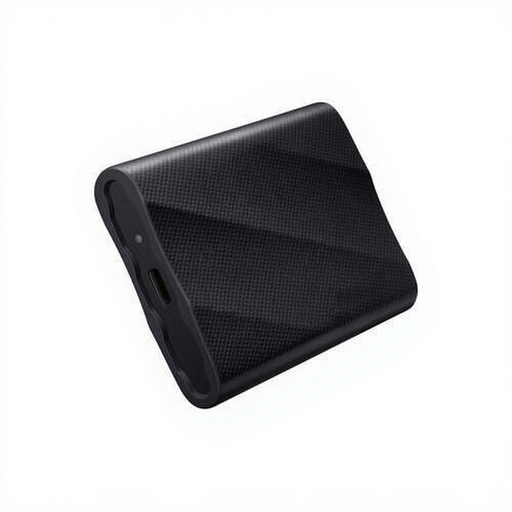 No image available
Samsung Portable SSD T9, 1 TB, black, MU-PG1T0B
A portable storage option for spreadsheet backups if you need 1 TB and want to connect to different types of device.
The product information lists hardware encryption, USB-C-to-C and USB-C-to-A cables, and compatibility with Windows, macOS and Android.
View at Joybuy
Frequently asked questions
Is one external SSD enough for a backup?
Not if it’s the only copy you’re relying on. For important business data, the National Cyber Security Centre recommends keeping multiple versions on different media, including a copy in a different location. Also test that you can restore and open your files.
How do I test whether my spreadsheet backup is usable?
Restore a file and open it to check that the data you need is there. The National Cyber Security Centre describes opening files as one way to test a backup.
Can I encrypt an external SSD with BitLocker on any shared Windows computer?
First check which edition of Windows you’re using and what permissions you have. Microsoft says manual BitLocker drive encryption is available on Windows Pro, Enterprise and Education, but not Windows Home. Organisation policies may also apply on a managed work computer.
Is encryption required for every spreadsheet backup in the Netherlands?
The Dutch Data Protection Authority describes security as a matter of tailoring measures to the specific processing activity. Whether encryption is needed therefore depends on the data and the circumstances; also check which rules apply to your organisation.


