
Someone building a growing scan archive
You want to replace paper files with a compact archive and mainly need plenty of storage, without making top speeds an unnecessary priority.


Choose an external SSD based first on the size and growth of your scan archive, then check that its connections and security features suit your devices and documents. A compact SSD can save physical storage space, but one drive is not a separate backup. Extra speed or a more robust casing matters most if you often transfer large files or take the drive with you.
You want to replace paper files with a compact archive and mainly need plenty of storage, without making top speeds an unnecessary priority.
You want to be able to retrieve scans if a computer or drive fails. An SSD should then be part of a backup plan, not your only place to store them.
You open or move scans between devices with different USB connections, so you need to check cables, adapters and file formats.
Start with the capacity your archive needs, then check recoverability, confidentiality and compatibility with your devices. This helps you weigh up storage space against how you store and access your scans.
| What to consider | What to look for | Who should give this extra thought? |
|---|---|---|
| Storage capacity | Compare the stated capacity with your existing scans and expected growth. Top speeds are not necessarily the most important feature for storing documents. | If I want to replace paper files, I need room for my existing scans and whatever I add later. Around 36% of consumers prioritise having enough archive space. |
| Recoverability | Decide where a separate copy will be kept and test whether you can open files from it. The National Cyber Security Centre advises making backups and checking that files can be restored. | If my scans are important, I want to be able to retrieve them if one drive fails. Around 29% of consumers give recoverability top priority. |
| Confidentiality | Check whether the exact SSD model has a password feature and whether it works with your devices. Set it up and keep the access code safe. | If my scans contain personal information, I want to limit unwanted access while still being able to access the files myself. Around 21% of consumers prioritise confidentiality. |
| Connections | Check that the connection, included cable or adapter, and file format are compatible with the devices you want to use to open your scans. | If I want to open scans on different devices, both the connection and file format need to work with them. Around 14% of consumers give access across multiple devices top priority. |
If the SSD is the only place where your scans are stored, it does not provide a separate safeguard against loss or failure.
Keep a second copy elsewhere and test that you can open files from it before disposing of the originals.
Crucial says that the X9’s performance can depend on the host device and formatting. The connections and how you use the drive also affect whether the stated speed is relevant.
Check your computer’s port and cable, and consider how many files you usually transfer at once.
Samsung describes the T7’s password protection as an optional feature. The fact that the feature is available does not mean it has already been set up.
Check that the exact variant has the feature, set it up and keep the access code safe.
The T7 is an option if you’re looking for a compact SSD with password protection you can set up; the T7 Shield is designed for those who want a more robust drive to take with them.
The X9 is a compact USB-C option for a home archive, provided it’s compatible with your device’s connection.
The XS1000 is a compact storage option for use with USB-A and USB-C devices.
The ESD310 could be a good fit if you switch between USB-A and USB-C devices without wanting to carry a separate cable.
The Portable SSD is a range of portable storage drives; check the full model code and variant before buying.
This selection includes external SSDs for a growing scan archive, with options for portable storage and password protection.
 Image unavailable
A portable 1 TB SSD for storing scans on external storage.
The product description lists read speeds of up to 800 MB/s and drop protection up to 2 metres.
 Image unavailable
A 1 TB external SSD for a scan archive; the product description also lists compact dimensions and a weight of 46 g.
The description mentions USB-C, hardware encryption and password protection via WD Security software. This software is required for the security features.
 Image unavailable
The 2 TB version offers storage for a scan archive; the description mentions password protection for anyone who wants to protect their scans with a password.
The description lists AES-256 encryption and USB-C-to-C and USB-C-to-A cables.
 Image unavailable
A 1 TB external SSD for scans; the description mentions password protection for anyone who wants to restrict access to their files.
The description lists AES-256 encryption and USB-C-to-C and USB-C-to-A cables.
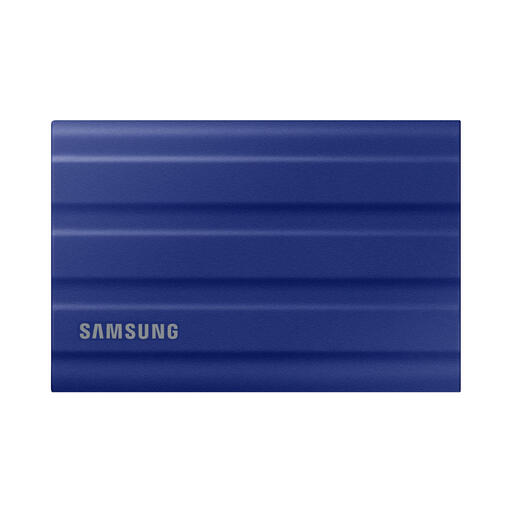 Image unavailable
This 1 TB SSD is an option if you also take your scan archive with you and want a more robust casing.
The product description lists IP65 protection, drop resistance up to 3 metres, and USB-C-to-C and USB-C-to-A cables. IP65 does not mean the SSD can be submerged.
An SSD containing the only copy does not protect against loss or failure. Make a separate backup and open a few files as part of a recovery test. Whether a particular paper original needs to be kept depends on the document.
Check the port, cable and file format of your devices; don’t reformat the drive until you’ve backed up any existing files. Crucial describes the X9 as plug-and-play via USB-C. Transcend says the ESD310 comes pre-formatted as exFAT and that some mobile devices require a different format.
Make a backup and test whether you can restore and open files from it. The National Cyber Security Centre recommends opening a few files from the backup as a practical check.
According to the Dutch government, you have the right to a product that works properly in the Netherlands, and you can contact the seller if a product is faulty. There is no fixed statutory guarantee period in the Netherlands; a manufacturer’s guarantee is in addition to your statutory rights.
The Dutch Data Protection Authority says that processing carried out solely for personal or household use falls outside the GDPR. Don’t assume this exception also applies to business use or wider distribution; assess the relevant privacy rules separately in those situations.