
Photographers with a small workspace
You want to back up your photo library regularly using a drive that takes up very little desk space. Consider the capacity you need, the connection and which files the backup will actually include.


First, choose an external SSD with enough space for both your photo catalogue and your photos, then check that its connection is compatible with your computer. A compact model with USB 3.2 Gen 2 is a practical choice for regular backups; a faster connection or a more robust casing is only worthwhile if you’ll make use of those features. Also check what your backup includes: Adobe says a Lightroom Classic catalogue backup doesn’t automatically include the original photos.
You want to back up your photo library regularly using a drive that takes up very little desk space. Consider the capacity you need, the connection and which files the backup will actually include.
You need space for original images, edits and future backups. The capacity of the model you choose may therefore matter more than its maximum transfer speed.
You move your backup between workspaces, so you’ll want a suitable connection and, depending on how you use it, access security or a more robust casing.
For photo backups on a small desk, the SSD’s size and speed aren’t the only things that matter. Check that your backup includes both the catalogue and its associated photos.
| What to consider | What to look for | Who should pay particular attention? |
|---|---|---|
| Complete backup | Check that both the catalogue and the original photo files are copied, and that you can restore your files. | I want to be able to restore both my catalogue and my photos if something goes wrong; around 29% of consumers prioritise a complete backup. |
| Storage capacity | Compare the capacity of the exact model with the size of your photos and catalogue, and the space you want to leave for future backups. | As my photo archive grows, I want enough room for my files and new backups; around 23% of consumers prioritise storage capacity. |
| Size and connection | Check the SSD’s dimensions, your computer’s port and whether the required cable or adapter is included. | On a small desk, I want a drive that takes up little space and connects straight to my computer; around 18% of consumers prioritise size and connection. |
| Transfer time | Compare the USB modes supported by the SSD and your computer. Stated maximum speeds don’t guarantee how quickly a full backup will transfer. | If I regularly copy large files, I want a speed my computer can make use of; around 18% of consumers prioritise transfer time. |
| Privacy and protection | Consider whether an encryption method or protection rating suits how you use and carry the drive. | If I carry the drive with me or work with sensitive images, I want suitable protection against unwanted access and the rigours of everyday use; around 12% of consumers prioritise privacy or protection. |
Adobe says the built-in backup for a Lightroom Classic catalogue only includes the catalogue file, not the original photos.
Include both the catalogue and the original photos in your backup plan, and check that you can restore both.
Actual transfer speeds depend in part on your computer’s connection. An SSD with USB 3.2 Gen 2x2 can’t reach its stated maximum speed when connected to a host that doesn’t support that mode.
Check your computer’s USB capabilities, and don’t pay extra for a speed your connection can’t make use of.
Apple Support warns that a new Time Machine drive may be erased and reformatted during setup.
Before setting up the drive, save any files already on the SSD somewhere else.
The T7 is a compact USB 3.2 Gen 2 option, while the T7 Shield is designed for situations where a more robust casing is useful.
The XS1000 is a small external SSD, available from Kingston in 1 TB and 2 TB models.
The X9 is a compact USB-C option that, according to Crucial, supports Windows File History and Apple Time Machine.
The slim SL500 is a USB 3.2 Gen 2x2 option for anyone who also wants to consider connection type and speed.
This selection focuses on portable external SSDs for photo backups in a compact workspace. Choose a capacity that suits the files you want to keep, and check that the connection is compatible with your computer.
 No image available
An option if the photos and catalogue you want to keep fit within 1 TB.
Capacity: 1 TB.
 No image available
A good fit for a compact workspace if the files you want to back up fit within the capacity of this model.
Capacity: 1 TB.
 No image available
An option if your photo files and catalogue fit within 1 TB and you want to factor the stated speed into your choice.
Capacity: 1 TB. Stated speed in the product name: 1000 MB/s.
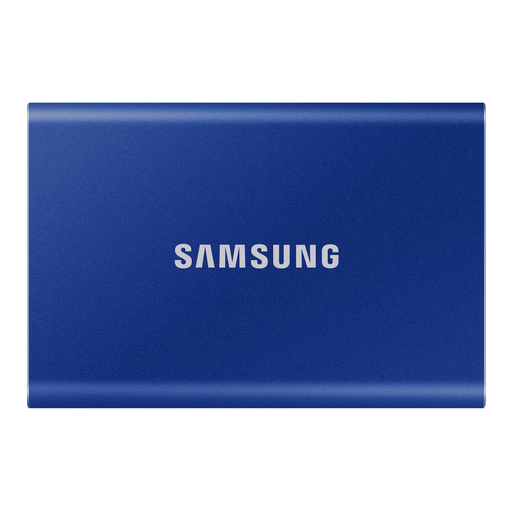 No image available
A 2 TB model for a photo catalogue and associated files that fit within that capacity.
Capacity: 2 TB. Colour: Blue. Connection: USB Type-C.
 No image available
A model for a compact backup if your chosen photos and catalogue fit within 1 TB.
Capacity: 1 TB. Colour: Blue. Connection: USB Type-C.
No. Adobe says the built-in catalogue backup only includes the catalogue file. Back up your photos separately and check that you can restore them.
Windows File History can copy selected libraries to an external drive; add photo folders outside those libraries if needed. On a Mac, Time Machine can use an external storage device. Check the formatting first: Apple Support warns that a new Time Machine drive may be erased and reformatted during setup.
Not necessarily. Apple recommends having at least twice the Mac’s storage capacity for a Time Machine backup of that Mac. If you’re backing up photo folders only, work out the space you need based on your files and how much backup history you want to keep.
Contact the seller if there’s a problem. According to the Dutch government, there is no fixed statutory warranty period in the Netherlands; any manufacturer’s warranty is separate from your rights as a consumer against the seller.
For online purchases from a business, you generally have a 14-day cooling-off period, according to the Dutch government. This doesn’t automatically apply to purchases from a private seller, so check whether the cooling-off period applies to your purchase.