What should you look for?
First, check how much space your photo library takes up and decide whether you want to copy just your photos or other files too. Then check the SSD’s dimensions and cable, and choose a back-up method you can set up and use to restore your files.
| What to consider |
What to look for |
Who is this important for? |
| Capacity and photo library |
Check the current size of your photos and decide whether you want to keep just that folder or back up your entire computer. For Time Machine on a Mac, Apple recommends ideally using a drive with at least twice the Mac’s storage capacity. This isn’t automatically a minimum for a standalone photo folder. |
If you want room for a growing photo archive or older versions, consider your own files and back-up method. Around 29% of consumers prioritise capacity. |
| Size and connection |
Compare the dimensions with the space on your desk and check which port and cable your computer needs. Kingston lists the XS1000 as measuring 69,54 × 32,58 × 13,5 mm; Crucial gives the X9’s dimensions as 65 × 50 mm. Cables included vary by model. |
If you have limited desk space, you’ll want to know whether the drive and cable will fit comfortably. Around 29% of consumers prioritise a compact set-up that fits their space. |
| Back-up and recovery |
Choose a method for backing up individual photo folders or your entire computer. Microsoft describes using File History with an external drive, while Apple explains how to use Time Machine with external storage. After setting it up, check that you can restore a file. |
If you’re relying on the SSD for regular copies, you’ll want to know which photos are included and how to restore them. Around 24% of consumers prioritise a practical back-up routine. |
| Transfer speed |
Compare read and write speeds, and check that your computer’s port supports the required USB standard. Kingston notes that speed depends on factors including the host hardware, software and how the drive is used. A maximum read speed doesn’t tell you how long writing will take. |
If you want to copy lots of photos at once, consider both the write speed and your computer’s connection. Around 12% of consumers prioritise transferring large files. |
| Protection when moving the drive |
Check the rating for the exact version you’re considering. Samsung specifies IP65 and drop resistance up to 3 metres for the T7 Shield 1 TB; these features don’t automatically apply to every T7. Casing protection is no substitute for keeping a second copy elsewhere. |
If you regularly take the drive with you or use it somewhere it could be knocked or exposed to spills, check the protection offered by that version. Around 6% of consumers prioritise protection when moving the drive. |
Joybuy products for local photo back-ups
These 1 TB and 2 TB external SSDs are suitable for keeping a local copy of your photos in a small desk set-up. The selection includes both standard and extra-protected versions.
 No image available
SanDisk Extreme Pro Portable SSD 1TB 2000MB/s
A portable 1 TB external SSD for keeping a local copy of your photos in a small desk set-up.
The product description states that the maximum read speed requires a compatible USB 3.2 Gen 2x2 host and that the write speed is lower.
View product
 No image available
WD My Passport SSD WDBAGF0010BGY, 1 TB
A 1 TB external SSD for keeping a local copy of your photos on a desk with limited space.
View product
 No image available
DigiEra Magnetic Portable SSD LPS2000M-2, 1 TB, white
A portable 1 TB external SSD for keeping a local copy of your photos when a compact set-up matters.
The product name mentions USB 3.2 Gen 2x2 and compatibility with the iPhone 15 and 16 series and other USB-C devices.
View product
 No image available
Samsung Portable SSD T7, 1 TB, blue
A 1 TB external SSD for keeping a local copy of your photos in one place or in a compact desk set-up.
The product description lists drop resistance up to 2 metres and includes USB-C-to-C and USB-C-to-A cables.
View product
 No image available
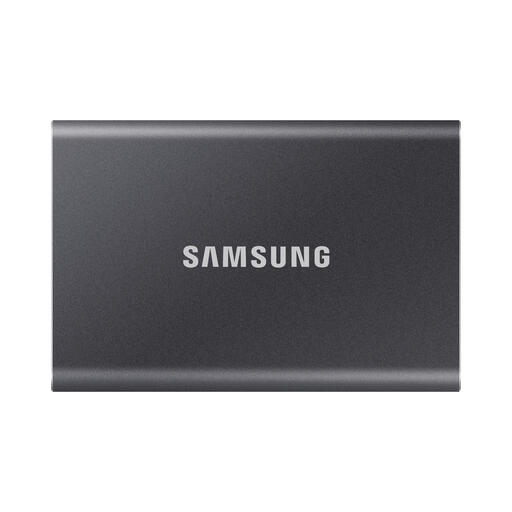
Samsung Portable SSD T7, 2 TB, grey
A 2 TB external SSD for keeping a local copy of your photos, with room for a growing archive.
The product description lists drop resistance up to 2 metres and a USB-C connection.
View product
Frequently asked questions
How much storage do I need for my photos?
First, check how much space your current photo library takes up and decide whether you want to copy just those files or your entire computer. For Time Machine on a Mac, Apple recommends ideally using a back-up drive with at least twice the Mac’s storage capacity. This recommendation doesn’t automatically apply to a standalone photo folder.
How do I set up a regular local back-up?
According to Apple, you can set up an external storage device as a Time Machine drive on a Mac. Microsoft describes using File History with an external drive. Check which folders your chosen method includes, then try restoring a file once you’ve set it up.
Can I use a new SSD for Time Machine without losing existing files?
Not always. Apple says that a drive may need to be reformatted for Time Machine, which deletes existing data. Apple recommends APFS or encrypted APFS. Check what’s on the drive and save elsewhere any files you want to keep before confirming formatting.
Is an SSD on my desk enough as my only back-up?
A local SSD can keep an extra copy of your photos, but it doesn’t replace having a copy in another location. The Dutch National Cyber Security Centre advises keeping important data elsewhere too, so an incident in one place won’t automatically affect both your computer and your back-up copy.
Does the maximum read speed determine how long my photo back-up takes?
No. The maximum read speed alone doesn’t tell you how quickly files will be written to the SSD. Check the stated write speed too, and whether your computer’s port supports the required USB standard. Kingston notes that performance also depends on the host hardware, software and how the drive is used.


