For recording music on a small desk, choose an external SSD based on the space available, including room for the cable, your computer’s ports and how many files you want to keep. If you’ll be working directly from the drive, a suitable connection and quick access matter more than a maximum MB/s figure your connection may not reach. For an archive, you’ll still need a separate backup, as Ableton advises.
Who is this guide for?
Producer working on active sessions
You work on music projects or use samples from an external drive. Ableton describes using external storage for projects and samples while you work, so check that the port and connection are right for your computer and audio interface.
Producer short on desk space
You want recordings within easy reach, without a bulky drive or awkward cable setup. Kingston lists the XS1000’s dimensions as 69,54 × 32,58 × 13,5 mm. For any model, also check how much room you’ll need for the connected cable.
Looking after your recording archive
You keep completed sessions and want to be able to find them later. Ableton recommends keeping a separate backup of projects and recordings; Backblaze also describes storing a copy in a different location.
What should you look for when buying?
Start by thinking about how you’ll use the drive: working from an SSD calls for different features from simply storing finished recordings. Then measure the available space, including room for the cable, and work out how much storage you need.
| What to consider |
What should you look for? |
Who should pay particular attention? |
| Connection and working from the drive |
Check your computer’s port and the cable or adapter included. Also check that your audio interface and SSD can use suitable connections. |
If I work directly from the SSD during sessions, I want the port and cable to suit my computer and audio interface. Around 30% of consumers prioritise working from the drive. |
| Space for the drive and cable |
Compare the stated dimensions and cable type with the space available where the SSD will stay connected. |
On a small desk, I want both the drive and its connected cable to fit comfortably. Around 30% of consumers prioritise minimising the space taken up. |
| A separate copy of your recordings |
Decide where you’ll keep a second copy of your project files and recordings, and whether you can access the files on it. |
If I keep finished recordings, I don’t want to rely on a single drive, so I plan to keep a separate copy. Around 30% of consumers prioritise protecting their recording archive. |
| Storage capacity for your archive |
Check the size of the files you want to keep now, and allow for the projects you expect to add. |
I want enough room for my existing sessions and future recordings, based on the files I actually have. Around 10% of consumers prioritise the storage capacity they need. |
Common pitfalls
-
Choosing based only on the highest MB/s figure
Manufacturers state maximum speeds, but the port, cable and connection you use affect what your computer can achieve. A shared USB hub can also be a consideration when you’re actively using the drive.
First check which ports your computer has and whether you’ll connect the SSD directly or mainly use it to store files.
-
Forgetting to allow for the cable
The dimensions of the drive don’t tell you how much space you’ll need with the cable connected. The cable supplied also varies between models.
Measure the available space with the SSD connected, and check which cables and adapters come with the exact version you’re considering.
-
Using the SSD as your only copy of your recordings
If your only copy is on one drive, your finished sessions depend on that single storage location. Ableton recommends keeping a separate backup of projects and recordings.
Plan to make a second copy before deleting the original files from your computer.
-
Judging a product variant by its name and capacity alone
A product name and storage capacity don’t always identify the exact manufacturer variant. The model number and version can matter when you’re comparing features.
Before buying, compare the full model number and version with what you need.
Brands to compare
Kingston
The XS1000 is worth considering if a compact drive and compatibility with different ports are important to you.
- Kingston lists the XS1000’s dimensions as 69,54 × 32,58 × 13,5 mm. It comes with a cable and adapter, and has a maximum read speed of 1.050 MB/s.
- The stated maximum speed isn’t a measure of performance in your music setup.
Crucial
The X9 is a compact USB-C option to weigh up against the ports and space you have available.
- Crucial lists the X9’s dimensions as 65 × 50 mm and its maximum read speed as 1.050 MB/s.
- Crucial says the speed was measured under test conditions, and that formatting and the host device can affect compatibility.
Samsung
The Portable SSD T7 is worth considering if you want to use the drive with computers that have USB-C and USB-A ports.
- For the 1 TB T7 in the Netherlands, Samsung lists USB-C-to-C and USB-C-to-A cables, with maximum sequential read and write speeds of 1.050 and 1.000 MB/s respectively.
- These are maximum speeds stated by Samsung; they aren’t guaranteed through every port.
SanDisk
The Portable SSD is a portable option to compare for storing and transferring recordings.
- SanDisk lists a maximum read speed of 800 MB/s for model SDSSDE30-1T00-G26.
- Check the full model number for the version you’re considering; the name Portable SSD alone doesn’t identify every variant.
Joybuy products
These Joybuy models are options for storing music recordings and transferring them between devices in a compact workspace. Check the connection and features of each version to make sure they suit the way you work.
 No image available
SanDisk Portable SSD 1 TB
A portable 1 TB option for storing recordings and files in a compact workspace.
SanDisk lists USB-C and a maximum read speed of 800 MB/s. The product information also describes a pocket-sized design and drop protection from heights of up to 2 metres.
View at Joybuy
 No image available
SanDisk Extreme Pro Portable SSD 1 TB
A portable SSD for anyone looking for a USB-C connection and storage for music projects.
The product information lists 1 TB, a USB-A-to-USB-C adapter and dimensions of approximately 8,5 × 5,1 × 1,0 cm. According to the information, the maximum read speed of 2.000 MB/s requires a compatible USB 3.2 Gen 2x2 host; the write speed is lower.
View at Joybuy
 No image available
Samsung Portable SSD T7 2 TB, blue
A 2 TB option for storing and transferring recordings between devices.
Samsung lists USB-C-to-C and USB-C-to-A cables. The product information describes a credit-card-sized design, a weight of 58 g, and maximum sequential read and write speeds of 1.050 and 1.000 MB/s respectively. The stated speeds depend on using a suitable connection.
View at Joybuy
 No image available
Samsung Portable SSD T7 1 TB, blue
A 1 TB option for storing recordings or transferring them between devices.
Samsung lists USB-C-to-C and USB-C-to-A cables. The product information describes a credit-card-sized design, a weight of 58 g, and maximum sequential read and write speeds of 1.050 and 1.000 MB/s respectively. The stated speeds depend on using a suitable connection.
View at Joybuy
 No image available
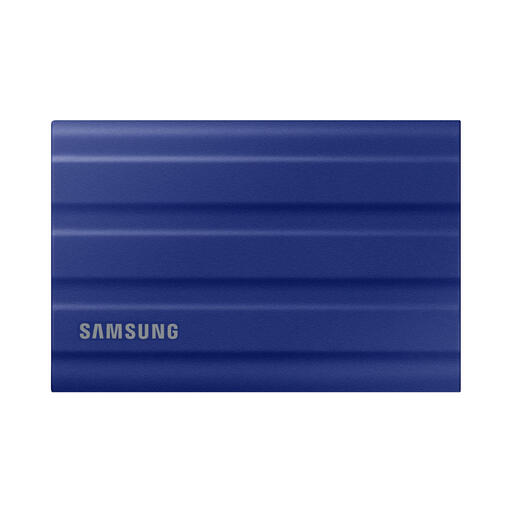
Samsung MU-PE1T0R 1 TB, blue
A 1 TB external SSD for storing or transferring recordings, if its dimensions suit your workspace.
The product information lists USB-C-to-C and USB-C-to-A cables, dimensions of 88 × 59 × 13 mm and a weight of 98 g. Maximum read and write speeds are 1.050 and 1.000 MB/s respectively.
According to the product information, the stated IP65 rating covers low-pressure water jets, not immersion.
View at Joybuy
Frequently asked questions
Can I use music projects directly from an external SSD?
Yes, if your software and computer support this way of working. Ableton describes using external storage for samples and projects while you work. Check the port and connection. Where possible, use separate ports for your audio interface and SSD rather than connecting both through a single USB hub.
How should I set up the SSD for my computer?
Choose a file system that suits your operating system and, if relevant, use with other computers. Ableton lists NTFS for Windows, APFS for recent versions of macOS and exFAT as a format that also works with Windows. Copy any existing files before reformatting the drive.
Is one external SSD enough to store my recordings?
Not if it’s the only copy. Ableton recommends a separate backup drive for Live projects and recordings; Backblaze also describes storing a copy in a different location. Check that you can access the extra copy.
What happens in the Netherlands if my SSD stops working?
For a consumer purchase, the seller is responsible for the legal guarantee if the product doesn’t meet what you could reasonably expect under normal use. According to ACM ConsuWijzer, there is no fixed term for this guarantee in the Netherlands; a manufacturer’s warranty doesn’t replace your statutory rights. A warranty claim is no substitute for backing up your files.


