
Producer with a small desk
You want an external drive that takes up little space and fits alongside your audio equipment without an awkward cable setup.


First decide whether you want to work with projects and samples directly from the SSD or mainly keep a separate copy; then work out the capacity and connection you need. A compact model can be a good fit for a small desk, while extra protection matters most if you often take the drive with you. Ableton recommends connecting your audio interface and drive to different ports where possible. A stated maximum speed alone does not guarantee performance in your music software.
You want an external drive that takes up little space and fits alongside your audio equipment without an awkward cable setup.
You want to store projects or samples outside your computer’s internal storage, and are weighing up capacity, connectivity and how you work.
You take projects with you and want to consider physical protection, complete project folders and a separate back-up.
First decide whether you’ll use the SSD actively or keep it as a separate copy. Then choose the capacity, connection and size to suit your computer, audio equipment and project folders.
| What to consider | What to look for | Who should consider this? |
|---|---|---|
| Size and cable space | Compare the dimensions of the specific model and check which cables and adapters are included. | If your desk is short on space, you’ll want the drive and cables to fit alongside your equipment. Around 27% of consumers prioritise size and cable space above all else. |
| Active use | Check the USB connections on your computer and SSD. Ableton recommends connecting the drive and audio interface to different ports where possible. | If you want to use projects or samples directly from the drive, consider the whole connection and setup, not just the speed claim. Around 20% of consumers prioritise active use. |
| Storage space | Check the size of your project folders and samples, then compare them with the capacity of the exact model. | If your library is growing, you’ll want room for projects and the audio files you use. Around 20% of consumers put storage space first. |
| Connection and format | Check whether you need USB-C or USB-A, and which file format will work with the devices you plan to use. Before reformatting, make a copy of any existing files. | If you want to connect the drive to multiple devices, check in advance that the port and file format are suitable. Around 20% of consumers make compatibility their top priority. |
| Separate project copy | Decide where to keep a separate copy of the complete project folder. For Live projects and recordings, Ableton recommends using a separate back-up drive. | If recordings would be difficult to recreate, you’ll want a separate copy as well as the working version. Around 13% of consumers prioritise back-ups. |
Manufacturers quote maximum speeds; actual results depend on factors such as your computer, connection and how you use the drive.
Check the ports and cables in your own setup before choosing a drive based on a higher speed claim.
The drive containing your active project is not, by itself, a separate back-up.
Keep a complete copy of your projects and recordings on a separate back-up drive or in another suitable back-up setup.
A separate back-up requires additional storage space.
Ableton Live can store references to audio files without copying those files. This means a project may be incomplete when opened on another computer.
When transferring a project, use ‘Collect All and Save’ if needed, and check the complete project folder before deleting the original.
Reformatting can erase existing data on the SSD.
Check which file format you need first, and make a separate copy of any files already on the drive.
The XS1000 is a compact model to consider for a small desk, available in 1 TB and 2 TB versions.
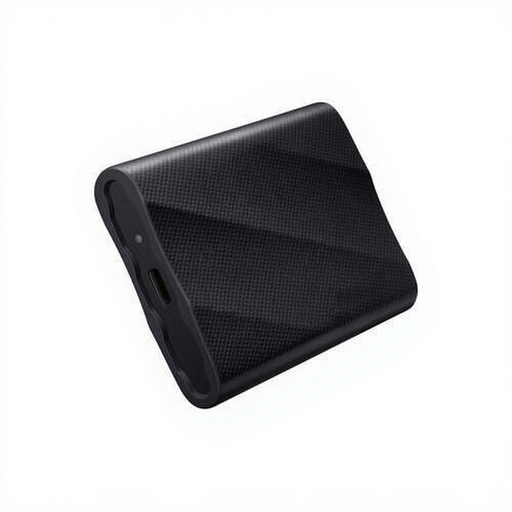
The X9 1 TB is a USB-C option to compare if you’re looking for project storage in a compact device.
The T7 Shield is worth comparing if you regularly carry your external drive between workspaces.
The One Touch SSD is an option to compare if you’re looking for compact USB-C storage with stated back-up software.
The Extreme Portable SSD described here, model SDSSDE70-1T00-G25, is another option to compare for portable project storage.
This selection includes portable external SSDs suited to limited desk space, storing project files and taking projects between workspaces.
 No image available
Worth considering if you’re short on desk space and want to keep project files on a portable drive.
The Joybuy product listing states 1 TB of storage, USB-C and a maximum read speed of up to 1.000 MB/s; this speed is not a measure of DAW performance.
 No image available
This portable model is worth considering if you want to take project files with you and protection during travel matters to you.
The Joybuy product listing states USB 3.2 Gen 2, 1 TB and maximum read and write speeds of up to 1.050 MB/s and 1.000 MB/s respectively. It also lists an IP65 rating and drop protection from heights of up to 3 metres; Samsung describes these claims as applying to this particular model.
 No image available
A 2 TB version to compare if you want to store a larger project library.
The Joybuy product listing states USB 3.2 Gen 2x2 and maximum read and write speeds of up to 2.000 MB/s and 1.950 MB/s respectively. It also lists compatibility with Windows, macOS and Android, as well as USB-C-to-C and USB-C-to-A cables. Maximum speeds do not indicate how a DAW setup will perform.
 No image available
The 4 TB capacity could be useful if you want to store a large number of project files and samples.
The Joybuy product listing states USB 3.2 Gen 2x2, maximum read and write speeds of up to 2.000 MB/s, and compatibility with Windows, macOS and Android. The stated speeds are not a measure of DAW performance.
 No image available
This portable 1 TB version is worth considering if you want to store projects on an external drive and take them with you.
The Joybuy product listing states USB 3.2 Gen 2x2, maximum read and write speeds of up to 2.000 MB/s, and USB-C-to-C and USB-C-to-A cables. The stated maximum speeds alone do not determine how your music software will perform.
Yes, depending on your software and setup. Ableton describes using external storage for samples, Packs and other files in active use. Where possible, avoid connecting the drive through the same USB hub as your audio interface.
If needed, use ‘Collect All and Save’ to copy the files used by the project, then check the complete project folder. Ableton explains that a regular save may also keep references to audio files that haven’t been copied with the project.
This depends in part on the file format. Apple recommends APFS or APFS Encrypted for Time Machine and warns that reformatting permanently deletes existing data. Check the format and make a separate copy of any files already on the drive first.
According to the Dutch government, the seller must provide a solution if a product is faulty. The Netherlands does not have a fixed statutory two-year warranty period; your legal rights when a product is faulty and any manufacturer’s warranty are not the same thing.
According to the Dutch government, distance sales are often covered by a 14-day cooling-off period. This applies to consumer purchases made at a distance; check the terms of the specific transaction, as it does not automatically apply to every business or private sale.