Choose an external SSD with enough space for both the complete handover package and the separate backup versions you want to keep. Check that its connection and formatting work with the computers you use. Extra protection for the casing may be worth considering for transport, but it is no substitute for an independent backup. Autodesk explains how to include linked files in Revit, while the National Cyber Security Centre recommends testing a backup by opening files from it.
Who is this choice relevant to?
Model handover lead
You want to check that the model opens with all the linked files it needs before handing it over to the client. Autodesk explains how to use eTransmit to package a Revit model with its linked and external files, while the National Cyber Security Centre recommends testing your backup.
Project team with large files
You keep several model versions and attachments, so you need to weigh up the space required against transfer time and the connections available on your workstations. Autodesk notes that your backup approach depends on your environment and how you work with Revit.
Designer on the move
You carry the copy between the office, site and client. If project files contain personal data, your organisation must consider appropriate security measures; the Dutch Data Protection Authority explains this obligation under the GDPR.
What should you look for?
Start with the files and versions you need to hand over and restore. Then compare the capacity required, the connections available and any protection you may need for transport.
| What to consider |
What should you check? |
Who is this important for? |
| Complete, recoverable package |
Decide which files and versions need to be included, then open files from a restored test copy. If your Revit workflow supports it, check the transmittal report for missing dependencies. |
I want to be able to open everything I’ve copied before handover, including linked files, so I plan a recovery test. Around 36% of consumers prioritise having a complete, recoverable copy. |
| Space for versions |
Measure the entire export folder and decide how many separate project versions you want to keep; then compare this with the usable capacity. |
If I need to keep several model versions and attachments, I want to know how much space the whole package requires first. Around 29% of consumers prioritise space for the package and separate versions. |
| Transport and data protection |
Check the specifications for the exact casing. If personal data is involved, discuss with your organisation what level of protection is appropriate and whether you can open the copy on the recovery computer. |
When I take the drive with me, I want to consider both transport and the data stored on it. Around 21% of consumers prioritise transport and project data protection. |
| Copying time and connection |
Check the port, cable, operating system and file system on both the source and recovery computers before comparing speed claims. |
If I need to copy large files, I want to know whether my computer and cable can handle the stated speed. Around 14% of consumers prioritise copying time and computer compatibility. |
Common pitfalls
-
Copying only the main model
A model may rely on linked or external files. Autodesk describes eTransmit as a way to package those files and flag dependencies that have not been included.
Use the appropriate transmittal workflow, save your changes first and test the copy before handing it over to the client.
Finding missing links again can take extra time.
-
Assuming the maximum MB/s is your guaranteed copying speed
A stated maximum is not necessarily the speed you’ll get on your computer. Crucial notes that factors such as the host device, cable and formatting can affect speed and compatibility.
First check the USB port and cable on the computers you’ll use to copy and restore your files.
-
Assuming a tough casing is a complete backup strategy
Casing protection cannot prevent every risk of data loss. The National Cyber Security Centre recommends storing important business data on different media and in different locations.
Use protection when transport calls for it, and also plan an independent copy that you test.
A separate copy or storage location needs extra management, as well as checks to make sure the copies are usable.
-
Formatting or securing the drive just before handover without testing recovery
Crucial warns that formatting erases data. A secured copy must also be accessible on the device you’ll use for recovery.
Decide on the file system and access procedure in advance, and test them with a copy.
If access doesn’t work, copying everything again or arranging recovery access can take extra time.
Brands to compare
Samsung
The Samsung T7 Shield is worth considering if you transport your SSD regularly.
- Samsung specifies USB 3.2 Gen 2, IP65 and drop resistance from up to 3 metres for the T7 Shield. The brand states sequential read and write speeds of up to 1,050/1,000 MB/s for this model.
- These are specifications and manufacturer claims for the T7 Shield; they don’t guarantee that stored data will survive an incident or that a backup can be restored.
Crucial
The X9 Pro may be a good fit if sharing files between computers and your chosen security method are important to you.
- Crucial lists exFAT as the pre-formatted file system for the X9 Pro, read and write speeds of up to 1,050 MB/s, and compatibility with BitLocker To Go or FileVault on suitable systems.
- According to Crucial, speed and compatibility depend on factors such as the host device, cable and formatting. Formatting erases data.
Kingston
The XS1000 is worth comparing if you’re looking for compact storage for regular file backups.
- Kingston lists 1 TB and 2 TB versions of the XS1000, a cable and adapter in the box, and maximum sequential read and write speeds of 1,050 MB/s and 1,000 MB/s respectively.
- These stated maximums don’t tell you whether a complete project package will fit on the version you choose or whether it will be usable after recovery.
Transcend
The ESD310 is worth considering if you want to switch between computers with USB-A and USB-C connections without carrying a separate cable.
- Transcend specifies two built-in connectors, read speeds of up to 1,050 MB/s and write speeds of up to 950 MB/s for the ESD310, with exFAT as the pre-formatted file system.
- For this specific model, don’t assume a particular IP rating or level of drop protection without checking the specifications for the exact version.
Joybuy product picks
These portable SSDs are selected for comparison as project-copy options before client handover. Match the capacity, connection and any protection to your own files and computers.
 No image available
SanDisk Portable SSD 1TB
Could be a good fit if your project package is no larger than 1 TB and you’re looking for a portable drive.
1 TB storage; stated read speed of up to 800 MB/s; drop protection from up to 2 metres.
Joybuy
 No image available
SanDisk Extreme Pro Portable SSD 1TB
Could be a good fit if your package is no larger than 1 TB and you’ve checked the stated protection and connection requirements.
The product information lists IP65, drop protection from up to 3 metres and AES 256-bit encryption. Read speeds reach up to 2,000 MB/s with a suitable USB 3.2 Gen 2x2 host; write speeds are lower. Password protection requires compatible Windows or macOS systems and may require software.
Joybuy
 No image available
Portable SSD 1TB 1000MB/s
Could be a good fit if your handover package is no larger than 1 TB and your computer can use the integrated USB-C cable.
1 TB storage; stated read speed of up to 1,000 MB/s; drop protection from up to 2 metres. A USB-C to USB-A adapter may be needed to connect to USB-A.
Joybuy
 No image available
Samsung Portable SSD T7 2TB, Blue
Could be a good fit if your project package and the versions you want to keep fit within 2 TB, and the supplied cables connect to your devices.
2 TB storage; stated sequential read and write speeds of up to 1,050/1,000 MB/s; drop protection from up to 2 metres and AES 256-bit encryption. The product information lists USB-C to USB-C and USB-C to USB-A cables.
Joybuy
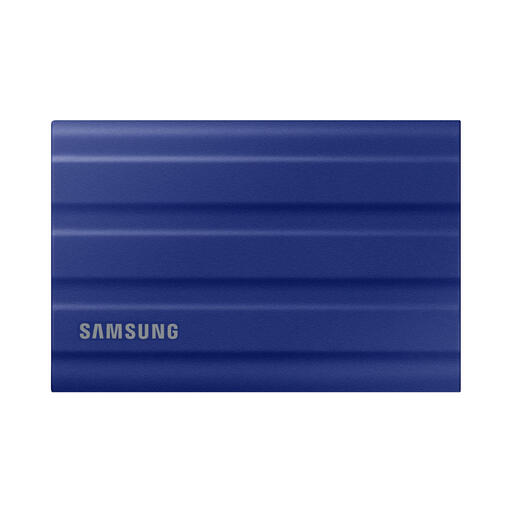 No image available
Samsung MU-PE1T0R 1TB, Blue
Could be a good fit if your project package is no larger than 1 TB and extra protection during transport is important to you.
The product information lists IP65, drop protection from up to 3 metres and stated read and write speeds of up to 1,050/1,000 MB/s. IP65 does not mean protection against immersion. The product information lists USB-C to USB-C and USB-C to USB-A cables.
Joybuy
Frequently asked questions
Is copying only your Revit file enough for the handover?
Not if the recipient also needs linked files. Autodesk describes eTransmit as a tool for packaging a Revit model with linked and external files. Save your changes first and check the report for files that haven’t been included. Then open a test copy, as the right approach depends on the Revit collaboration method you use.
How can you check that your backup works?
Restore the files and open them from the restored copy. The National Cyber Security Centre recommends opening files from a backup to check that it is usable.
Can one external SSD be your only backup?
For important business data, the National Cyber Security Centre recommends the 3-2-1 approach: the original plus two backups, stored on two types of media, with one copy kept in a different location. This is security advice, not a legal minimum for every model handover.
What should you check about cables and the warranty?
Check whether the cable or adapter you need is included with the exact version and what warranty applies. Kingston lists a cable, adapter and five-year limited manufacturer’s warranty for the XS1000; this says nothing about data recovery.
Does an SSD containing client data always have to be encrypted in the Netherlands?
The GDPR does not set one SSD model or a single security measure for every architectural model. If an organisation processes personal data, it must take appropriate measures that account for the risks. The Dutch Data Protection Authority lists the loss of a device containing unencrypted personal data as a possible data breach. So discuss the data and transport arrangements with the organisation responsible; a password feature alone does not prove that the GDPR has been complied with.


