Choose an external drive that works with the computer you’ll use for your portfolio review, and keep a copy on it that you’ve tested in advance. Store your originals or a second copy separately. A portable SSD is a good choice if you regularly carry or transfer your scans, while a portable HDD may suit an archive that stays in one secure place most of the time. If your scans contain sensitive information, check whether access protection is available and set it up yourself.
Who is this guide for?
Keeping your scans safe and accessible
You want to be able to open your documents if your computer or drive fails. Having a backup matters more to you than simply adding storage space. This is in line with information from the Consumers’ Association and Veilig Internetten about external storage and backups.
Protecting sensitive scans
Your scans may contain personal data or confidential information. You want to prevent unwanted access while still being able to get to your files when you need them. Veilig Internetten, Samsung Netherlands and the Dutch Data Protection Authority provide relevant information about backups, security and personal data.
Opening scans on different devices
You may want to show your documents on another computer or take the drive with you. Connections, cables and file formats are important considerations. Samsung, Kingston and Apple Support explain the relevant connection and usage requirements.
What should you consider when choosing?
Portable external SSD
A good fit if: you regularly copy scans or take the drive with you, and its connection is compatible with your devices.
Bear in mind: stated transfer speeds are maximums, not speeds measured on your computer. Samsung says the T7 has configurable password protection, but it isn’t enabled automatically.
Portable external HDD
A good fit if: you’re keeping a scan archive that will usually stay in one secure place and you’ve worked out how much capacity you need.
Bear in mind: an HDD has moving parts, so take extra care to protect it from knocks. Also check that its file format works with your computer. The Consumers’ Association described this difference in a buying guide published in 2022.
Before choosing, first check that the drive connects to the computer you’ll use for the review and that you can open the scans from the copy. Then work out how much space your folder needs and decide whether portability or access protection is important to you.
| Consideration |
What should you check? |
Who is this important for? |
| Recoverable copy |
Keep a separate copy, check that the files open and safely disconnect the drive after use. |
If I don’t want to lose my scans before the review, I want to know I can recover them from a separate copy. Around 31% of consumers put recoverability first. |
| Confidentiality |
Check whether encryption can be set up and whether you can unlock the drive on your other devices. |
If my scans contain sensitive information, I want to prevent unwanted access without locking myself out. Around 25% of consumers give confidentiality their highest priority. |
| Device compatibility |
Check the USB connection, the cable supplied and the file format; reformatting may erase existing files. |
If I want to open my scans on another computer, the drive needs to work with that device’s port and file format. Around 19% of consumers put device compatibility first. |
| Archive capacity |
Compare the capacity of the model with the size of your folder, and allow for scans you may add later. |
If I want to keep existing and future scans together, I need to choose enough space without automatically going for the largest model. Around 13% of consumers give archive capacity their highest priority. |
| Portability |
Check the size, weight and cable supplied; take care when transporting an HDD. |
If I’m taking the drive to the review, I want it to be easy to connect and safe to carry. Around 12% of consumers put portability first. |
Things to bear in mind when using a drive
-
Moving the only copy of your scans to the new drive
An external drive isn’t a recoverable backup if it holds the only copy. If the drive fails or is lost, you could lose access to your scans too.
Copy the files rather than moving them, keep a separate version and open a few files from the drive in advance.
-
Assuming an HDD will work straight away with every Mac and USB-C port
Toshiba says the Canvio Basics comes formatted as NTFS for Windows; you may need to reformat it for macOS. The 2 TB model mentioned comes with a Type-A-to-Micro-B cable.
Check the connection and file format for your computer. Before reformatting, make a copy of any files already on the drive.
-
Assuming a password feature or recovery service offers complete protection
You need to set up password protection on the Samsung T7. Seagate also says that the Rescue Data Recovery Services mentioned aren’t available in every country.
Set up the protection you want and check that you can access the drive yourself. Before relying on a recovery service, check that it’s available for the model you’ve chosen and your circumstances; keep a separate copy as well.
Brands to compare
Samsung
The Portable SSD T7 is a compact option if you regularly take a copy with you and want optional access protection.
- For the T7 1 TB Gray (MU-PC1T0T/WW), Samsung lists USB-C-to-C and USB-C-to-A cables, plus maximum sequential read and write speeds of 1.050 and 1.000 MB/s.
- Samsung says password protection with AES 256-bit encryption can be set up.
- These speeds are manufacturer maximums, not measured performance; you’ll need to set up password protection yourself.
Kingston
The XS1000 is a portable SSD range for copying documents between devices with USB-A or USB-C.
- Kingston lists 1 TB and 2 TB models, a USB-A cable with a USB-C adapter, and maximum read speeds of up to 1.050 MB/s.
- The speed is a manufacturer maximum. Check the connection and model of the drive you choose.
Western Digital
WD Elements Portable is a portable HDD range for keeping a local archive of scans.
- Western Digital’s product overview includes a 2 TB model, USB 3.2 Gen 1 and a USB-A cable.
- Western Digital lists Windows compatibility and says reformatting may be needed for other systems. Before using it with a Mac, check the file format of the model you’ve chosen.
Seagate
Expansion Portable is a portable HDD range for keeping an archive copy.
- For the 2 TB model STKM2000400, Seagate lists USB power and a USB 3.0 Type-A cable.
- Seagate warns that Rescue Data Recovery Services aren’t available in every country. Check whether the service applies to the model you’ve chosen and your circumstances.
Toshiba
Canvio Basics is a portable HDD range, including a 2 TB model for use with a Windows computer.
- Toshiba lists NTFS as the file format for Windows. The 2 TB model mentioned, HDTB520EK3AA, comes with a Type-A-to-Micro-B cable.
- You may need to reformat it for macOS. Also check that the cable supplied fits the connection you want to use.
Joybuy products
This selection includes portable SSDs and HDDs for storing and carrying scans.
 Image unavailable
SanDisk Portable SSD 1TB
A portable SSD for keeping a copy of your scans and taking the drive with you.
Capacity: 1 TB. Compact, portable design.
View at Joybuy
 Image unavailable
SanDisk Extreme Pro Portable SSD 1TB
A portable SSD to consider if you want to take your scans with you and its listed connections are compatible with your devices.
Capacity: 1 TB. USB-C and USB-A adapter. The stated read speed of up to 2.000 MB/s requires a compatible USB 3.2 Gen 2x2 host device; the write speed is lower.
View at Joybuy
 Image unavailable
WD My Passport 2TB Blue
A portable HDD for scans and automatic backups, with security features you’ll need to set up yourself.
Capacity: 2 TB. The product description mentions password protection and AES 256-bit hardware encryption. You’ll need to set up password protection through WD Discovery; it isn’t enabled automatically.
View at Joybuy
 Image unavailable
WD Elements Portable 2TB USB-C Graphite Black
A portable HDD for a scan archive, if its capacity and connection are compatible with your computer.
Capacity: 2 TB. USB-C connectivity.
View at Joybuy
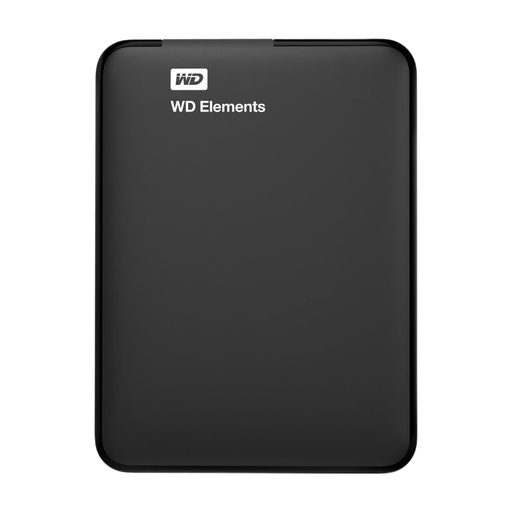 Image unavailable
WD Elements Portable 1TB USB 3.0
A portable HDD for storing and taking your scans with you.
Capacity: 1 TB. USB 3.0 and a cable included. You may need to reformat it for use with a Mac; this will erase any data on the drive.
View at Joybuy
Frequently asked questions
Is one external drive enough if you don’t want to lose your scans?
No. Keep a separate copy too, and open a few files from the external drive before the review. Safely disconnect a backup drive after use and store the copy separately from your computer.
Can you use the same drive for individual scans and Time Machine?
Apple recommends using a Time Machine backup drive only for Time Machine, not for other files as well. When you set it up, Time Machine may ask to erase the drive, so check what scans are on it first.
What if a new external drive is faulty?
For a consumer purchase in the Netherlands, statutory guarantee applies alongside any manufacturer’s warranty, with no fixed statutory time limit. The Dutch government says the retailer is your point of contact if the product doesn’t meet reasonable expectations; a manufacturer’s warranty doesn’t limit your statutory rights.
Does the GDPR apply to scans in your portfolio?
According to the Dutch Data Protection Authority, an exemption applies to processing carried out solely for personal or household purposes. The GDPR may apply if you’re using the scans professionally or processing other people’s personal data. In that case, the purpose, legal basis and appropriate security are among the relevant factors. Which rules apply depends on the portfolio and its documents.
Do you have to keep your own scanned financial records for five years?
According to the Dutch government, individuals aren’t legally required to keep their financial records. Keeping them for five years is recommended in case additional tax is due; different retention periods apply to businesses and self-employed people. This answer applies only if the scans are financial records.


