Start by working out the total size of your project and how much space you’ll need for new photos. A portable HDD is an option if you mainly want to store files; an SSD may be a better fit if you regularly move files or work directly from the drive, provided its connection is compatible with your computer. Keep irreplaceable photos somewhere else too: a working drive on its own isn’t a backup.
Who is this buying guide for?
Photographer with a growing RAW archive
You’re taking lots of photos for your school project and want to work out how much storage you need first. Capacity and room for new photos matter more than top speed. Testaankoop describes storage capacity as an important difference between HDDs and SSDs.
Student who works from the drive
You regularly open or move large photo folders and take the drive between workspaces. Transfer speed and connections that work with your computers are important factors when choosing a drive.
Student with irreplaceable photos
You want to know how to recover your project if a device is lost or stops working. That’s why you need a separate, up-to-date copy as well as your working files. Adobe recommends that Lightroom Classic users keep copies of their photos and catalogue on a different drive from their working files, if possible.
What should you look for when buying?
First, add up your project files and the new photos you expect to take. Decide where you’ll keep a separate copy, then choose an HDD or SSD to suit how often you work from the drive. Finally, check the connection and file system for the computers you use.
| What to consider |
What should you check? |
Who is this important for? |
| Capacity |
Add up your project folders and allow for the new photos you expect to take; compare the total with the capacity of the exact model. |
If I want to store a growing RAW archive, I’ll first check how much space the files and new photos will need together. Around 33% of consumers put having enough capacity first. |
| Separate copy |
Decide where your working copy and a recent, separate copy will be kept; if you use Lightroom Classic, include the catalogue in your recovery plan too. |
If my photos can’t be recreated, I want to be able to recover them if the working drive fails. Around 25% of consumers prioritise recovering their photos. |
| Working speed and portability |
Compare the stated read and write specifications, connection and cable for the exact model; don’t treat maximum speeds as guaranteed real-world performance. |
If I regularly move large RAW folders or open them from the drive, I’ll consider both transfer speed and portability. Around 25% of consumers prioritise speed and portability. |
| Using the drive with multiple computers |
Check for USB-A or USB-C ports, the cable included and the file system. Make a copy before reformatting a drive. |
If I use different computers at home and school, I want to exchange files without unexpected connection issues. Around 17% of consumers prioritise file sharing between devices. |
Common pitfalls
-
Confusing extra storage with a backup
If the external drive is the only place your RAW files are stored, losing the drive or having it fail also means losing your project.
Before you buy, decide where your working copy will be kept and where you’ll store a separate, up-to-date copy.
Keeping a separate copy means using another storage location or a second drive, and getting into the habit of updating it.
-
Assuming an SSD’s maximum speed is its guaranteed working speed
The maximum speeds stated by Samsung and Kingston apply to the interfaces specified; they aren’t measurements of transfer speeds on your computer.
Check your computer’s port and cable, and don’t choose based solely on the highest stated MB/s figure.
-
Choosing based on the product range alone
WD Elements Portable includes separate USB-A and USB-C models, so the product range name alone doesn’t tell you which connection you’ll get.
Compare the full model name and check which cable comes with the exact model.
You may need an extra cable or adapter if the one supplied isn’t compatible with your computer.
Brands to compare
Western Digital
Elements Portable is a range of portable HDDs for storing photos. Compare the capacity and connection of the exact model.
- For the 2TB USB-A model reviewed, Western Digital lists USB 3.2 Gen 1 and a USB-A cable included in the box.
- The USB-A model WDBU6Y0020BBK-WESN is not the same model as the USB-C version WDBDTV0020BBK-WESN. Western Digital says reformatting may be necessary for other operating systems.
Samsung
The Portable SSD T7 is a portable SSD option to compare if you regularly transfer files or take them with you.
- For the grey 1TB model MU-PC1T0T/WW, Samsung specifies USB 3.2 Gen 2, maximum read speeds of 1.050 MB/s and write speeds of 1.000 MB/s, with USB-C-to-C and USB-C-to-A cables.
- These are maximum speeds stated by Samsung for that model, not independently measured speeds for your project.
Seagate
One Touch Portable is a range of portable HDDs for storing photos; check the exact model and the cable supplied with it.
- Seagate describes the range reviewed as having USB 3.2 Gen 1 and being compatible with Windows and Mac.
- For the specific model you’re considering, check the connection. Any services and offers may be subject to terms and conditions and country restrictions.
Kingston
XS1000 is a range of portable SSDs that Kingston lists in 1TB and 2TB models.
- Kingston lists maximum read speeds of 1.050 MB/s and write speeds of 1.000 MB/s via USB 3.2 Gen 2.
- The specifications mention a USB-C-to-USB-A cable and a USB-A-to-USB-C adapter; check what’s included with the exact model.
External drives at Joybuy
These Joybuy products are portable external SSDs and HDDs for RAW storage, project files and taking files with you. Compare capacity, connection and the role of a separate backup to find the right fit for the way you work.
 No image available
SanDisk Portable SSD 1TB
A portable SSD option for photos and files; the product name lists a storage capacity of 1 TB.
View at Joybuy
 No image available
My Passport 2TB Blue Portable Hard Drive with password protection and backup software
A portable HDD option for a photo archive; the product name lists 2 TB, password protection and backup software.
The product information recommends protecting the drive from drops and physical shocks. Password protection and backup software are no substitute for a separate copy of your project.
View at Joybuy
 No image available
Portable SSD 1TB 1000MB/s
A portable SSD for files and projects; the product name lists 1 TB and 1000 MB/s.
The product information recommends protecting the SSD from physical shocks.
View at Joybuy
 No image available
DigiEra 1TB Magnetic Portable SSD, USB 3.2 Gen 2x2, Model LPS2000M-3, Pink
A portable SSD option for large files; the product name lists 1 TB and USB 3.2 Gen 2x2.
The product information says the magnetic attachment is compatible with iPhone 15/16 Pro and Pro Max models; this feature is separate from the USB-C storage function.
View at Joybuy
 No image available
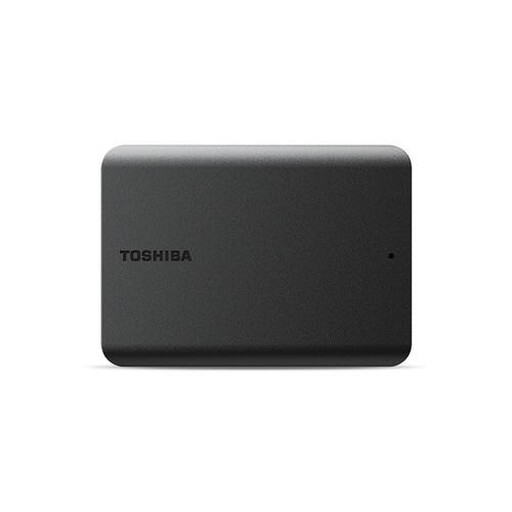
Toshiba Canvas Basics 1TB Black 2.5" USB3.2
A portable HDD for files and photos; the product name lists 1 TB, 2.5 inches and USB 3.2.
The product information recommends handling the drive with care and protecting it from physical shocks.
View at Joybuy
Frequently asked questions
Is one external drive enough to back up my RAW project?
Not if it holds the only copy of your photos. Keep a separate, up-to-date copy; if you use Lightroom Classic, include both your photos and catalogue in your recovery plan. Adobe recommends keeping copies on a different drive from your working files, if possible.
Can I use the same drive with a Mac and a Windows computer?
First, check the ports, cable and existing file system on the computers you use. Apple lists ExFAT as a formatting option for Windows-compatible volumes larger than 32 GB. Make a copy of any existing files before reformatting.
What if I’m not happy with a drive bought online, or it’s faulty?
For eligible online purchases from a business, the Dutch government says you generally have a 14-day cooling-off period. You’re also entitled to a product that works as it should: the Netherlands has no fixed statutory guarantee period, and the retailer is your point of contact if something goes wrong. The cooling-off period and your legal rights if a product is faulty are separate matters.
Can I publish identifiable photos of fellow pupils for my school project?
Not automatically. The Dutch Data Protection Authority states that permission is needed to publish identifiable images of pupils taken by a school, and that the material must be properly secured. For pupils aged 16 and over, the regulator says permission must come from the pupil; for younger pupils, permission from their parents is required. Make sure publication and storage arrangements are appropriate for your specific school project.


