
Keeper of irreplaceable scans
Wants to be able to restore family photos if a device or drive fails. Choosing a storage device should therefore go hand in hand with keeping a separate backup.


If you often move scans between devices, a portable SSD is likely to be the better choice. An HDD may suit you if you mainly want plenty of space for an additional copy that you don’t access as often. Actual transfer speeds also depend on your computer, connection and cable. Keep irreplaceable photos somewhere separate too: moving files to a single drive is not the same as making a backup.
Wants to be able to restore family photos if a device or drive fails. Choosing a storage device should therefore go hand in hand with keeping a separate backup.
Regularly transfers folders of scans and wants to know whether a portable SSD offers an advantage with their computer’s USB connection.
Needs space for existing scans and future additions, and wants to match storage capacity to the size of their archive.
Choose this option: if you transfer scans regularly or take the drive with you.
Bear in mind: stated peak speeds don’t guarantee the speed of your transfers; your computer, connection and cable all play a part too.
Choose this option: if you mainly want to keep a large additional copy that you access less often, and transfer speed is less important.
Bear in mind: an HDD has moving parts and, according to the Consumers’ Association, is more susceptible to knocks than an SSD.
Choose this approach: if you use your scans regularly but also want to be able to restore a separate, up-to-date copy.
Bear in mind: an extra copy requires a second storage destination and regular maintenance.
| What to consider | What should you check? | Who is this most relevant to? |
|---|---|---|
| A restorable copy of your photos | Decide where to keep the second copy and check that you can open the files after copying them. | If your scans are irreplaceable, you’ll want to be able to restore a copy if they’re lost. Around 33% of consumers say the ability to restore files is their top priority. |
| Regular file transfers | Compare read and write speeds, and check the USB version supported by your computer, drive and cable. | If you often move folders of scans between devices, you’ll want to reduce transfer times without relying solely on the drive’s stated speed. Around 27% of consumers prioritise transfer speed. |
| Space for your photo archive | Check the size of your existing folders and allow for future additions and formatting. | If your collection is growing, you’ll want to match capacity to the files you keep. Around 20% of consumers say archive space is their main consideration. |
| Connections to your devices | Note whether each device uses USB-A or USB-C and which USB version it supports. Also check the formatting if you use the drive with different systems. | If you manage scans across multiple devices, you’ll want to make sure the connection and file system are suitable. Around 20% of consumers put compatibility first. |
If you move files to a single external drive, it could become the only place they’re stored. A backup is a separate copy that you can use to restore your files.
Keep your scans in a separate location too, and regularly check that the copy is readable.
The source, destination and connection can all limit actual transfer speeds.
Check the USB specifications of the drive, cable and computer, and compare both read and write speeds.
If you often take a drive with you, transfer time and susceptibility to knocks matter too. Capacity may be more important for an archive copy that you access less often.
First decide whether you’ll mainly use the drive for everyday transfers or as an additional archive copy. Then compare the capacity options.
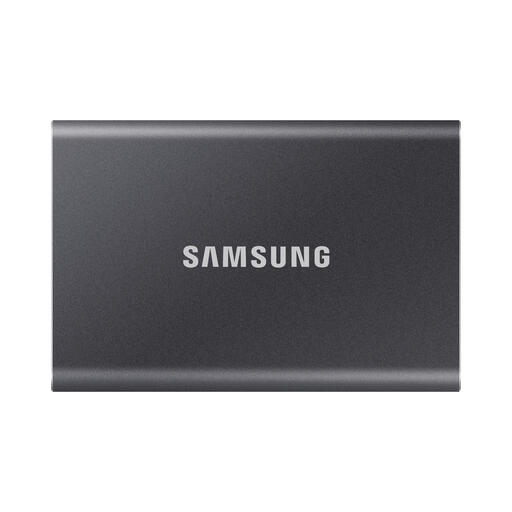
The portable T7 Shield range is designed for people who transfer scans often and take their drive with them. The version reviewed is the black 1 TB MU-PE1T0S/EU.
The Portable HDD range is an option for a large additional copy of your photos that you access less often; Seagate lists versions of up to 5 TB.
The X9 is a compact USB-C SSD for photo storage and file transfers; the version reviewed is the X9 1 TB CT1000X9SSD9.
The XS1000 range comes in 1 TB and 2 TB versions and may be worth considering if you use USB-A and USB-C devices.
The Portable SSD range reviewed is a portable alternative for keeping a copy of your photo archive.
These portable SSDs from Joybuy are selected for storing and regularly transferring scans. Match the capacity and connection to your archive and devices; a single drive is not a separate backup.
 No image available
A portable SSD option for storing and regularly transferring scan files.
Capacity: 1 TB. SanDisk lists a maximum read speed of 800 MB/s for the Portable SSD range; actual transfer speeds also depend on the connected equipment.
Keep a separate copy of irreplaceable scans too.
 No image available
A portable 1 TB SSD for anyone who wants to take scan files with them and transfer them regularly.
The product information lists USB-C and a USB-A adapter in the box. The stated maximum read speed requires a compatible USB 3.2 Gen 2x2 host; write speeds are lower.
Keep a separate copy of irreplaceable scans too.
 No image available
A portable SSD for storing and transferring folders of scans.
Capacity: 1 TB. The product information lists USB-C and maximum read and write speeds of 1,050 and 1,000 MB/s; achievable speeds depend on the connected equipment and connection.
You’ll still need a second, separate copy if you want to be able to restore your scans should this drive fail.
 No image available
A portable 2 TB SSD for scans and other large files that you transfer regularly.
The product information lists read and write speeds of up to 1,050 and 1,000 MB/s, plus two cable types. Achievable speeds depend on the connected equipment and connection.
Keep a separate backup if your scans are irreplaceable.
 No image available
A portable SSD with a capacity of 4 TB for a growing photo archive and regularly transferring large files.
The product information lists read and write speeds of up to 2,000 MB/s and USB-C-to-C and USB-C-to-A cables. Achievable speeds depend on the connected equipment and connection.
This drive does not replace a separate backup of irreplaceable scans.
Don’t rely on a single drive for irreplaceable scans. Keep a separate, up-to-date copy and check that you can restore files from it. VeiligInternetten describes a backup as a copy to use if files are lost from a device.
Microsoft describes File History as a way to use an external drive as a backup destination. Check that your folders of scans are in your libraries or have been added to them. Microsoft says regular support for Windows 10 ended on 14 October 2025, so check the instructions for the system you use.
That depends on the drive and your devices. Crucial says the X9 comes formatted as exFAT, but compatibility may depend on the formatting and the connected device. Reformatting erases the data on the drive, so check first before putting your only copy of scans on it.
If a product is faulty despite being used normally, the seller must offer an appropriate free solution, such as a repair or replacement, according to ACM ConsuWijzer. Your statutory rights are separate from any manufacturer’s warranty; there isn’t one fixed warranty period that automatically applies to every drive.
For a standard online consumer purchase, you generally have a statutory 14-day cooling-off period from delivery, according to ACM ConsuWijzer. Check which exceptions and return conditions apply to your order.