
Editing directly from external storage
You want to work with project media directly from an external drive and need a connection and speed that suit your editing setup. Adobe recommends fast storage for video editing.


If you work directly from the drive, choose a fast external SSD and check that your computer, cable and drive all support the same connection. For a growing archive kept in one place, a desktop HDD may be a good fit. Choose the capacity based on your existing files and expected growth. Don’t rely on either drive as your only copy: keep a separate backup and test that you can restore your files.
You want to work with project media directly from an external drive and need a connection and speed that suit your editing setup. Adobe recommends fast storage for video editing.
You’re keeping more and more source footage and final versions, so storage space and a separate copy matter more than maximum speed on the archive drive. Western Digital Netherlands describes the WD Elements Desktop model with 8 TB of storage.
Your first question is how to get your footage and project files back if they’re lost or a drive fails, not which single drive can store everything. The National Cyber Security Centre recommends making backups and testing that you can restore your files.
First decide whether you need the drive for active editing or mainly for archiving, and plan a separate, recoverable copy too. Adobe recommends fast storage for video editing, while the National Cyber Security Centre stresses the importance of backups and restore tests.
| What to consider | What to look for when buying | Who is this important for? |
|---|---|---|
| Editing speed | Check that your computer, cable and drive support the interface you choose. | If I edit project media directly from the drive, I want a connection that works with my computer. Around 31% of consumers make speed for active editing their top priority. |
| Archive capacity | Add up your existing files and expected growth, then compare the total with the capacity and placement of a desktop model. | If you want to keep source footage and completed projects in one place, storage space is the main consideration. Around 31% of consumers put archive capacity first. |
| Recoverability | Plan a separate location for your backup and test that you can restore your files. | If footage can’t be recreated, I want to know whether I can recover it if it’s lost. Around 25% of consumers put recoverability first. |
| Portability | Compare the portable design, connection and protection offered by the exact model. | If you work in different locations, consider how easy the drive is to take with you and what protection the specific model offers. Around 13% of consumers make portability their top priority. |
If your only copy becomes inaccessible, the drive’s capacity won’t help you recover your files.
Keep working files and independent copies separate, and test that you can restore your files. The National Cyber Security Centre recommends carrying out a restore and checking the result.
Manufacturers’ speed claims apply to a specific interface and don’t measure the performance of your entire editing setup.
Check the port, cable and drive together before choosing based on an advertised maximum speed.
Sharing files with Windows and using a drive for Time Machine are different things. Formatting can erase existing data.
Decide what you’ll use the drive for first, and back up any existing files before changing its format. Apple recommends exFAT for sharing files with Windows and APFS or encrypted APFS for Time Machine.
A desktop model for archiving and a fast portable SSD for editing aren’t necessarily designed for the same job.
Choose based on where you edit and archive. Check whether the drive can stay in one place and whether you’ll need a different drive for active editing.
The features listed apply to the product lines and models described; mentioning a brand isn’t an endorsement of its entire range.
The Portable SSD T9 is a portable option for active editing; the model described has 4 TB of storage.
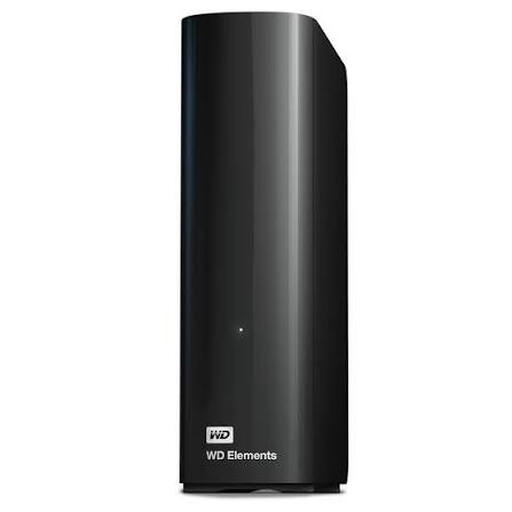
The WD Elements Desktop 8 TB is an option for keeping a large archive in one place.
The XS2000 range includes a portable 4TB SSD for taking your storage with you.
The Expansion Desktop range is an option for storage in one place.
The Rugged SSD Pro range is another option for editing and working on location.
This selection includes portable SSDs for editing and travel, plus a desktop HDD for keeping an archive in one place.
 No image available
This portable SSD is designed for editing or transferring files on the go.
The Joybuy product description lists read speeds of up to 2,000 MB/s, USB 3.2 Gen 2x2, IP65 and drop protection from up to 3 metres. The advertised read speed requires a compatible host connection; according to the description, write speeds are lower.
 No image available
This portable 1 TB SSD is ideal for taking project files and creative work with you.
The Joybuy product description lists USB-C, USB 3.2 Gen 2, read speeds of up to 1,000 MB/s and drop protection from up to 2 metres.
 No image available
This portable SSD is an option for project files you use across different devices.
The Joybuy product description lists 2 TB, USB 3.2 Gen 2 and sequential read and write speeds of up to 1,050 and 1,000 MB/s respectively. It also lists compatibility with Windows and macOS, and includes USB-C-to-C and USB-C-to-A cables. For optimum performance, you’ll need a device with USB 3.2 Gen 2.
 No image available
This portable 4 TB SSD is designed for editing from external storage and transferring larger files.
The Joybuy product description lists USB 3.2 Gen 2x2 and advertised read and write speeds of up to 2,000 MB/s. Achieving these top speeds depends on a compatible connection throughout the chain: computer, cable and SSD.
 No image available
This desktop HDD is a good fit for keeping a growing collection in one place.
The Joybuy product description lists 8 TB and USB 3.0, with backwards compatibility with USB 2.0. Adobe recommends fast storage for active video editing, so consider whether you also want to use this drive as a working drive.
Add up your current source footage and project files, and allow for the growth you expect. Set aside space for a separate backup too; the stated capacity alone doesn’t tell you how many projects will fit.
Apple lists exFAT as a compatible format for sharing files with Windows. For a Time Machine drive, Apple recommends APFS or encrypted APFS. Decide how you’ll use the drive before formatting it, as formatting erases existing data.
As well as checking that the backup has run, test restoring your files. The National Cyber Security Centre recommends checking that the restore was successful and keeping a copy somewhere other than your working drive.
For a consumer purchase in the Netherlands, the retailer must offer a solution if the product is faulty. According to the Dutch government, there’s no set time limit for the statutory guarantee in the Netherlands. A manufacturer’s warranty is in addition to your statutory rights and doesn’t replace them. Neither one replaces a backup of your files.
That depends on how you use the footage. The Dutch Data Protection Authority states that the exemption for purely personal or household use doesn’t apply when identifiable footage is used for business or organisational purposes. Organisations must protect personal data appropriately; this doesn’t mean every individual filmmaker needs to buy a particular type of drive.