
Editors working with local source clips
If you work directly from the drive in your editing software, both the drive and your computer’s port affect data transfer rates. Adobe recommends fast storage for media and cache files in Premiere.


If you edit directly from an external drive, choose an SSD with a connection that matches your computer’s port; an HDD is better suited to storing source footage or keeping a separate copy. Work out the capacity you need based on your project files, and keep backups on a different storage medium: a drive containing your only copy is not a backup.
If you work directly from the drive in your editing software, both the drive and your computer’s port affect data transfer rates. Adobe recommends fast storage for media and cache files in Premiere.
If you want to keep raw footage and add more over time, storage capacity may matter more than editing from that same drive. Adobe distinguishes between storage for editing and a separate spinning drive for HD or UHD editing.
If you want to reduce the risk of a single drive failure leaving you with the only copy of your source files, you need a separate copy. Seagate explains that once the original files have been deleted and only one copy remains, you no longer have a backup.
A good choice if: you read source clips directly from the external drive while editing.
The trade-off: your computer’s port, cable and wider workflow all affect achievable transfer rates; a quoted maximum is no guarantee of editing speed.
A good choice if: space for source footage or a separate storage copy matters more than editing directly from the drive.
The trade-off: Adobe recommends fast storage for Premiere and says a single spinning drive without RAID is not suitable for HD or UHD video work.
A good choice if: you work with local source files and want to keep an extra copy of irreplaceable footage.
The trade-off: you’ll need space for a second storage medium, and you must keep the backup up to date and make sure you can restore it.
| What to consider | What to look for | Who should consider this? |
|---|---|---|
| Editing throughput | Check the USB or Thunderbolt port, the cable, and where your editing software stores media and cache files. | If I edit directly from the drive, I want to know whether my computer can make the most of the connection; around 31% of consumers prioritise editing throughput. |
| Space for source files | Add up your existing source files, project files and expected new footage; don’t use your backup space as working space. | If I need to fit my raw clips and project files, I want to choose capacity based on my own files; around 25% of consumers give space for source footage top priority. |
| Keeping source footage safe | Keep a separate copy on a different physical storage medium and check that you can restore your files from it. | If my footage can’t be recreated, I don’t want to rely on a single drive; around 25% of consumers prioritise keeping source footage safe. |
| Portability and sharing | Check the power supply, cables required and file system for Mac, Windows or both; formatting erases files. | If I work in different places or on different computers, the drive needs to be practical to use there; around 19% of consumers give portability or sharing top priority. |
Your computer’s port and cable, along with other parts of the connection, can limit actual data transfer rates.
Check your computer port’s specifications and the drive’s connection before choosing a model based on a higher quoted speed.
A protective casing or product warranty won’t automatically recover lost source files. If your only copy is on one drive, you don’t have a separate backup.
Keep working files and a recoverable copy on different physical storage media.
A separate backup requires extra storage space and a routine for keeping the copy up to date.
The Seagate Expansion Desktop 8 TB comes with an 18 W power adapter; USB power alone is not enough for this model.
Choose this desktop drive only if you have a mains socket available where you work. If you’ll be working on location, check what power a portable model needs.
Apple warns that formatting erases all files on the selected drive or volume.
Check which device you’ve selected and make a separate copy first, before changing the format.
The T7 Shield and T9 are portable SSD options; the T9 is designed for a computer with USB 3.2 Gen 2x2.
The X9 Pro is a portable SSD for local media and file transfers.
The Expansion Desktop is an external HDD for storage at a fixed workstation.
My Passport is a portable HDD option for storing or transporting source footage.
Rugged Mini is a portable HDD range for storing and transporting source footage.
This selection includes portable SSDs for local editing and a portable HDD for storing source footage. Before editing, check that your computer’s port supports the interface of your chosen SSD.
 Image unavailable
A portable SSD for local editing; check whether your computer supports USB 3.2 Gen 2x2.
USB 3.2 Gen 2x2; maximum read speed of 2,000 MB/s according to the product description; AES hardware encryption.
The quoted read speed requires a compatible host; write speed is lower.
 Image unavailable
A portable HDD for storing source footage when capacity matters more than editing from the same drive.
4 TB; 2.5-inch; USB 3.2 Gen 1.
Adobe says a single spinning drive without RAID is not suitable for HD or UHD editing.
 Image unavailable
An external SSD for local source files; your computer’s connection also affects achievable transfer rates.
2 TB; USB 3.2 Gen 2; sequential maximum read speed of 1,050 MB/s and write speed of 1,000 MB/s according to the product description.
Maximum transfer speeds are not guaranteed editing speeds.
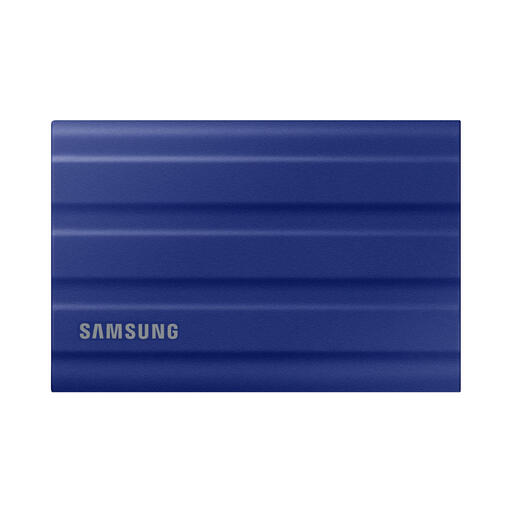 Image unavailable
A portable SSD for local source files; check that the connection is compatible with your computer.
1 TB; USB 3.2 Gen 2; maximum read speed of 1,050 MB/s and write speed of 1,000 MB/s according to the product description; AES 256-bit hardware encryption.
The quoted maximum speed does not guarantee the same editing speed on every computer.
 Image unavailable
An external SSD for local editing if your computer supports USB 3.2 Gen 2x2.
2 TB; USB 3.2 Gen 2x2; maximum read speed of 2,000 MB/s and write speed of 1,950 MB/s according to the product description; hardware encryption.
The higher quoted speed requires host support; the connection may limit actual transfer rates.
It depends on your media and workflow. Adobe recommends fast storage for media in Premiere and says that single spinning drives without RAID don’t provide the speed needed for HD and UHD video. So, if you want to edit directly from source clips, don’t choose an HDD based on its USB connection alone.
Apple describes exFAT as an option for a drive larger than 32 GB that also needs to work with Windows. Make a copy before formatting, as formatting erases files. If you’ll only use the drive with one system, consider its native file system too.
No. If you then delete the originals, you’ll be left with just one copy. Keep a separate copy on another storage medium as well, and check that you can restore those files.
Footage in which people can be identified may contain personal data. According to the Dutch Data Protection Authority, whether privacy rules apply depends, among other things, on how the footage is used and shared. The exception for strictly personal or household use does not necessarily apply to wider distribution or business use.
Add together your existing source files, project files and expected new footage. The space you need depends on your own files; keep storage for a separate backup apart from your working space.