For large design files that you often edit directly, an external SSD is a good fit. For an archive that will mainly stay on one desk, a desktop HDD is an alternative. The Consumers’ Association explains this distinction, while Seagate points out that the slowest link limits transfer speeds. Keep your working copy separate from your backup: files moved to just one external drive don’t have a separate backup.
Who is this choice relevant to?
Designer with active projects
You often open and edit large project files directly from your home workstation, so you need a connection and transfer speed that suit your computer. Seagate explains that the slowest link in the transfer chain limits speed.
Manager of a growing project archive
You mainly keep completed designs in one fixed location and need space for files you open less often. The Consumers’ Association covers external drives as a storage option for large files, among other things.
Creator looking to reduce the risk of losing projects
You want to keep a restorable copy as well as your working files. Microsoft Support and Apple Support explain backup options, but it’s important to check that the right project folders are included.
What should you look for in an external drive?
First decide whether you’ll actively work from the drive or mainly use it to store files. Also plan a separate backup if you want to be able to restore your design files.
| What to consider |
What should you check? |
Who should prioritise this? |
| Working speed |
Check your workstation’s USB port and cable, and compare them with the drive’s interface. Advertised maximum speeds aren’t a guarantee of the speed you’ll get across your entire transfer chain. |
If you often open or edit large files directly from the drive, you’ll want a connection that suits your computer. Around 36% of consumers prioritise working with files directly. |
| Archive space |
Check the size of your current project folder and allow for the space you’ll need for new files. Check the capacity of the exact model and whether a desktop model requires a power adapter. |
If you mainly store completed projects, you need space but don’t have to work from the drive constantly. Around 29% of consumers prioritise archive space. |
| Separate backup |
Decide where your working copy and backup will be stored. Check that your backup settings include the right project folders. |
If losing design work isn’t an option, you’ll want a copy kept separately from your working drive that you can restore. This is the top priority for around 21% of consumers. |
| System and file system |
Check the connection, cable and compatibility with your operating system. For Time Machine, Apple recommends APFS or APFS Encrypted; reformatting may erase existing data. |
If your computer or backup method requires a particular connection or format, check this before transferring files. Around 14% of consumers prioritise system compatibility. |
Buying pitfalls
-
Choosing a USB-C SSD based on the speed rating alone
The connection and other links in the chain can limit actual transfer speeds. So a high advertised maximum speed doesn’t automatically mean your workstation can achieve it.
Check which USB standards your computer and drive support, and make sure the cable you use is suitable for the connection you want.
-
Moving files and calling it a backup
If you move files to a single external SSD or HDD, they’re still only stored in one place. If that drive fails, you won’t have a separate backup.
Keep a restorable copy separately and check that your backup includes the project folders you actually use.
-
Treating a desktop HDD like a portable drive
The Seagate Expansion desktop range comes with an external power adapter. As well as a USB connection, you’ll need a mains socket.
Before buying, check where you’ll keep the drive and whether there’s a power supply and enough space there.
Brands to compare
Samsung
The T9 and T7 Shield are portable SSDs for active files. The connection supported by your computer will help determine which advertised speeds you can use.
- Samsung Netherlands lists a maximum read and write speed of 2,000 MB/s for the 4 TB T9 via USB 3.2 Gen 2x2. For the 4 TB T7 Shield, Samsung lists maximum read speeds of 1,050 MB/s and write speeds of 1,000 MB/s via USB 3.2 Gen 2.
- These maximum speeds aren’t guaranteed on every workstation; check that the port and cable are compatible with the interface.
Crucial
The X10 is a range of portable SSDs that includes an 8 TB model.
- Crucial lists sequential read speeds of up to 2,100 MB/s for the X10 under the manufacturer’s test conditions.
- Capacity and speed alone don’t tell you whether the exact model will suit your computer or storage needs.
Seagate
The Expansion desktop HDD is an option for a fixed workstation and files you mainly want to store.
- Seagate lists several capacities for its desktop range, which comes with an external power adapter.
- A desktop model needs a mains socket. And remember not to rely on an HDD as the only copy of important work.
LaCie
The Rugged SSD4 is a portable SSD for taking projects with you, provided you check your computer’s connection.
- Seagate lists USB 40Gbps, capacity up to 4 TB and an IP54-rated enclosure for the LaCie Rugged SSD4.
- Transfer speeds on your workstation will also depend on whether it has a compatible host connection.
SanDisk
The Desk Drive is an external SSD designed to stay on your desk.
- SanDisk lists an 8 TB Desk Drive model with USB 3.2 Gen 2 and advertised read speeds of up to 1,000 MB/s.
- Check that your workstation’s connection can deliver the transfer speed you want.
Joybuy drives for projects and archives
This selection includes external SSDs for active projects and compact external HDDs for files on your workstation. Check that the capacity and connection of each model suit your files and computer.
 No image available
SanDisk Portable SSD 1TB
An external SSD for active files, if 1 TB is enough for your projects.
The product description lists read speeds of up to 800 MB/s, drop protection from heights of up to 2 metres and a fastening loop.
View at Joybuy
 No image available
SanDisk Extreme Pro Portable SSD 1TB
A portable SSD for large project files, provided your computer supports the required connection.
The product description lists 1 TB, USB 3.2 Gen 2x2, read speeds of up to 2,000 MB/s, IP65 and drop protection from heights of up to 3 metres. To achieve the maximum read speed, you’ll need a compatible host; write speeds are lower.
View at Joybuy
 No image available
Portable SSD 1TB 1000MB/s
An external SSD for storing and transferring files. The product description says it doesn’t need a separate power supply.
The description lists 1 TB, USB 3.2 Gen 2 and read speeds of up to 1,000 MB/s, with drop protection from heights of up to 2 metres. Windows and macOS compatibility are also listed.
View at Joybuy
 No image available
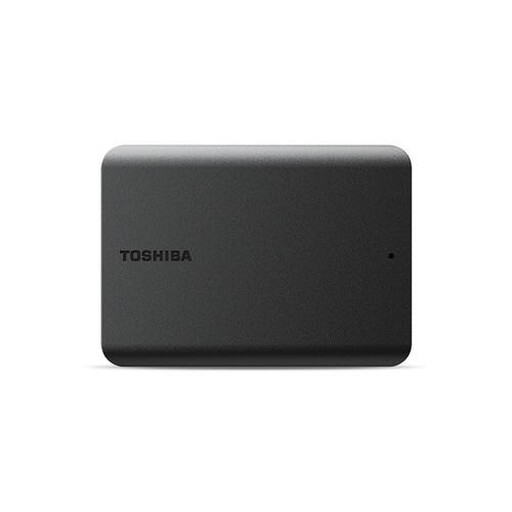
Toshiba Canvio Basics 1TB Black 2.5" USB3.2
A compact external HDD for storing or transferring files from a PC.
The product description lists 1 TB, a 2.5-inch form factor and USB 3.2 Gen 1. It says the drive must be reformatted for use with a Mac.
View at Joybuy
 No image available
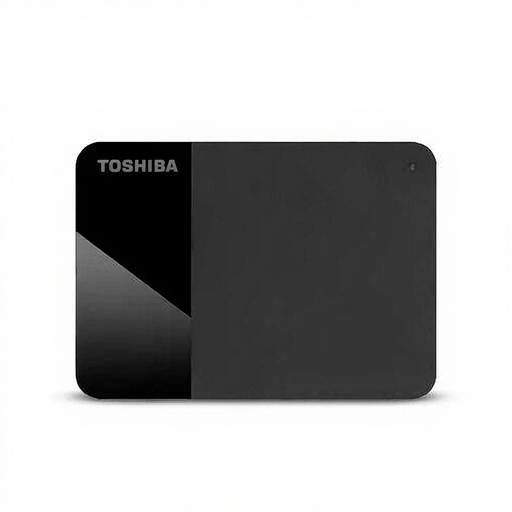
Toshiba Canvio Ready External Hard Drive 1TB 2.5" Micro-USB B 3.2 Gen 1
An external HDD for storing and copying files on a workstation.
The product description lists 1 TB, a 2.5-inch form factor, USB 3.2 Gen 1 and an included cable. It lists compatibility with Windows and Mac.
View at Joybuy
Frequently asked questions
Can I back up large project folders with Windows File History?
Yes. Windows File History lets you back up files to an external drive or network location. Microsoft Support explains that you can add folders outside the default selection to a library; check that your project folders are included.
Can I use a drive with existing Windows files for Time Machine straight away?
Don’t assume so. Apple recommends APFS or APFS Encrypted for a Time Machine drive; reformatting a drive with a different format may erase existing data.
Am I always entitled to exactly two years’ statutory warranty on an external drive in the Netherlands?
No. According to the Dutch Government, there’s no fixed statutory warranty period in the Netherlands. You’re entitled to a product that works properly, and the retailer is your point of contact if there’s a problem. A manufacturer’s warranty is separate.
Can I hand in my old external drive as a private individual when I buy a similar new device?
Yes. According to the Dutch Government, the free take-back scheme applies to private individuals who buy a similar electrical appliance, including online. The scheme doesn’t apply to businesses. Remove your personal files before handing in the storage device.


