
Keeper of irreplaceable scans
If you consider your family photos irreplaceable, you’ll want to know how to keep them safe if a device fails. The National Cyber Security Centre advises keeping backups on different types of media.


Choose an external SSD with enough capacity for your current scans and any you expect to add, and check its dimensions and connection before you buy. Don’t keep irreplaceable family photos on that one drive alone: the National Cyber Security Centre advises keeping backups on at least two different types of media, while the Library of Congress recommends keeping copies in separate physical locations.
If you consider your family photos irreplaceable, you’ll want to know how to keep them safe if a device fails. The National Cyber Security Centre advises keeping backups on different types of media.
You need to fit a scanner, computer and storage into a small workspace, so it’s worth checking the SSD’s dimensions and the cables included. Kingston and Samsung list these details for their compact models.
You expect to add new scans and want to choose a capacity that suits your files and computer. Kingston and Crucial list different versions and storage details that you can compare with your own scan folder.
For a compact scanning setup, your choice comes down to keeping copies safe, available space, capacity and connectivity.
| What to consider | What to look for | Who it matters to |
|---|---|---|
| Protection against failure or loss | Plan a second copy on a different medium and in a separate location. | I don’t want to rely on a single SSD if it’s lost or fails. Around 33% of consumers prioritise preserving their scans. |
| Desk space | Compare the SSD’s dimensions and cable type with the location of your computer’s port. | On a small desk, I want to fit the drive beside my scanning setup without the cable getting in the way. Around 27% of consumers prioritise space and cable convenience. |
| Capacity for new scans | Check the size of your current scan folder, allow for planned additions and leave some space free. | I want to avoid my scan folder filling up quickly when I add more photos later. Around 20% of consumers prioritise having the right capacity. |
| Connections and devices | Check which USB port and file format your devices support; make a copy elsewhere before formatting. | I want to be able to open my files on the devices I use and avoid losing scans when I change the drive’s format. Around 20% of consumers prioritise connectivity and transferring files between devices. |
Buying an SSD doesn’t automatically give you a second, separately stored copy. The National Cyber Security Centre advises keeping backups on at least two different types of media.
Keep the originals intact and store a separate copy on another medium or in another location.
Kingston and Crucial state that their speed claims depend on suitable connections and test conditions. Your computer and how you use it also play a part.
Check your computer’s USB specification, and prioritise capacity and connectivity if you don’t have a specific need for maximum transfer speeds.
Crucial warns that reformatting erases data on the X9 Pro.
Check which file format you need in advance, and before formatting, keep a copy that you can open elsewhere.
The IP65 and drop-resistance claims for the Samsung T7 Shield relate to product-specific protection, not to keeping a separate copy available.
Choose extra protection if you move the drive around often, but still keep a second copy somewhere else.
The XS1000 range is worth comparing if you’re looking for a very small external SSD.
The T7 and T7 Shield are different portable SSD options: the T7 offers a password option, while the Shield has a protective casing.
The X9 Pro 1 TB is a compact SSD option to compare for its dimensions and connection requirements.
These Joybuy options are portable external SSDs for storing scans. Compare the listed capacity with your current folder and any additions you expect to make.
 No image available
A portable option for keeping an additional copy of your scans; don’t use this SSD as your only storage location.
The product name lists 1 TB and 2,000 MB/s.
 No image available
An external SSD option for storing scans; also keep a separate copy somewhere else.
The product name lists 1 TB.
 No image available
An option to compare if your scan folder is growing; also keep your scans on a separate medium.
The product name lists 2 TB and USB Type-C 3.2 Gen 2 (3.1 Gen 2).
 No image available
An external storage option for scans; check that the capacity suits your current folder and planned additions.
The product name lists 1 TB and USB Type-C 3.2 Gen 2 (3.1 Gen 2).
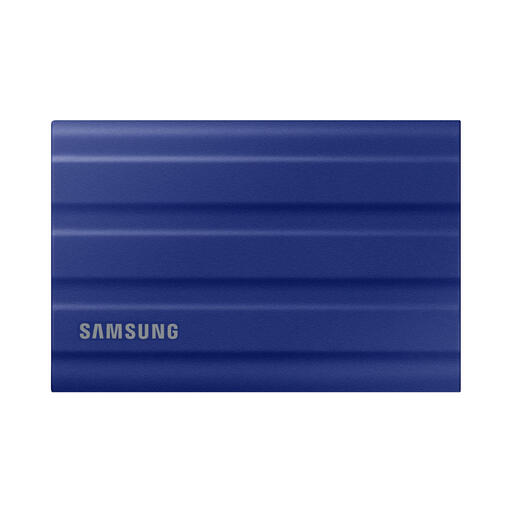 No image available
A portable storage option for scans; even with a protective casing, keeping a second copy is important.
The product name lists 1 TB and USB Type-C 3.2 Gen 2 (3.1 Gen 2).
Don’t rely on a single copy for irreplaceable files. Keep another copy on a different type of medium and in a separate location, and check from time to time that you can open the files. This is storage advice, not a legal requirement for personal family photos.
Before formatting, make a copy that you can open elsewhere. Crucial warns that formatting erases the data on the X9 Pro; after copying, also check that you can open files from the SSD.
Contact the seller if there’s a fault. According to the Dutch government, you’re entitled to a product that works as it should, and there’s no fixed statutory guarantee period in the Netherlands. A manufacturer’s guarantee is in addition to your statutory rights. A guarantee on the drive doesn’t replace a separate copy of your scans.
According to the Dutch Data Protection Authority, the personal or household-use exemption applies when you keep photos private or share them only with a very limited group. If you share identifiable photos more widely or publicly, check separately which rules apply.