What should you look for?
First work out how much space you need, then check the connection for your editing work and make a separate plan for recovering your files.
| What to consider |
What to look for |
Who should pay particular attention? |
| Room for project growth |
Add together your source footage, project files and expected additions. Compare the total with the capacity of the exact model, and allow for the space available after formatting. Adobe’s general guideline for 4K editing is to allow three to four times the size of the raw footage; this isn’t a requirement for every documentary. |
If I want to keep all my existing footage and new shoot days in one project, I want to estimate my total needs in advance. Around 33% of consumers put space for a growing project first. |
| Working speed and connection |
Check the protocols supported by your computer’s port and the cable, as well as the exact SSD model. Manufacturer figures in MB/s are maximum sequential speeds, not a guarantee of how quickly your files will transfer. |
If I edit directly from the drive or often copy large files, I want to know what speed my computer can actually make use of. Around 25% of consumers prioritise practical working speed and the connection. |
| Recoverability |
Plan separate copies of your source footage and project files, and check that you can restore them. The National Cyber Security Centre advises keeping multiple versions of important business data, including backups. |
If interviews or footage would be difficult to recreate, I want to be able to carry on even if my working drive is lost or fails. Around 25% of consumers prioritise being able to recover their footage. |
| Portability and protection |
Compare the rating and any drop-protection claim for the exact model, as well as the protection supplied with it. Don’t assume every model in a brand’s range has the same protection. |
When I travel between filming locations, I want to know in advance what protection the drive offers for that use. Around 17% of consumers choose mainly with portability and physical protection in mind. |
External SSDs at Joybuy
These product choices are external SSDs for storing and carrying documentary footage. Check the capacity and your computer’s connection for each model.
 Image unavailable
SanDisk Portable SSD 1 TB
A portable storage option for footage when 1 TB matches your estimated project size.
The description lists read speeds of up to 800 MB/s, drop protection from heights of up to 2 metres and a lanyard loop.
View at Joybuy
 Image unavailable
My Passport SSD WDBAGF0010BGY 1 TB
An option for external project storage if the stated capacity and connection suit your workflow.
The description lists maximum read and write speeds of 1,050 and 1,000 MB/s respectively, a weight of 46 g, and compatibility with Windows and macOS.
View at Joybuy
 Image unavailable
Samsung Portable SSD T7 2 TB Blue
The 2 TB version may suit you if your calculations call for more space for a larger project collection.
The description lists USB 3.2 Gen 2 and maximum sequential read and write speeds of 1,050 and 1,000 MB/s. The quoted speed applies when used with a device that supports USB 3.2 Gen 2.
View at Joybuy
 Image unavailable
Samsung Portable SSD T7 1 TB Blue
A portable 1 TB option if that capacity suits the size of your current footage and planned growth.
The description lists USB 3.2 Gen 2 and maximum sequential read and write speeds of 1,050 and 1,000 MB/s. The quoted speed requires a device that supports USB 3.2 Gen 2.
View at Joybuy
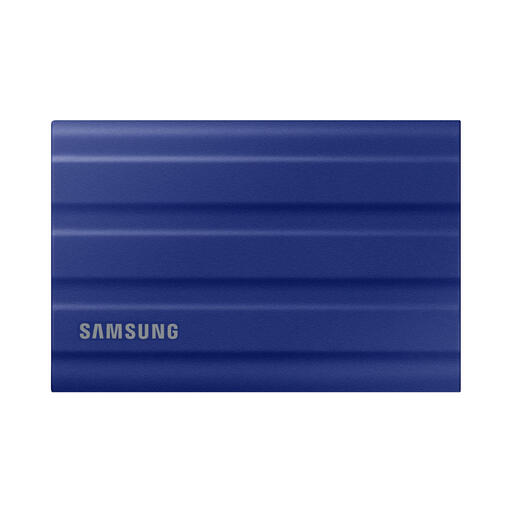 Image unavailable
Samsung MU-PE1T0R 1 TB
This 1 TB version may suit you if you’re looking for an external drive to carry project files between locations.
The description lists USB 3.2 Gen 2, maximum read and write speeds of 1,050 and 1,000 MB/s, IP65 and drop protection from heights of up to 3 metres. It warns that IP65 doesn’t mean the drive can be submerged; the quoted speed requires a compatible connection.
View at Joybuy
Frequently asked questions
How do I work out the capacity I need for a documentary project?
Add together the size of your current source footage, project files and expected additions. Adobe’s general guideline for 4K editing is to allow three to four times the size of the raw footage. This isn’t a requirement for every editing project, so compare your estimate with the capacity of the exact version you’re considering.
Can I edit directly from an external SSD?
Yes, if your editing software, media storage and connection suit the way you work. Adobe recommends fast storage for media and mentions fast external drives when internal space is limited. Check which connections your computer and SSD support.
Why isn’t my SSD reaching its quoted speed?
Check the protocol supported by your computer’s port and the cable you’re using. Kingston says the XS2000 won’t reach its quoted USB 3.2 Gen 2x2 performance on a Mac; maximum sequential figures aren’t a guaranteed speed for every file transfer.
What should I do before reformatting an SSD?
First, make a checked copy of the files you want to keep. Crucial warns that formatting the X10 Pro deletes the data on that drive; keep important project files on a separate copy as well.
Does an IP rating replace a backup?
No. An IP rating describes the stated protection of a specific model against certain conditions, but it doesn’t create an extra copy of your files. Keep irreplaceable footage somewhere separate as well.


