Who is this choice relevant to?

Designer who transfers files frequently

You regularly move large project files and want to minimise waiting time. Your computer’s port and cable both affect whether you can make the most of the SSD’s stated speed. Kingston specifies USB 3.2 Gen 2x2 and the included cable as requirements for optimum performance with the XS2000.

Creator with a growing project archive

You store large source files and multiple project versions, and want to estimate how much space you’ll need in advance. Remember to keep a separate backup too: VeiligInternetten describes a backup as a copy that lets you retrieve files if your device is lost.

Creator who moves between workspaces

You work on projects across multiple devices or take them with you to different locations. Check which connections, cable and file system are compatible with your devices. If you travel with your SSD, also consider the protection offered by the specific model.

What should you look for when buying?

USB 3.2 Gen 2x2 SSD

Best for: copying large files frequently, provided you’ve checked that your computer’s port and cable support USB 3.2 Gen 2x2. Samsung, Crucial and Kingston quote maximum transfer speeds of around 2.000 MB/s for specific models.

Bear in mind: maximum quoted speeds aren’t guaranteed for every computer or file transfer.

USB 3.2 Gen 2 SSD

Best for: portable storage if you can’t take advantage of a USB 3.2 Gen 2x2 connection. Samsung quotes maximum read speeds of 1.050 MB/s and write speeds of 1.000 MB/s for the T7 family.

Bear in mind: for long copying sessions, don’t compare peak speed alone.

Rugged Thunderbolt SSD

Best for: working on location if your computer has a compatible Thunderbolt port. Seagate lists Thunderbolt 3 and IP67 for the LaCie Rugged SSD Pro.

Bear in mind: a Thunderbolt speed claim doesn’t automatically apply to every USB-C connection.

What to consider What should you check? Who is this important for?
Transfer speed Compare read and write speeds, and check the port, cable and conditions attached to the quoted maximums. If you often copy large projects, you’ll want to know whether your equipment can make the most of the SSD’s speed. Around 25% of consumers say transfer time is their top priority.
Space for projects Estimate the size of your files and versions, and check the capacity of the exact model. If you keep large source files and multiple versions, you’ll want enough space without choosing far more capacity than you need. Around 25% of consumers prioritise space for projects.
Working with your devices Check the port on each important device, the cable and the required file system. If you switch between devices, you’ll want files to fit your workflow. Bear in mind that formatting erases existing data. Around 20% of consumers say compatibility is their top priority.
Keeping your files safe Decide where you’ll keep a recent, separate copy and whether you can restore it. If your project files are difficult to replace, you won’t want to rely on your working drive alone. Around 15% of consumers prioritise keeping their files safe.
Protection on the go Compare the protection claim for the exact model and check the relevant conditions or accessories. If you often take your SSD to different workspaces, protection against dust, water or drops may be worth considering. Around 15% of consumers say protection during transport is their top priority.

Common pitfalls

  • Assuming the highest MB/s figure guarantees your copying speed

    Manufacturers’ maximum speeds apply under specific test and connection conditions. A slower port or cable can limit the speed you get in practice.

    Before choosing, check your computer’s port and cable specifications, and compare both read and write speeds.

  • Assuming USB-C connectors all deliver the same performance

    Connectors that look the same don’t necessarily mean that devices support the same transfer speed.

    Compare the full interface specifications for the SSD and your computer, not just the connector.

  • Keeping the only copy of a project on your portable working drive

    If that drive is lost or fails, your only copy of the project could become inaccessible too.

    Keep a recent, separate backup and check that you can restore your files from it.

  • Formatting before securing your files

    Formatting erases the data on the SSD.

    First copy any files you want to keep, then check that the file system works with your devices.

Brands to consider

Samsung

Samsung describes the T9 as a range for transferring large files quickly. The T7 family includes models with lower quoted top speeds, as well as the T7 Shield.

  • Samsung quotes up to 2.000 MB/s via USB 3.2 Gen 2x2 for the T9, and maximum read speeds of 1.050 MB/s and write speeds of 1.000 MB/s for the T7 family described here.
  • These are manufacturer figures, not speeds measured on your computer. Your connection also affects the speed you can achieve.

Crucial

Crucial positions the X10 Pro as portable storage for creative files, with models available up to 4 TB.

  • Crucial quotes maximum read speeds of 2.100 MB/s and write speeds of 2.000 MB/s for the X10 Pro, along with an IP55 rating.
  • According to Crucial, actual performance and compatibility can depend on the device, connection and formatting.

Kingston

Kingston offers the XS2000 with USB 3.2 Gen 2x2, and the separate XS1000 range with USB 3.2 Gen 2.

  • Kingston quotes read and write speeds of up to 2.000 MB/s for the XS2000, with models in the range available up to 4 TB. The IP55 rating applies when the removable protective sleeve is fitted.
  • Kingston warns that the host interface and cable can limit transfer speeds.

SanDisk

The SanDisk Extreme Portable SSD is a portable range for projects you work on away from your usual workspace, among other uses.

  • SanDisk lists the SDSSDE61-4T00-G25 model with 4 TB capacity.
  • Check the full model number and generation: products sharing a range name don’t necessarily have the same specifications.

LaCie

Seagate describes the LaCie Rugged SSD Pro as a Thunderbolt 3 option for creative work on location, with models available up to 4 TB.

  • Seagate quotes speeds of up to 2.800 MB/s and an IP67 rating for the Rugged SSD Pro.
  • Consider the speed claim alongside the required connection; it doesn’t automatically apply to every connection.

External SSDs at Joybuy

These portable SSDs are designed for storing and transferring large design files. Models vary in capacity and connection.

Kingston XS2000 portable SSD, 500GB

Kingston XS2000 Portable SSD 500GB

A portable option for project files if you want to carry a compact SSD with you.

Capacity: 500 GB. Kingston quotes read and write speeds of up to 2.000 MB/s for the XS2000 via USB 3.2 Gen 2x2.

The product listing specifies IP55 with a removable rubber sleeve; this rating does not protect against immersion.

View at Joybuy

Samsung T9 external SSD, 2TB, model MU-PG2T0B

Samsung T9 2TB MU-PG2T0B

An option for frequent transfers if your computer supports USB 3.2 Gen 2x2.

Capacity: 2 TB. Samsung quotes read and write speeds of up to 2.000 MB/s for the T9 via USB 3.2 Gen 2x2.

The quoted transfer speed also depends on the connection and cable you use.

View at Joybuy

Samsung T9 external SSD, 4 TB, model MU-PG4T0B

Samsung T9 4 TB MU-PG4T0B

The 4 TB model is an option if you want to store several large projects on one portable SSD.

Capacity: 4 TB. Samsung quotes read and write speeds of up to 2.000 MB/s for the T9 via USB 3.2 Gen 2x2.

The product listing states drop resistance from up to 3 metres; the quoted transfer speed also depends on the connection and cable.

View at Joybuy
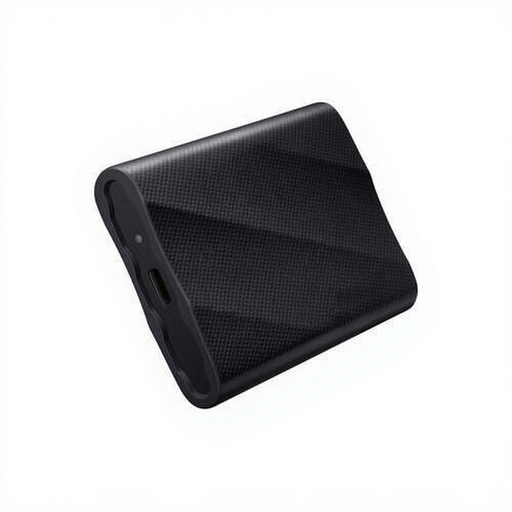
Samsung T9 external SSD, 1TB, model MU-PG1T0B

Samsung T9 1TB MU-PG1T0B

A portable T9 model for project files, if 1 TB suits your intended use.

Capacity: 1 TB. Samsung quotes read and write speeds of up to 2.000 MB/s for the T9.

Transfer speed also depends on the connection and cable you use.

View at Joybuy

SanDisk portable external SSD, 1TB

SanDisk Portable SSD 1TB

A portable storage option for project files if read speeds of up to 800 MB/s suit your workflow.

Capacity: 1 TB. The product listing specifies drop protection from up to 2 metres and the option to attach it to a belt or rucksack.

View at Joybuy

Frequently asked questions

Will an SSD rated ‘up to 2.000 MB/s’ run that fast on your computer?

Not necessarily. Check the supported port speed and cable: for the stated XS2000 performance, Kingston specifically requires USB 3.2 Gen 2x2 and the included cable. File type and usage conditions may also differ from a manufacturer’s test.

What should you do before reformatting or disconnecting an SSD?

First copy any files you want to keep, as formatting erases data on the drive. In Windows, safely eject the drive before unplugging the cable to reduce the risk of data loss.

Does a rugged external SSD replace a backup?

No. A backup is a separate copy that lets you retrieve files if they’re lost, so keep a recent copy somewhere other than your working drive. Encryption can restrict access, but it doesn’t replace that copy.

In the Netherlands, are you only entitled to the manufacturer’s warranty?

No. If you buy as a consumer, you’re also entitled to a legal guarantee: if a product is faulty, the seller must provide a solution. According to the Dutch government, the Netherlands has no fixed statutory guarantee period; what you can expect depends, among other things, on the product and the information provided.

Are there additional security requirements if your design files contain customers’ personal data?

Potentially. Organisations that process personal data must assess security risks and be able to demonstrate that they have appropriate security measures in place. The measures required depend on the circumstances and aren’t determined solely by your choice of SSD. The Dutch Data Protection Authority lists the loss of portable storage media as a risk.
