
Vandaag of morgen in huis

Kwaliteit gegarandeerd

Welkomstaanbiedingen ontgrendelen: GRATIS bezorging | Tot 80% korting | Gratis 30 dagen JoyPlus-proefperiode
Download de app
An external SSD has become an indispensable tool. Whether you're a creative professional moving large files, a gamer needing more storage, or simply want to secure your important documents and photos, the speed and reliability of a portable SSD are unparalleled. But the market is flooded with models boasting impressive specifications. How do you separate the wheat from the chaff and avoid buyer's remorse?
As a Joybuy Product Recommendation Officer, I'll help you see through the marketing claims. Here are the most common pitfalls and how to avoid them.
Manufacturers advertise dizzying speeds like "up to 2,000 MB/s". What they often don't tell you is that you can only achieve this speed if your computer or laptop also has the correct, most modern USB port (like USB 3.2 Gen 2x2). If you connect a fast external SSD to an older USB port, you're paying for performance you'll never use. The speed will be limited by the weakest link: your own device.
A low price for an external SSD from an unknown brand seems tempting. Often, corners are cut on crucial components: the housing is made of thin plastic, there's no drop protection, and the internal components are of lower quality. A portable SSD is carried around and used frequently. A model that fails after a small bump or drop is not only a waste of money but can also lead to the loss of irreplaceable data.
More isn't always better. Buying a 4TB external SSD when you only store some documents and holiday photos is unnecessarily expensive. Conversely, a 1TB external ssd is too small if you plan to edit 4K videos or store a large game collection. A thoughtful choice saves money and frustration.
To make the right choice, focus on the specifications that truly matter for your use case.
First, check which USB ports your computer, laptop, or console has. This determines the maximum speed you can achieve.
An SSD with a higher specification will also work on a slower port, but at the lower speed.
Make a realistic estimate of your storage needs.
Check if the SSD is compatible with your operating system. Many drives are formatted for Windows by default. For an external ssd for mac, you may need to format the drive to APFS or HFS+ yourself. If you want to use the drive on both Windows and macOS, the exFAT format is a good option. Also, pay attention to features like drop and water resistance (IP rating) if you plan to carry the portable SSD with you often.
Based on objective specifications, we have selected a number of models that suit different user profiles.
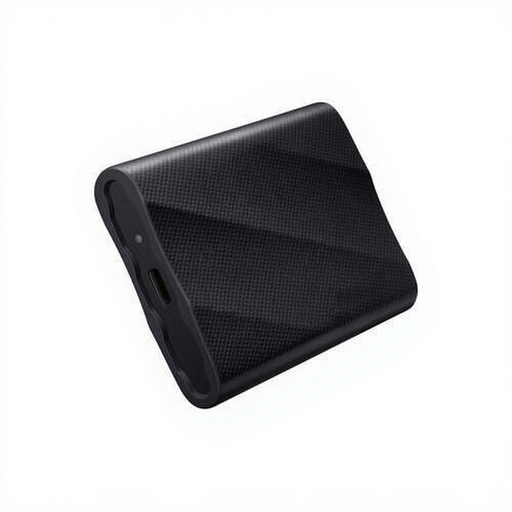
Why This Fits Their Persona: For creatives who work with large 4K video files or need to make quick backups on the go, the T9's maximum speed is crucial. The rugged, drop-resistant housing provides extra peace of mind during travel.
This SSD uses USB 3.2 Gen 2x2. If your device supports it, you will actually achieve speeds up to 2,000 MB/s, unlike models that advertise high speeds but are limited by an older USB standard.
Read and write speeds up to 2,000 MB/s; drop-resistant up to 3 meters.
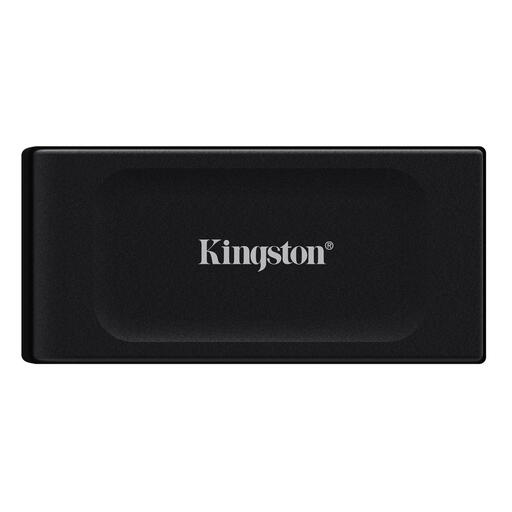
Why This Fits Their Persona: Perfect for expanding the storage of a PS5 or Xbox. You can play PS4 games directly and archive PS5 games to quickly free up space. The 2TB capacity provides room for a substantial game library.
Offers an excellent balance between price and capacity. Instead of overpaying for the absolute fastest specs that aren't always necessary for gaming, you get great value for your money with 2TB.
Large 2TB capacity; very compact and lightweight (29 grams).
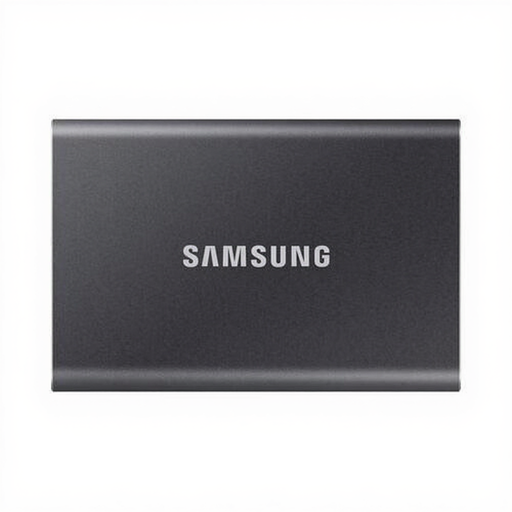
Why This Fits Their Persona: For students and remote workers who need a reliable, fast, and compact drive for documents, photos, and backups. The T7 is a proven and popular choice that works with virtually any device.
With 1,050 MB/s, the T7 offers a very noticeable speed upgrade over a traditional hard drive, without the premium price of a Gen 2x2 drive. A solid, reliable choice that won't disappoint.
Excellent price-to-performance ratio; compact and lightweight (58 grams).
We have compiled a complete, up-to-date list of products that fully meet these strict selection criteria and local regulations.
Yes, in most cases. External SSDs are often formatted for Windows (NTFS) by default. To use an external ssd for mac optimally, you should format it to APFS using 'Disk Utility'. If you want to use the drive on both macOS and Windows, choose exFAT. Keep in mind that formatting erases all data on the drive.
An external SSD is significantly faster. While a traditional external hard drive (HDD) with moving parts reaches speeds of 100-150 MB/s, a standard external SSD easily reaches 500 MB/s. Faster models go up to 1,000 MB/s or even 2,000 MB/s. This means files are transferred much faster, programs load quicker, and the drive is more resistant to shocks.
The easiest way is to look up the specifications of your laptop or motherboard online. Sometimes there is a symbol or text next to the port itself. A USB 3.2 Gen 2 port is often indicated with "10Gbps" or an "SS10" logo. A USB 3.2 Gen 2x2 port is rarer and is sometimes indicated with "20Gbps". If you're not sure, assume that a port on a computer that is a few years old is likely Gen 1 or Gen 2.
