Vandaag of morgen in huis

Kwaliteit gegarandeerd

Welkomstaanbiedingen ontgrendelen: GRATIS bezorging | Tot 80% korting | Gratis 30 dagen JoyPlus-proefperiode
Download de app
A slow laptop, a full hard drive on your PlayStation 5, or the fear of losing that one crucial photo folder. An external SSD seems like the perfect solution: fast, compact, and increasingly affordable. But the market is flooded with models that promise the world. Many of these promises are based on marketing gimmicks designed to make you overspend or leave you with a product that doesn't suit your needs.
As a Product Recommendation Officer at Joybuy, I see where things go wrong every day. Before you make a choice, it's essential to recognise these common pitfalls.
You don't need to be a tech expert to avoid a bad purchase. Pay attention to the following three points, and you're guaranteed to make a better choice.
The speed of an external SSD depends on two things: the drive itself and the USB port on your device. These are the most common standards:
Tip: Check the specifications of your laptop, Mac, or motherboard to see which USB version your ports have. This ensures you invest in fast external storage that you can actually take full advantage of.
The required capacity is a personal choice, but here's a rule of thumb:
Most external SSDs are formatted for Windows. If you use a Mac, you'll need to format the drive yourself. This is a minor step, but something to keep in mind. An SSD for Mac that is "Time Machine ready" will work right out of the box. For use with a PS5 or Xbox, a specific format is also sometimes required, which the console can usually handle itself.
Based on objective specifications and user profiles, we have selected a number of models that avoid the pitfalls mentioned above.
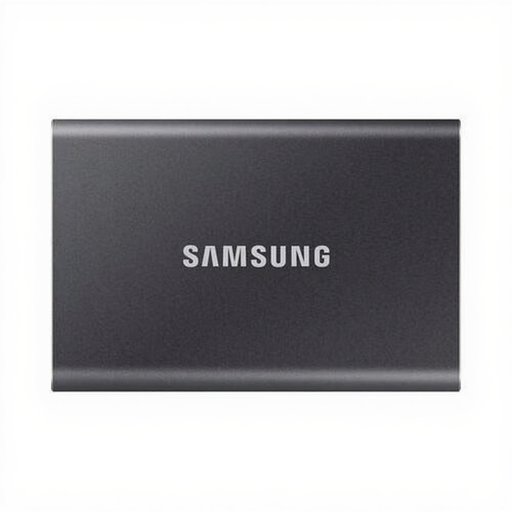
Why this fits: For backups, schoolwork, photos, and occasionally moving a large file. The T7 offers an excellent balance between price and performance, without making you pay for top speeds that most standard laptops can't handle anyway.
This model bypasses the "speed myth." Its 1,050 MB/s is a realistic speed that perfectly matches the USB 3.2 Gen 2 ports on most modern devices, ensuring you get value for your money.
Proven reliability and a compact, lightweight design (58 grams). Includes USB-C to C and USB-C to A cables for broad compatibility.
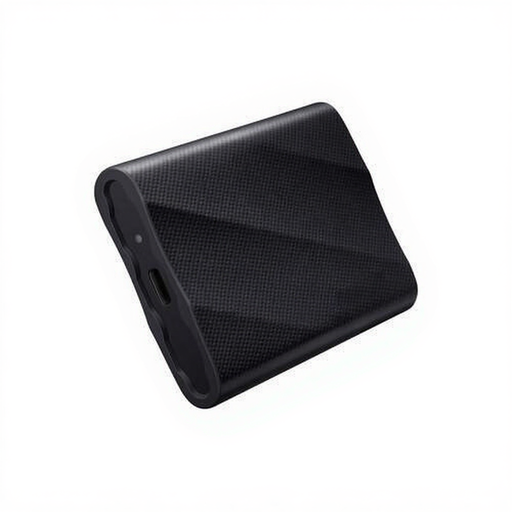
Why this fits: For professionals working with 4K/8K video files or large graphic design projects. Time is money, and the T9 is designed to minimise wait times, provided you have the right hardware.
This model sidesteps the "price-per-terabyte" illusion. It's more expensive, but it delivers consistent, high write speeds essential for a professional workflow, unlike cheaper alternatives that throttle quickly.
Speeds up to 2,000 MB/s via USB 3.2 Gen 2x2. Samsung's Dynamic Thermal Guard technology helps prevent overheating, keeping performance stable during sustained, heavy workloads.
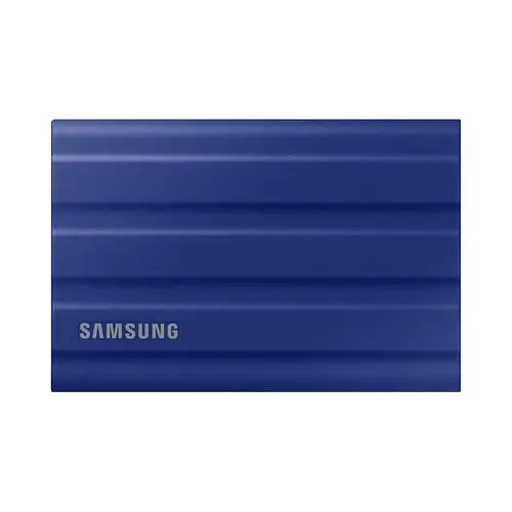
Why this fits: Ideal for expanding your PS5 or PC game library, or for photographers working on location. The extra protection provides peace of mind in a dynamic environment.
This model tackles "false ruggedness." Its rubberised housing and IP65 rating for dust and water resistance offer genuinely better protection against the bumps and splashes of daily life than a standard metal case.
Durability without sacrificing speed. At 1,050 MB/s, it's fast enough to store PS5 games and play PS4 games directly from the drive, while its sturdy build makes it perfect for life on the go.
We have compiled a complete, up-to-date list of products that fully meet these strict selection criteria and UK regulations.
Yes, in most cases. Most SSDs are formatted for Windows (NTFS) by default. To use an SSD for Mac, you need to format it to APFS (for exclusive Apple use) or ExFAT using 'Disk Utility'. ExFAT is a great choice if you want to use the drive on both macOS and Windows.
The main difference is the technology. A traditional external hard drive (HDD) uses a spinning platter and a read/write head, similar to a record player. This makes it mechanical, slower, and more susceptible to shock. A portable SSD has no moving parts and uses flash memory, just like a USB stick but much faster and more reliable. As a result, SSDs are significantly faster, more durable, and more compact, but typically offer less storage for the same price.
The lifespan of an SSD is often expressed in Terabytes Written (TBW), which indicates how much data you can write before the memory cells begin to wear out. For the average user, this number is so high that the drive will likely outlast the computer you use it with. The chance of failure due to a manufacturing defect or physical damage (like a broken port) is generally greater than the chance of you "wearing out" the drive. Therefore, making regular backups always remains a wise practice.